A book inside Bible
“Image of God”
Purchase and reading guide
Toru Asai’s Image of God uses the same reader as Bibles and commentaries. You can inspect its cover and contents before purchase, then use search, notes, bookmarks, highlights, speech, and split panes after activation.
View the cover and contents before purchase
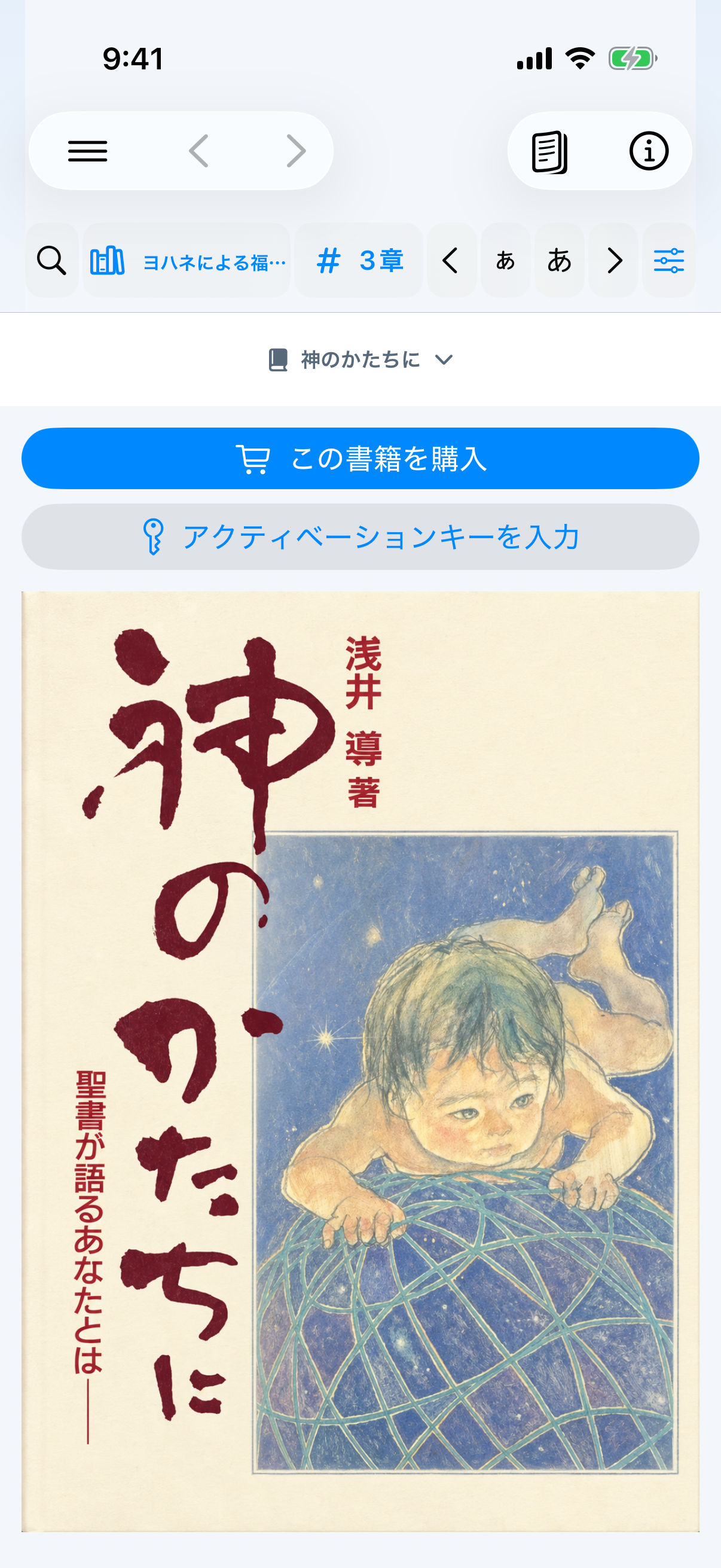
- Open Bible from the bottom bar or three-line menu. A new installation starts in the spacious one-pane layout.
- Tap the resource name at the top and choose Image of God under Books.
- Scroll through the cover and table of contents.
- If you already purchased the book, tap Enter activation key directly below Purchase this book. Selecting a protected body entry opens the same activation sheet.
The title, cover, and table of contents are available before purchase. Reading the body requires the six-digit key issued after purchase.
Purchase and activate with a six-digit key
- Tap Purchase this book on the pre-purchase screen.
- The app opens the store.davarkg.com product page. Complete the purchase there.
- Locate the six-digit key issued after purchase.
- Return to the app and tap Enter activation key directly below the purchase button. No app sign-in is required.
- Enter all six digits. The app displays the middle hyphen automatically, as in
111-111. - Tap Activate and download. An unused, valid key downloads the body to this device.
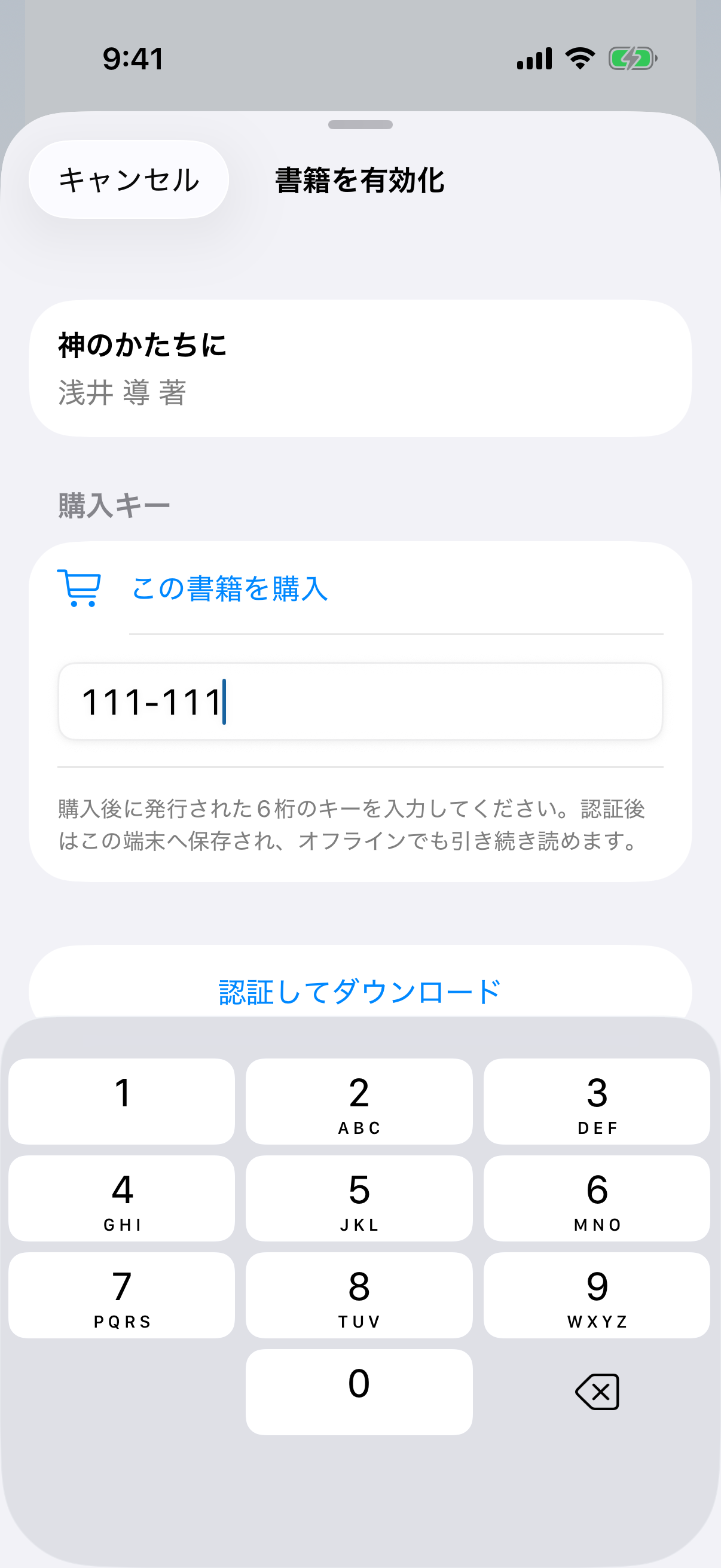
111-111 is a dummy number that only demonstrates the format; enter the key issued with your purchase.If the key is rejected: Check all six digits, then confirm with the seller that the key is unused and unexpired. New activation requires internet access, but it does not require an app sign-in.
Reader icons after purchase
- ☷ Contents & Search (list.number)Open the table of contents and jump to a heading, or search the body from the same screen.
- 🔖 BookmarkAdd or remove a bookmark at the current text position, then return from Saved items.
- ≡ Reading modeContinuous, the default, reflows the body for the screen. Original preserves printed page numbers and boundaries.
- ▯ Pane layoutChoose one, two, or three panes and the supported horizontal or vertical split.
- ‹ › Previous / NextIn Original mode, move through printed pages; in Continuous mode, move through adjacent content sections.
- 🔊 Read aloudStart at the currently open original-page position, advance one page at a time, and continue to the end of the book unless stopped. The player offers stop, pause, 15-second back/forward, speed, and AirPlay/Bluetooth output. Playback continues in the background, appears on the Lock Screen and in Control Center, and saves a resume position.
- Select textSelect one or more text units to highlight, add a note, copy, share, or begin speech from that point.
- Notes / Bookmarks / HighlightsReturn to saved book locations from the same Saved area used by Bible.
Read beside the Bible in two panes
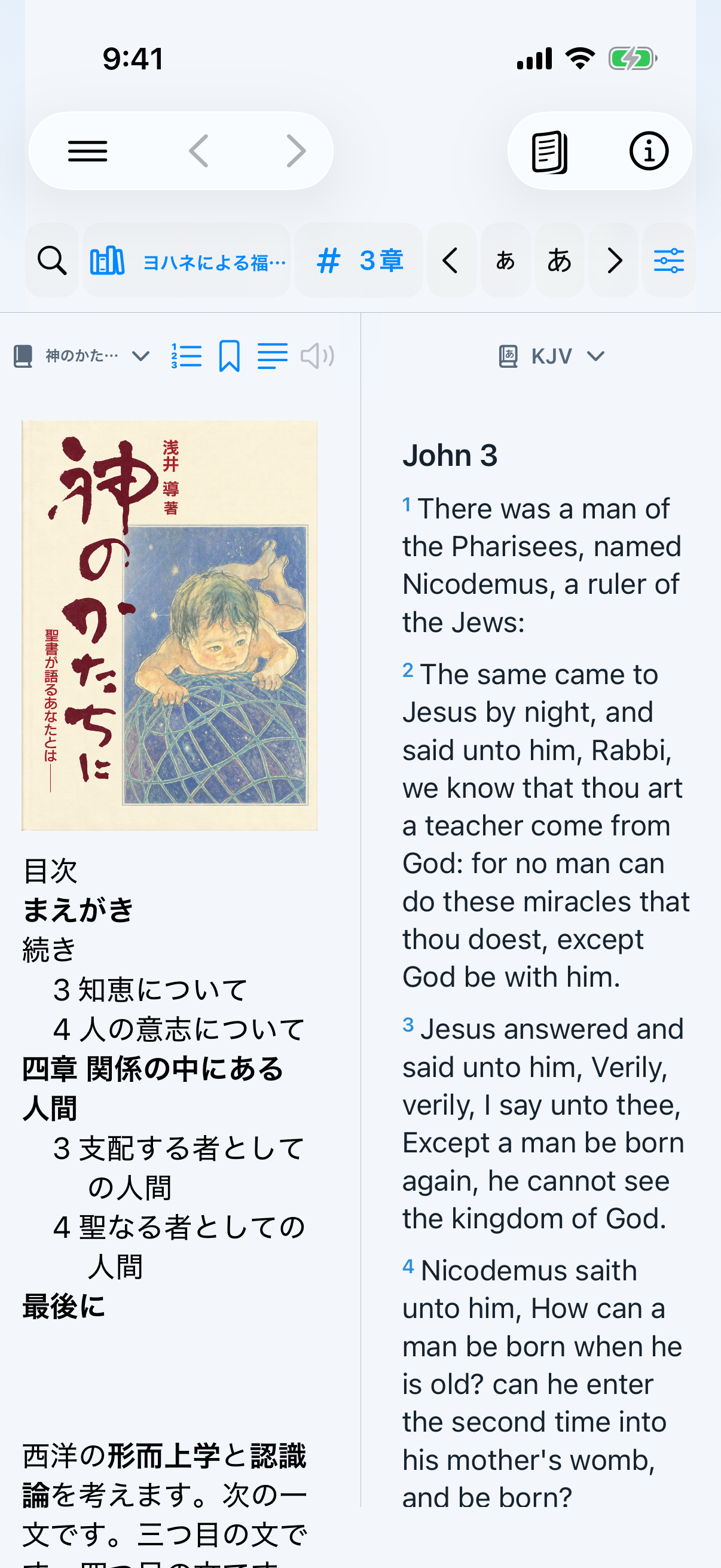
- Tap Pane Layout and choose two panes.
- Assign Image of God to one pane and Kougo-yaku, KJV, or another Bible to the other.
- Choose horizontal or vertical division and drag the divider to adjust the reading ratio.
- Keep a cited or related Bible passage visible while reading the book.
Maximize the reading area in one pane
- Choose one pane from Pane Layout.
- The Bible-only book/chapter row is hidden for this book, leaving more vertical reading space.
- In the default Continuous mode, the text flows without printed-page line breaks or verse numbers.
- Switch to Original only when you need to compare printed page numbers and boundaries.
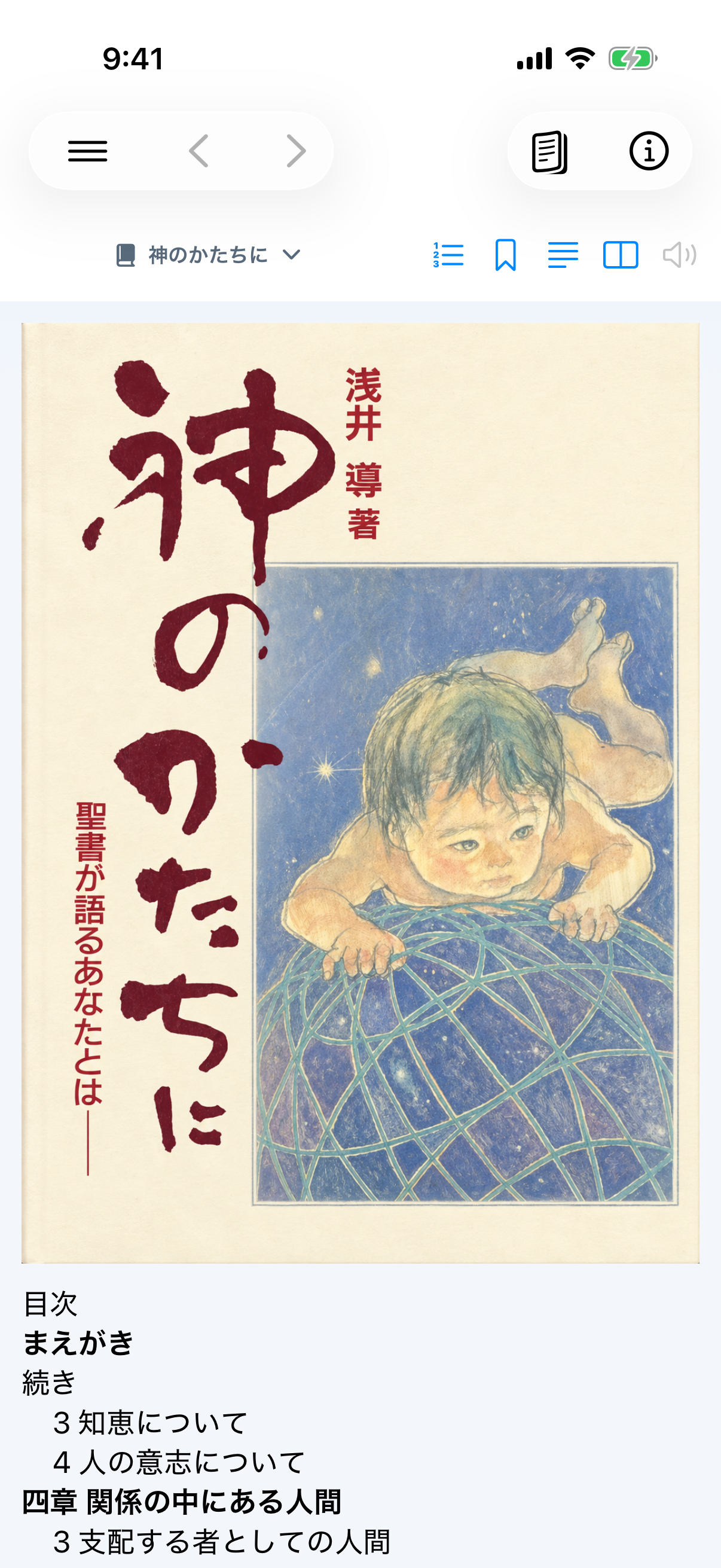
Improvement in iOS 1.20 (build 248, waiting for App Review): Continuous mode reads across printed-page boundaries, while the page indicator, bookmark, speech, and switch to Original mode use the current position where scrolling settles. This improvement becomes available after Apple releases version 1.20.
Book updates in iOS 1.20 build 248 and later: Body text, chapter and section headings, quotations, and paragraph structure are rendered from the server book data, so later book corrections do not require another App Store submission. Systematic numbered explanations place each item on a new indented line and bold the number or ordinal lead. In the default Continuous view, pull the page down and release it to check for the latest revision. A validated revision is saved before it appears. If the connection or update fails, the saved copy remains available.
After the first activation: The book and its reading authorization remain on this device for offline reading. Notes, bookmarks, and highlights use the Bible reader’s shared saved-item system.