Android Preview 1.36 · versionCode 38
Announcements & Orders
Read full notices and open their images and links. Review an order before submitting it. Notice and order management require the corresponding permissions.
Tap a manual illustration to open it in a new tab; use your browser’s zoom to inspect details.
These are Android screens. Labels may differ with the selected language or available content; change the app language in Settings.
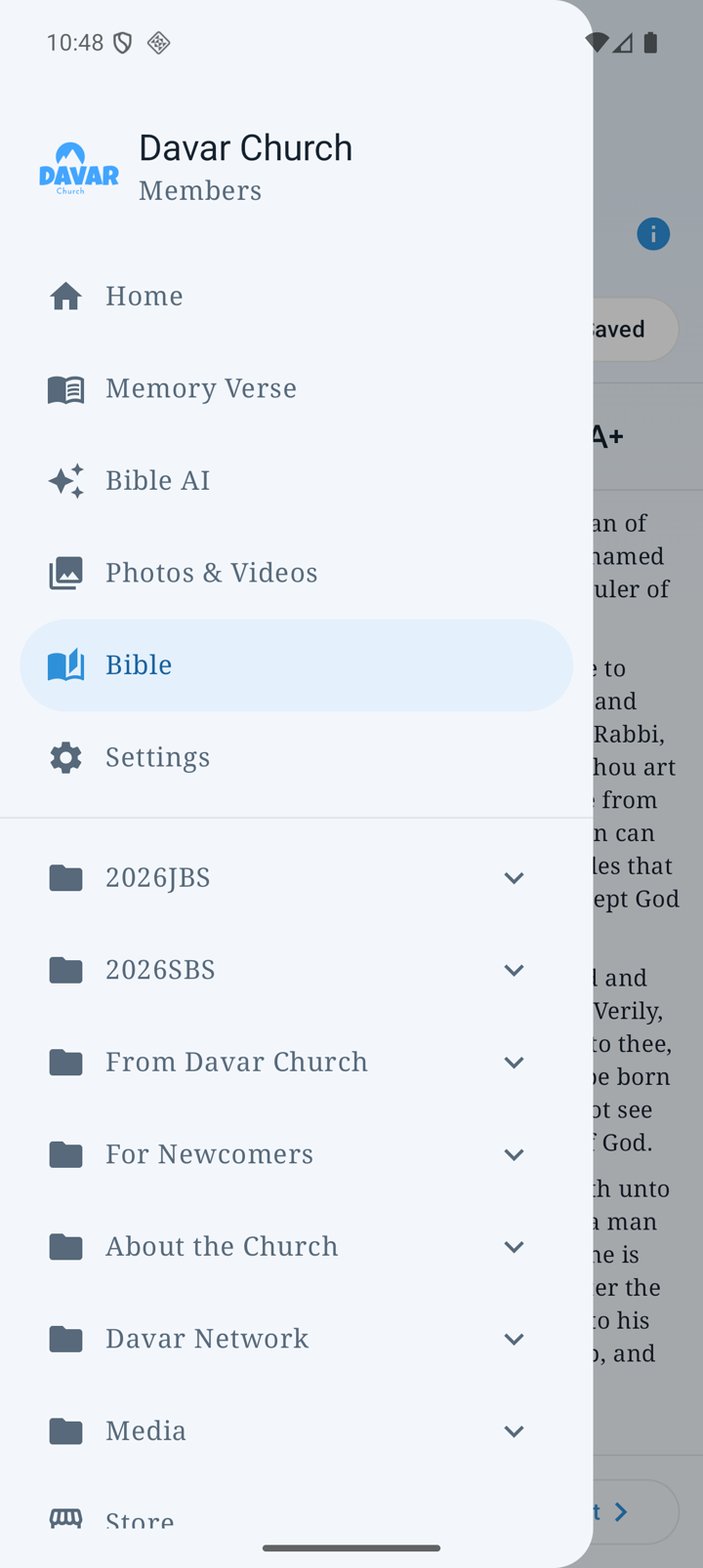
Find notices and orders
- Open an announcement on Home or the notice list from the menu.
- Tap an ordinary notice to read the entire message, including long text.
- Use its separate email or HTTPS-link actions to open the intended app or page.
- An order announcement opens that exact order after sign-in and a fresh availability check. Closed/unavailable orders show a message. After a connection failure, pull down on Orders to retry.
Full text and email drafts
Email opens an addressed draft with a subject and the complete message. Check it and send it yourself in your mail app. HTTPS web and map links can be opened from the message or its URL field.
Notices stay hidden until publication starts, and access to their full text and images ends at the end time. This does not retract a notification already displayed on a device.
Open an image
- Messages initially display small generated thumbnails.
- Tap an image to load its stored original.
- Pinch with two fingers to zoom in or out; Close returns to the message.
- Images may become unavailable after publication ends or access changes.
Viewing the stored original
The list uses a thumbnail; opening it uses the stored original. Older images open at their saved size.
Place an order
- Open Orders from the menu and choose an open order. Follow the sign-in prompt if shown.
- Read the instructions and products; tap an image to enlarge it. Check your name/email, select the products and set quantities with −/+.
- Add an optional comment, then tap Review order.
- Check the customer details, products, quantities and comment. Go back to change them or tap Submit order once.
- Check History for the saved order. Open orders can be edited/cancelled; closed orders are read-only. Use the email-verification recovery instructions for history on another device.
Compose and schedule a notice — authorized senders
Open Settings → Administration → Send an Announcement. If administrator authorization is requested, use the authority supplied by the church. Management controls are not available to ordinary readers.
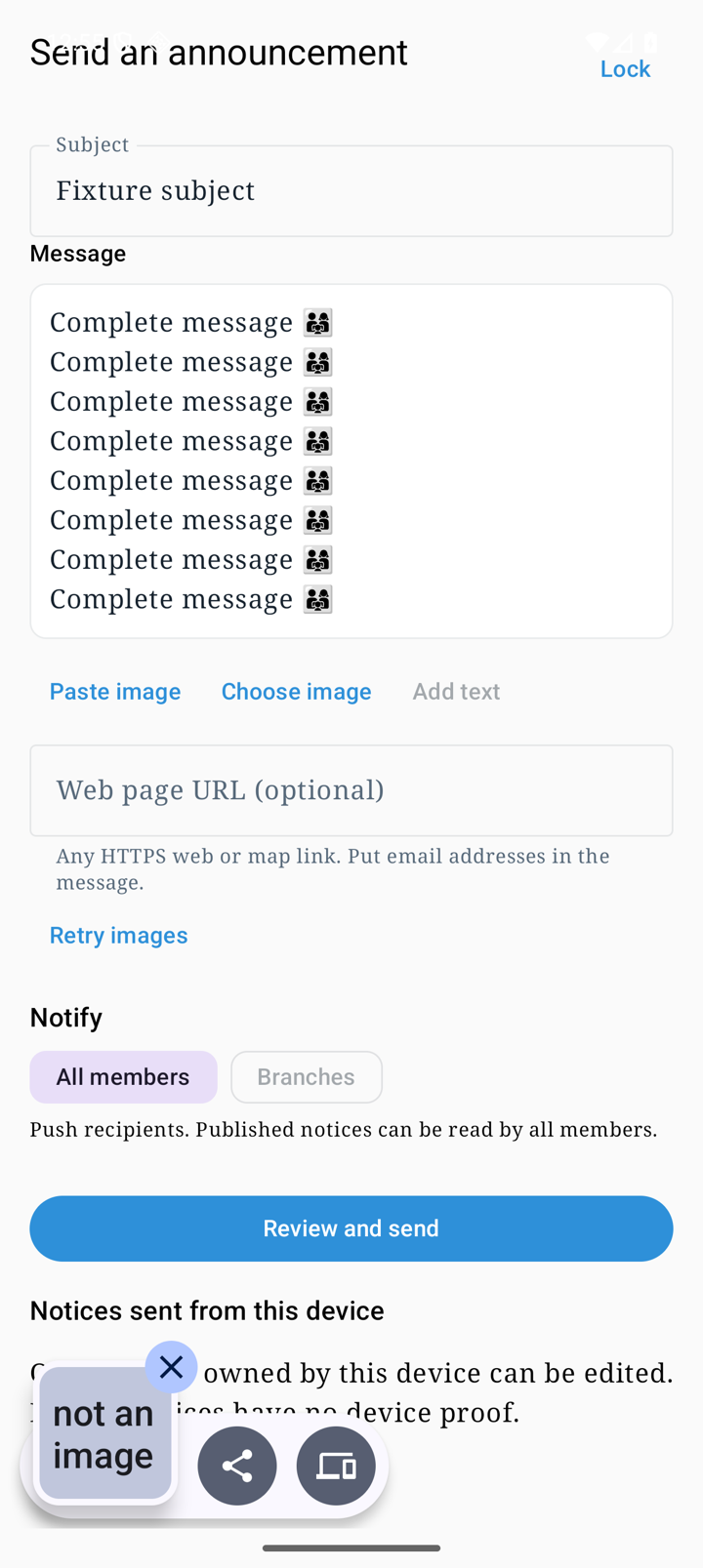
Check the subject, message and images
- Enter Subject and Message. Copy one image and paste at the text cursor, or choose an image.
- Optionally add an HTTPS web/map URL; put email addresses in the message.
- Choose All members or Branches; branch delivery requires at least one selection. These are Push recipients; the published notice remains readable by all members.
- For a schedule, turn on Schedule publication and notification and choose start/end in Los Angeles time. Immediate publication can also have an end time.
- Use Review and send to check content, audience and times before confirming. If the outcome is unconfirmed, use Retry saved request to resolve that same operation.
Edit after sending or change its times
- Under Notices sent from this device, choose Read and edit. Only notices with this device’s sender proof are editable.
- Future scheduled notices can also be edited when offered. Use Review and save for their content, and Change scheduled time separately where available.
- For an active notice, use Change end time; use Finish or Cancel scheduled notice only when the corresponding action is offered for its status.
- Saving content does not resend audience Push. Test notification on this device is available only for this device’s registration. Provider acceptance and display on the phone are separate results.
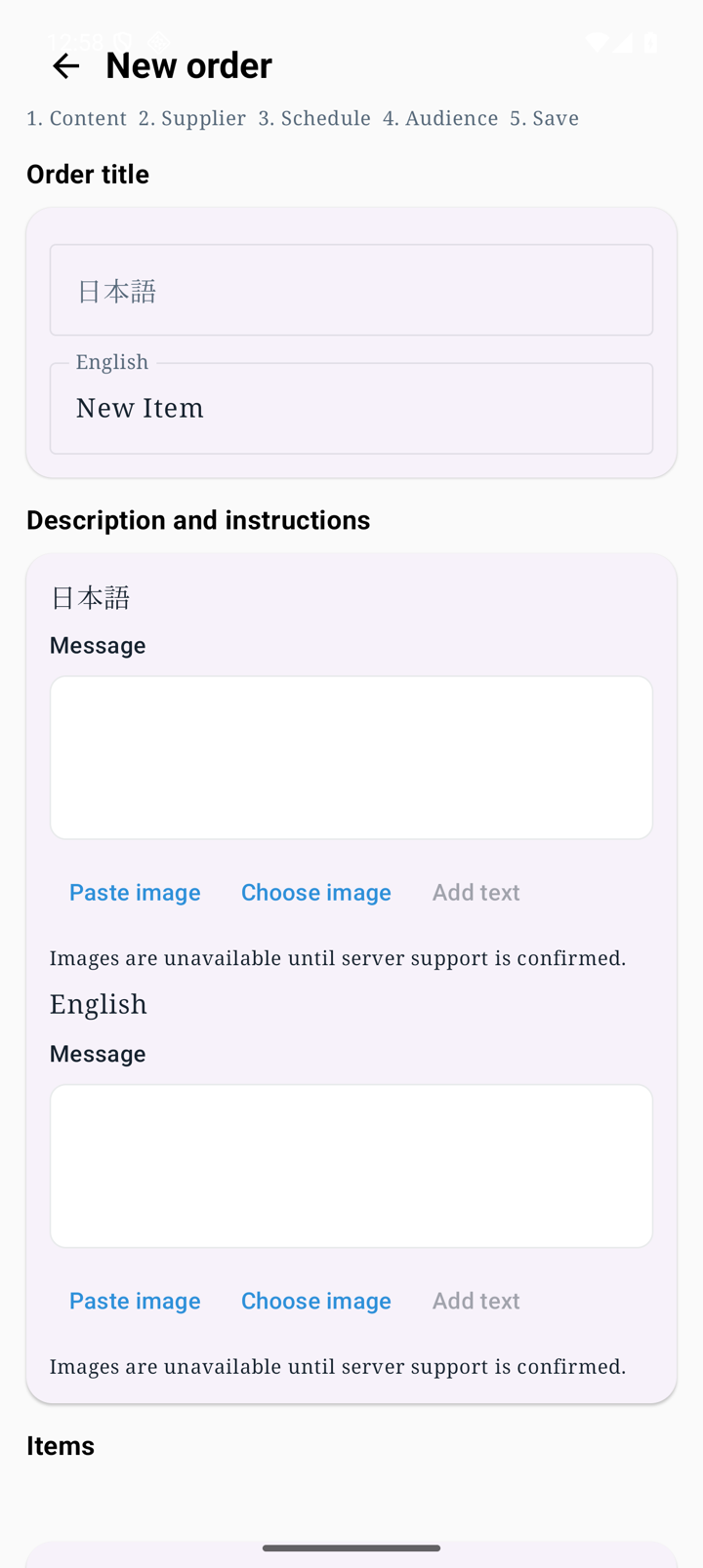
Manage order settings — permission required
- Open Settings → Administration → Order settings, then New or Edit.
- Enter Japanese/English titles, instructions and products. Insert images in guidance or product text, with up to 20 displayed images per language across the whole order.
- Check supplier email, optional CC, Los Angeles opening/closing times and audience. Fill empty translations preserves existing text and image placement.
- Review and save. Starting/closing acceptance, publishing an announcement and scheduling Push are separate actions afterward; saving does not resend the same notification.
- The whole draft and unconfirmed save are retained. After a concurrent-edit merge, review and save again. If another session’s unresolved private draft is reported, ask the administrator for help rather than recreating and duplicating it.