Picture guide
Start with these screens
Read the Bible one step at a time. Tap the pictured controls on your iPhone or iPad.
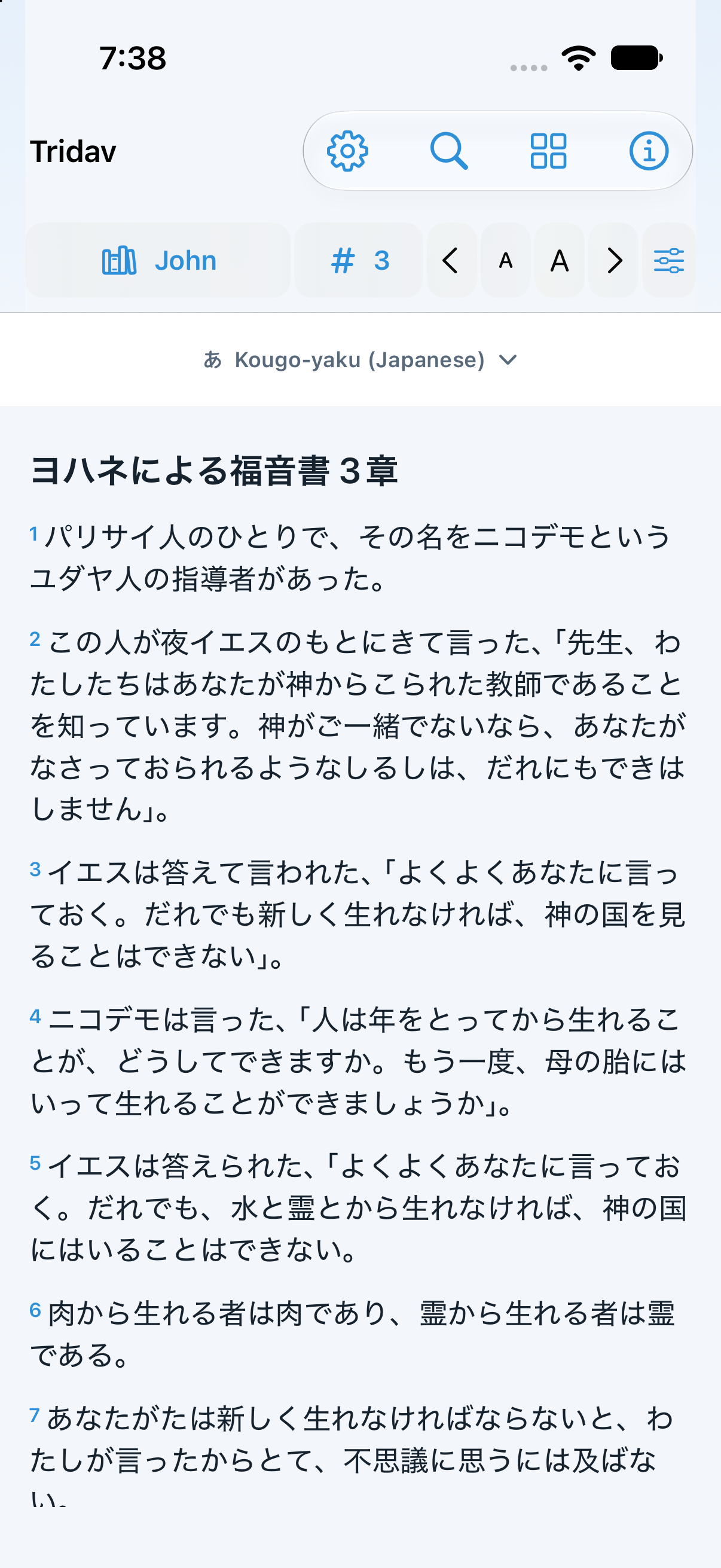
1. Open and read
The Bible opens when you start Tridav. Tap the book or chapter name to move.
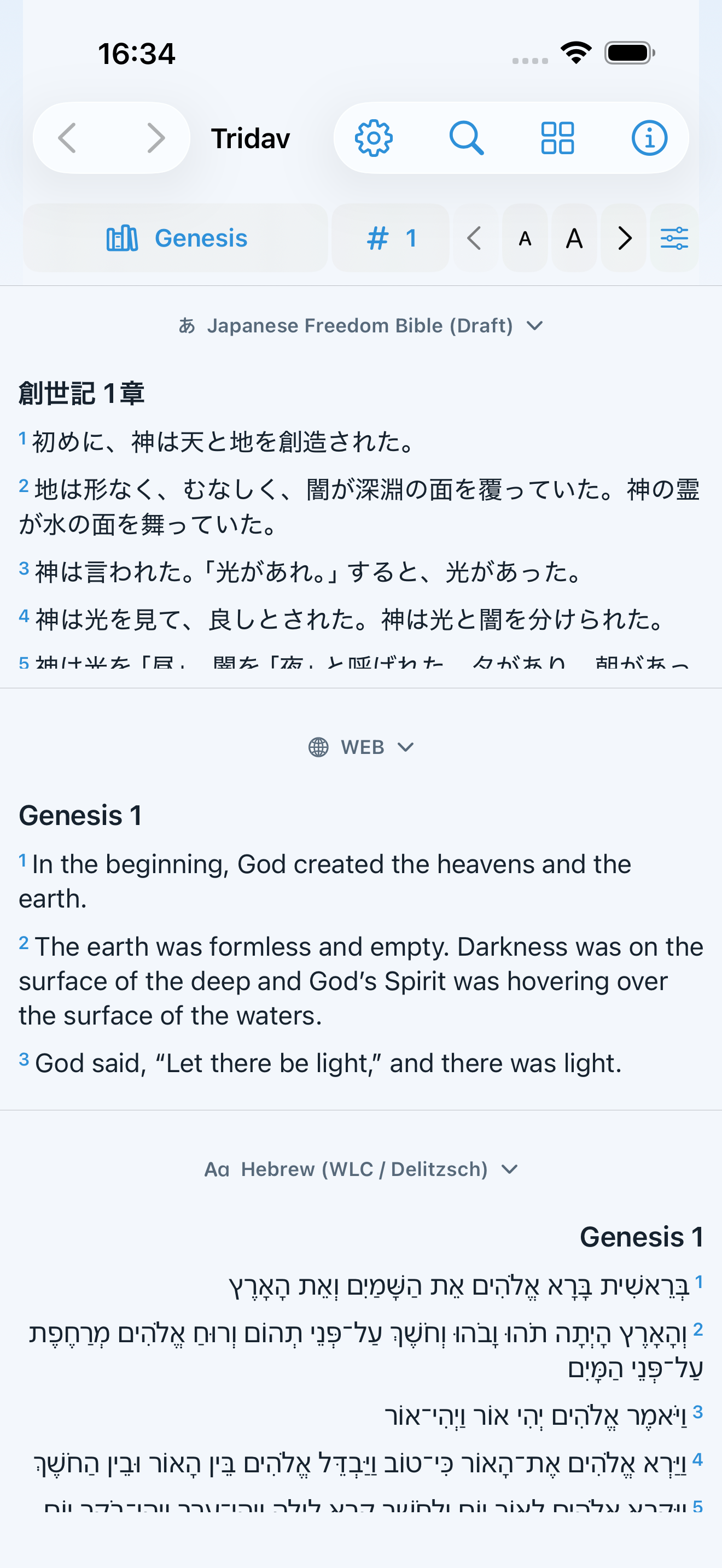
2. Compare texts
Open Reader options (sliders), then choose two or three panes. Tap each resource name to choose a text.
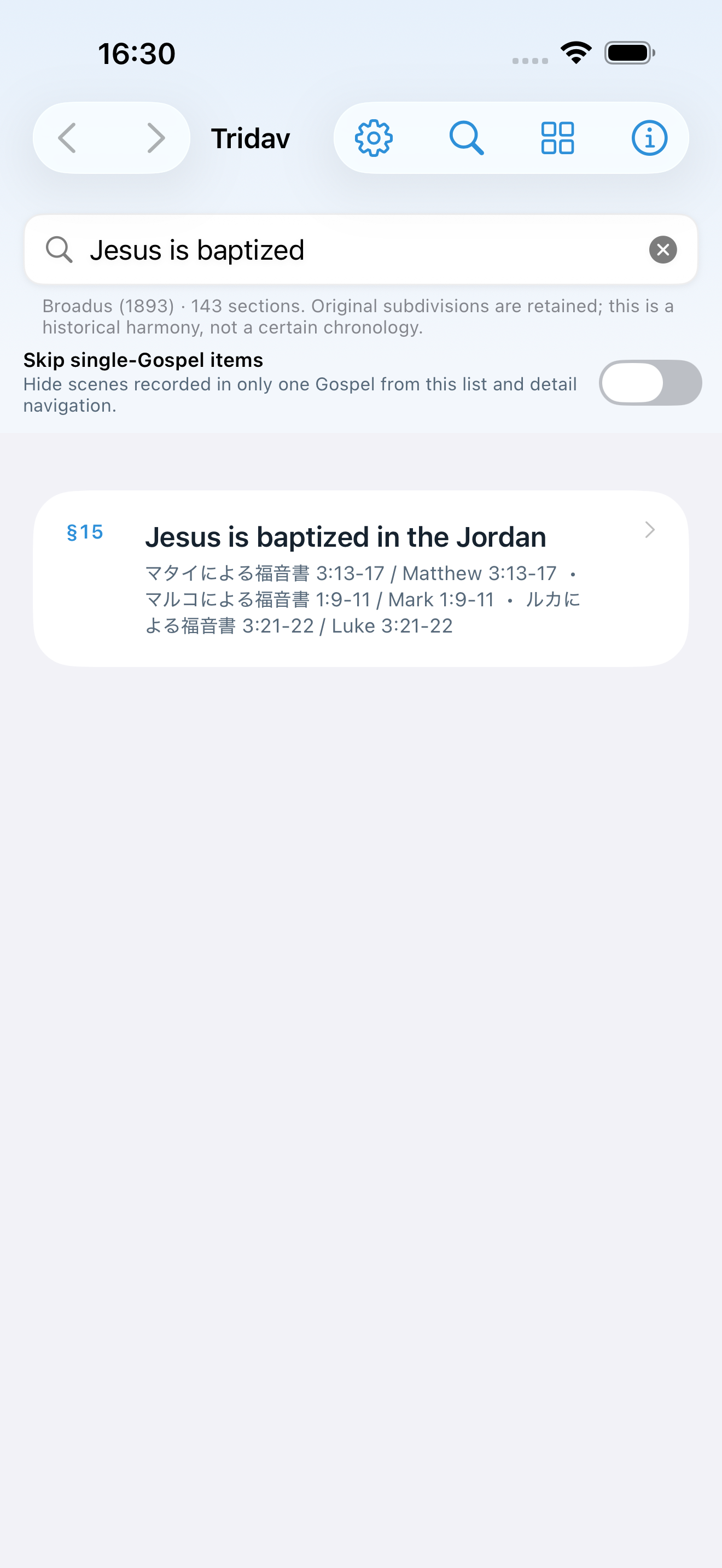
3. Compare Gospel accounts
Tap the four-square menu, then Parallel. Search for an event and tap a result.
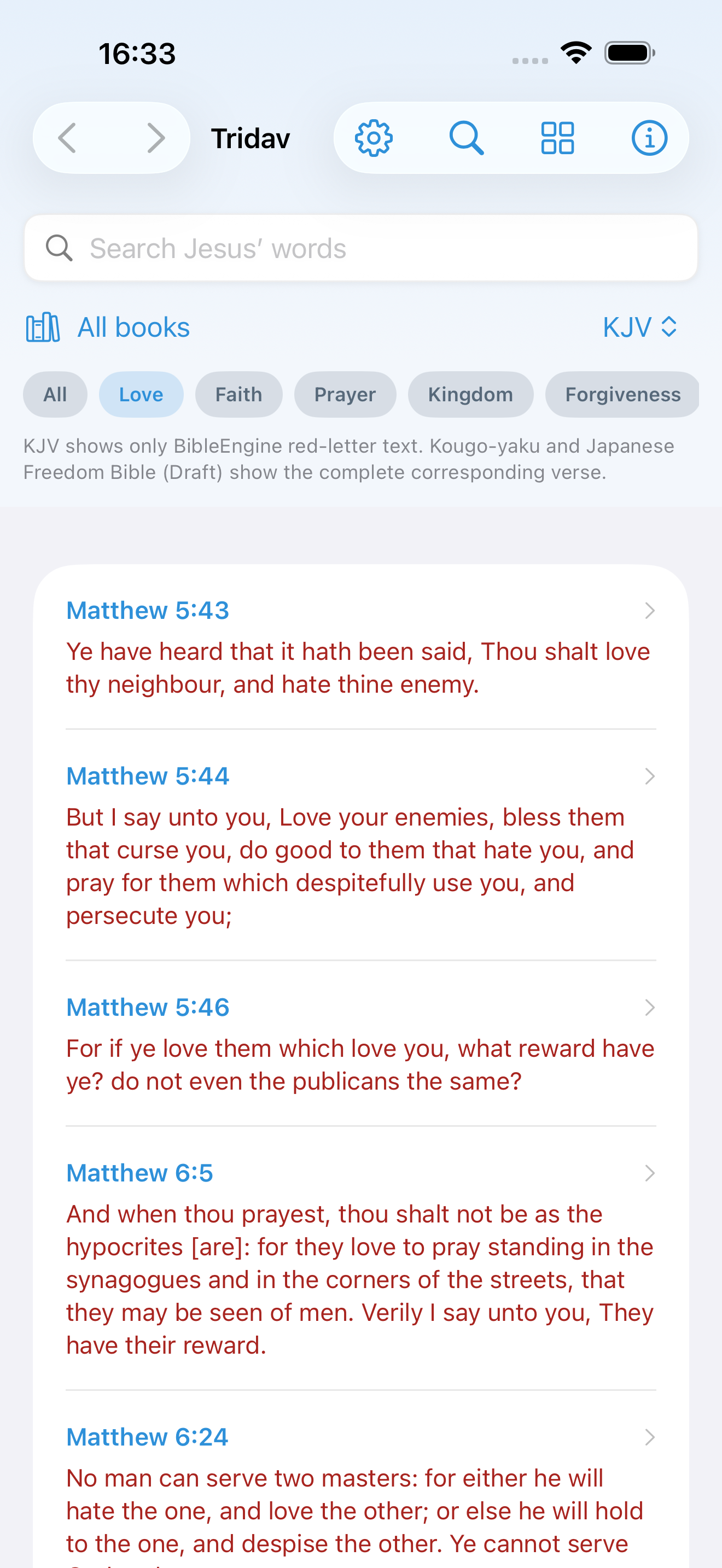
4. Find Jesus’ sayings
Open the four-square menu, then Jesus. Tap a result to return to its Bible verse.
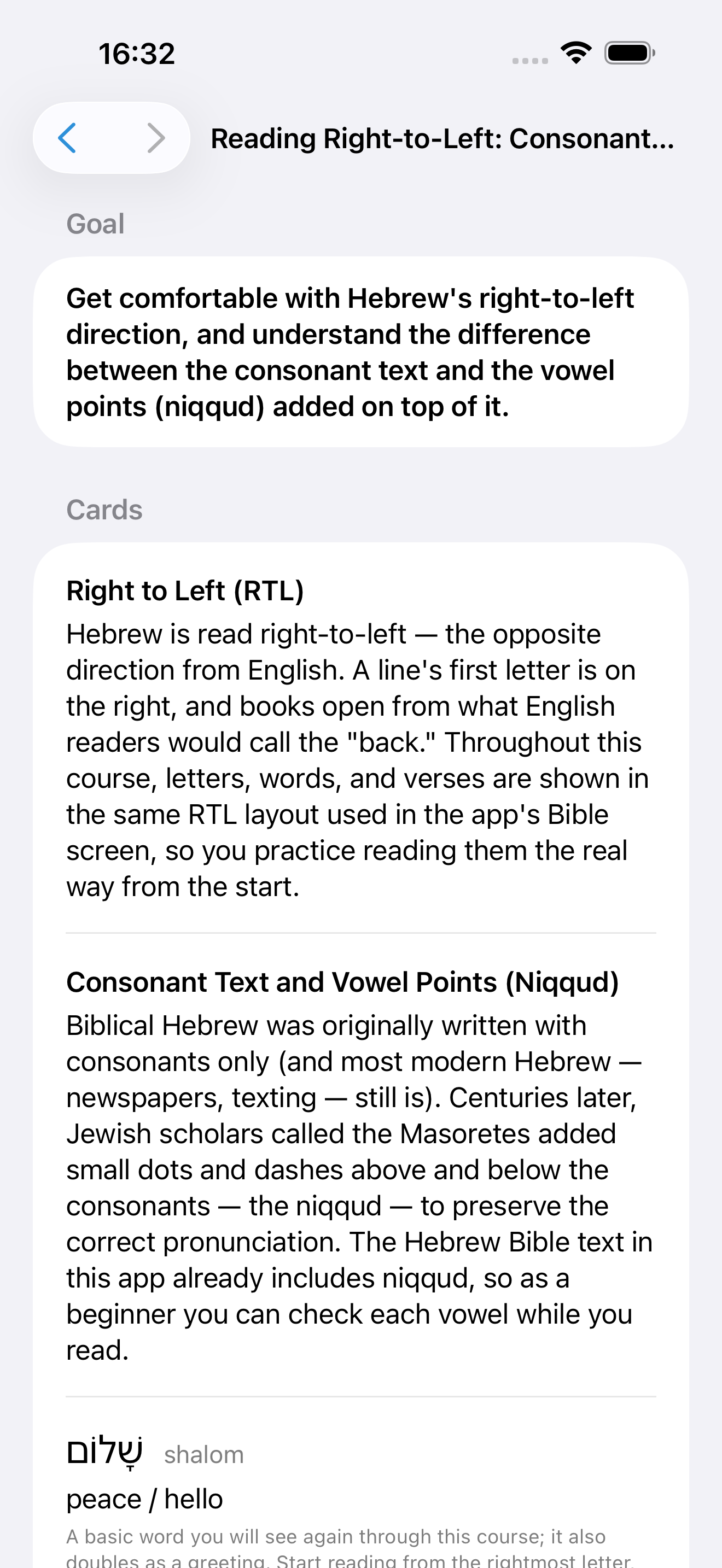
5. Try Hebrew 101
Open the four-square menu, then Biblical Hebrew 101. Choose Lesson 1 to begin.
Three more useful controls
- Magnifying glass: search Bible text.
- Gear: change language, text size, appearance, and translation settings.
- Tap a verse to save a bookmark, highlight, or note. Reader options also starts read-aloud.
All features are available during the campaign through October 31, 2026, 23:59 JST. No trial or purchase is needed during that period.
The first screen was captured on the iOS 27 simulator. Other screens are genuine iPhone app captures from the 1.0 release. In 1.0.2, “Japanese Freedom Bible (Draft)” appears as “JFB”; some controls may have moved. Translation needs a supported device and downloaded Apple language data. Your notes stay on this device; Tridav does not sync them.
Need help? Email webteam@davar.org with your app version and what you tapped. Do not send passwords or private notes.