How to stream MP4 → Coming in Mac 1.1.2 and iPhone / iPad 1.1.1. As of September 25, 2026, these streaming versions are waiting for App Review and are not yet publicly available.
Explore Mac storage tools → On Mac, CloudDisk also helps you inspect bucket size, review existing lifecycle rules and find the prefixes using the most space.
01 · PREPARE
Before you start
You need a storage account, at least one bucket, and credentials allowed to list that bucket. To add, rename, upload, or delete files, the credentials also need the corresponding write permissions.
Access keys are stored in the device Keychain. They are not written to CloudDisk's database or ordinary files.
One setup per deviceAccounts and credentials are configured locally. Repeat setup on each Mac, iPhone, or iPad where you want to use the bucket.
Provider charges still applyCloudDisk uses normal storage requests. Downloads, uploads, listing, retrieval, and early-deletion fees are billed according to your provider's terms. Cost figures in CloudDisk are estimates, not your bill.
02 · CONNECT
Connect your first account
Open CloudDisk and choose Add Account. On a device with no accounts yet, the setup flow opens automatically.
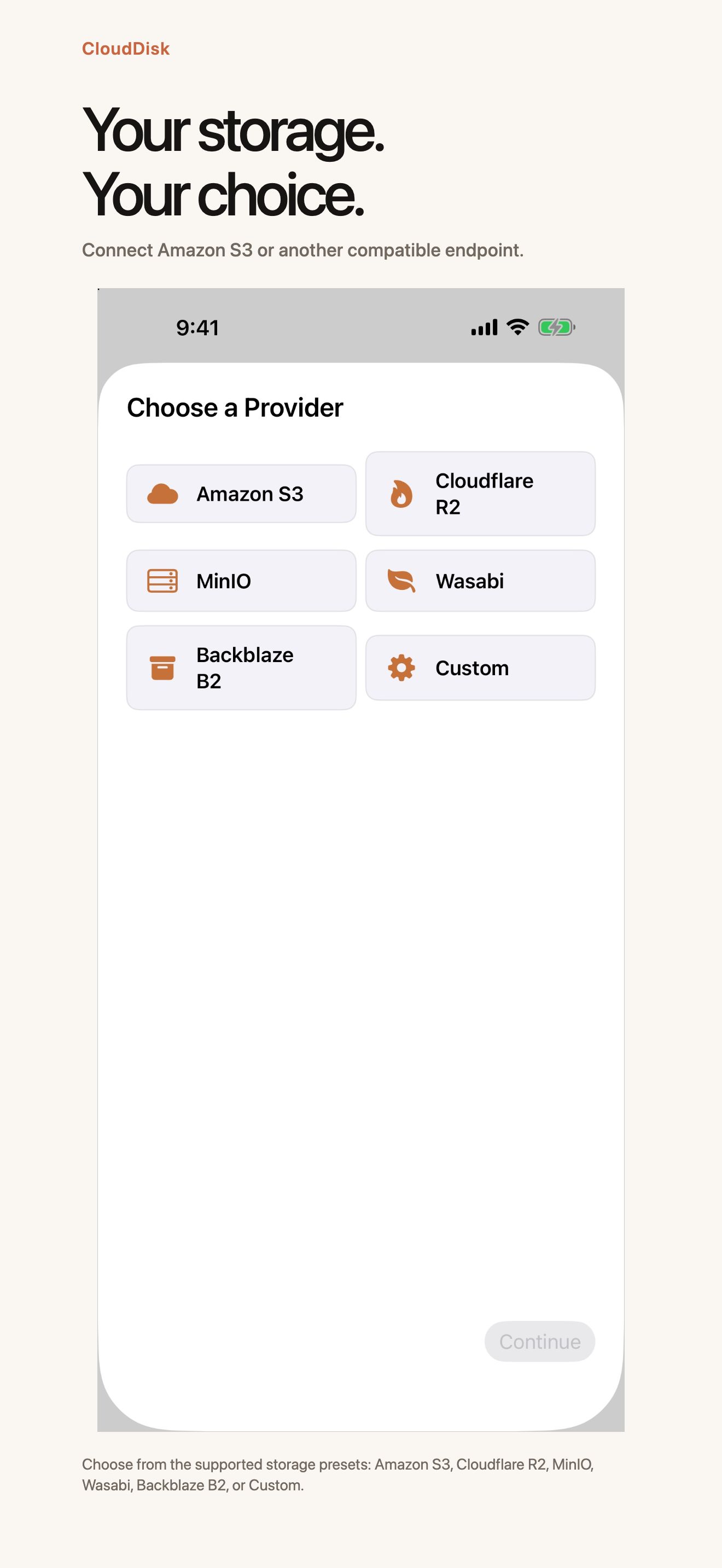
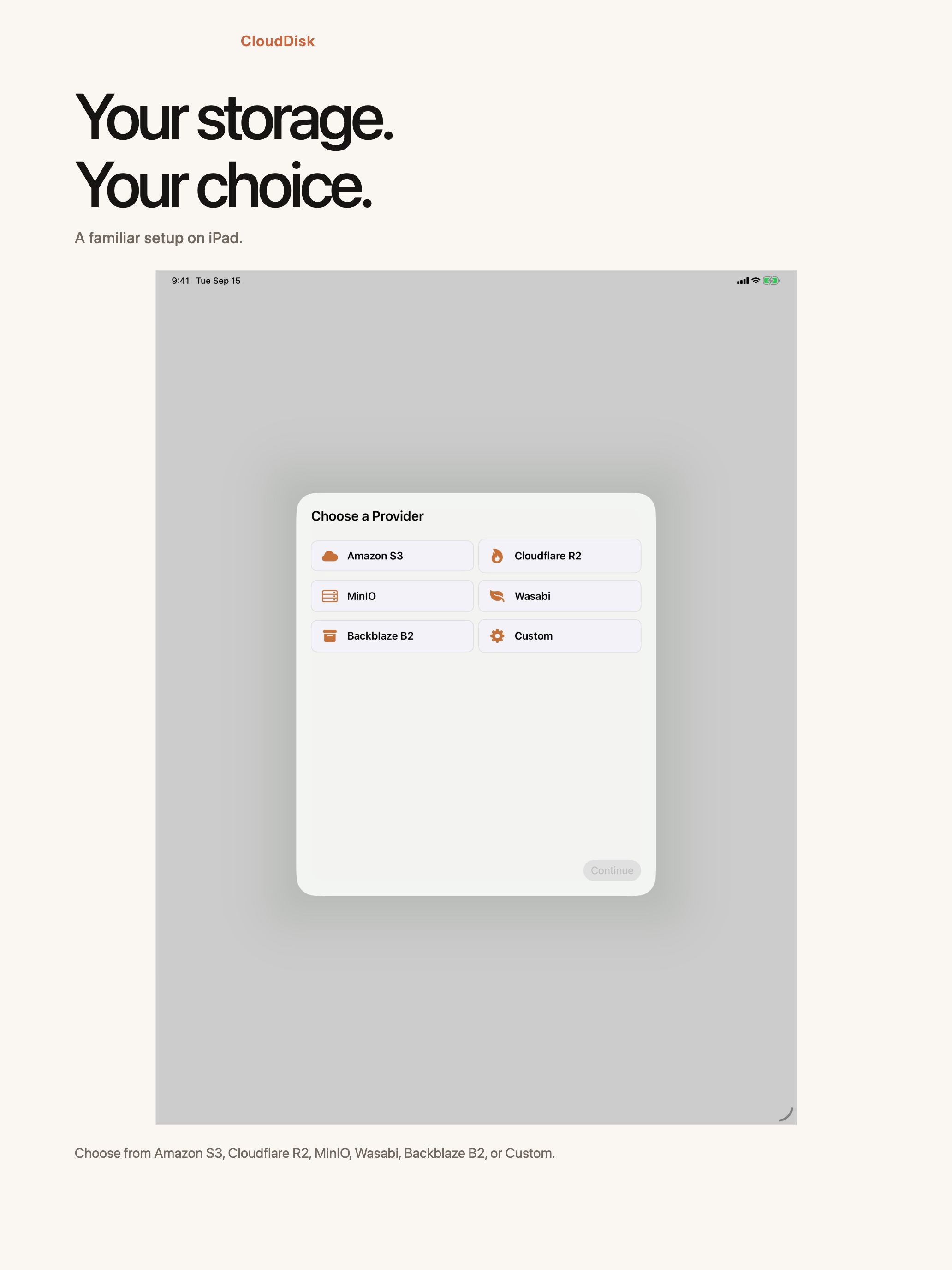
Select your provider. Choose Custom when your S3-compatible service is not listed.
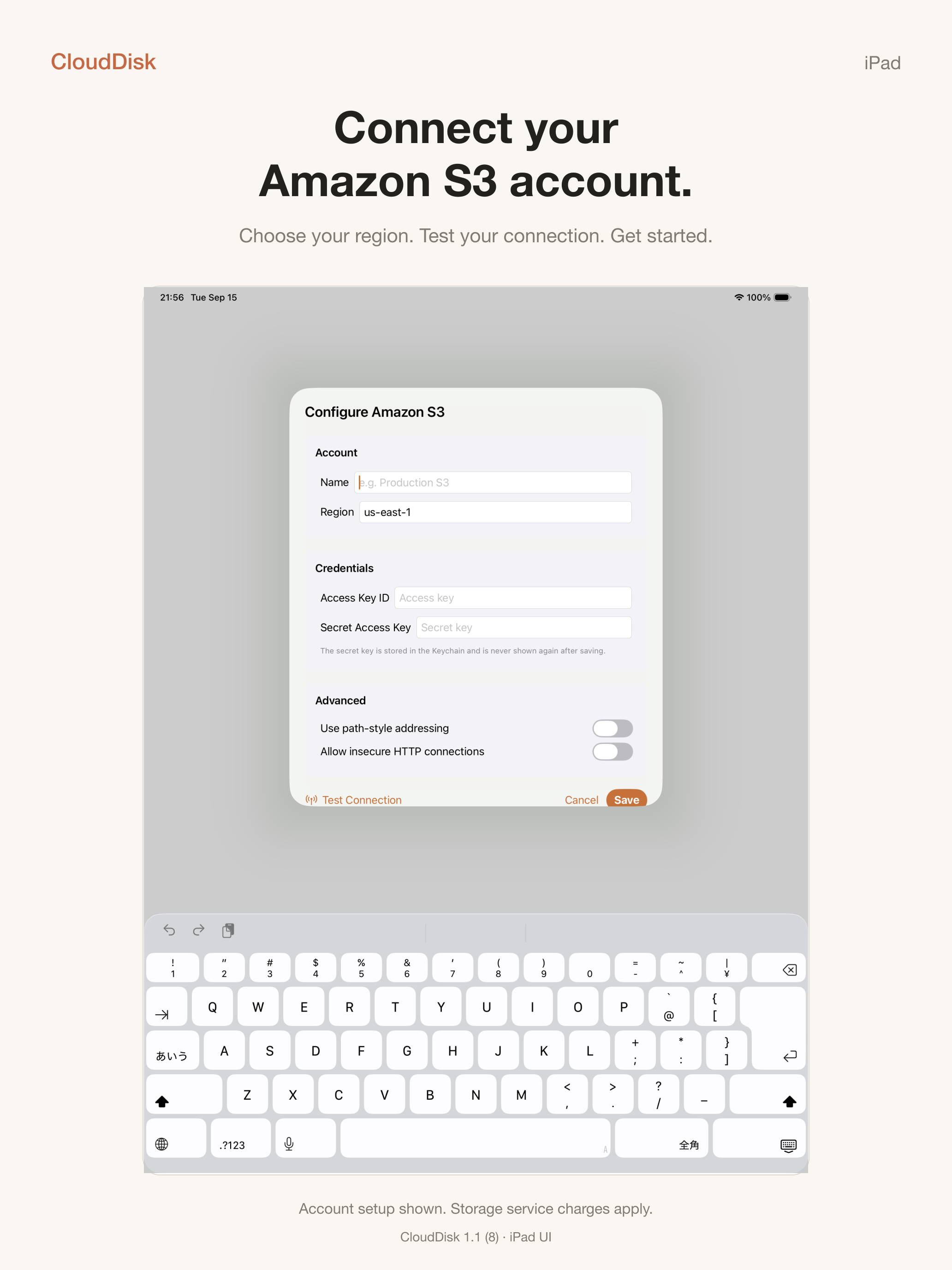
Enter a display name, endpoint and region when required, then your access key ID and secret access key.
Choose Test Connection. If the test succeeds, save the account.
Select the buckets to connect. If discovery does not list a bucket, use the manual bucket option and enter its exact name.
The free plan supports one account and one bucket. CloudDisk shows the Pro upgrade screen if you try to connect more.
Custom endpoint checklistUse the full service endpoint, select the correct region, and enable path-style addressing only when your provider requires it. Allow insecure HTTP only for a trusted local development service.
Choose a provider. The same account flow is used across CloudDisk.Provider selection on iPad.CloudDisk reports what was connected and what needs attention.
03 · MAC
Use a bucket in Finder
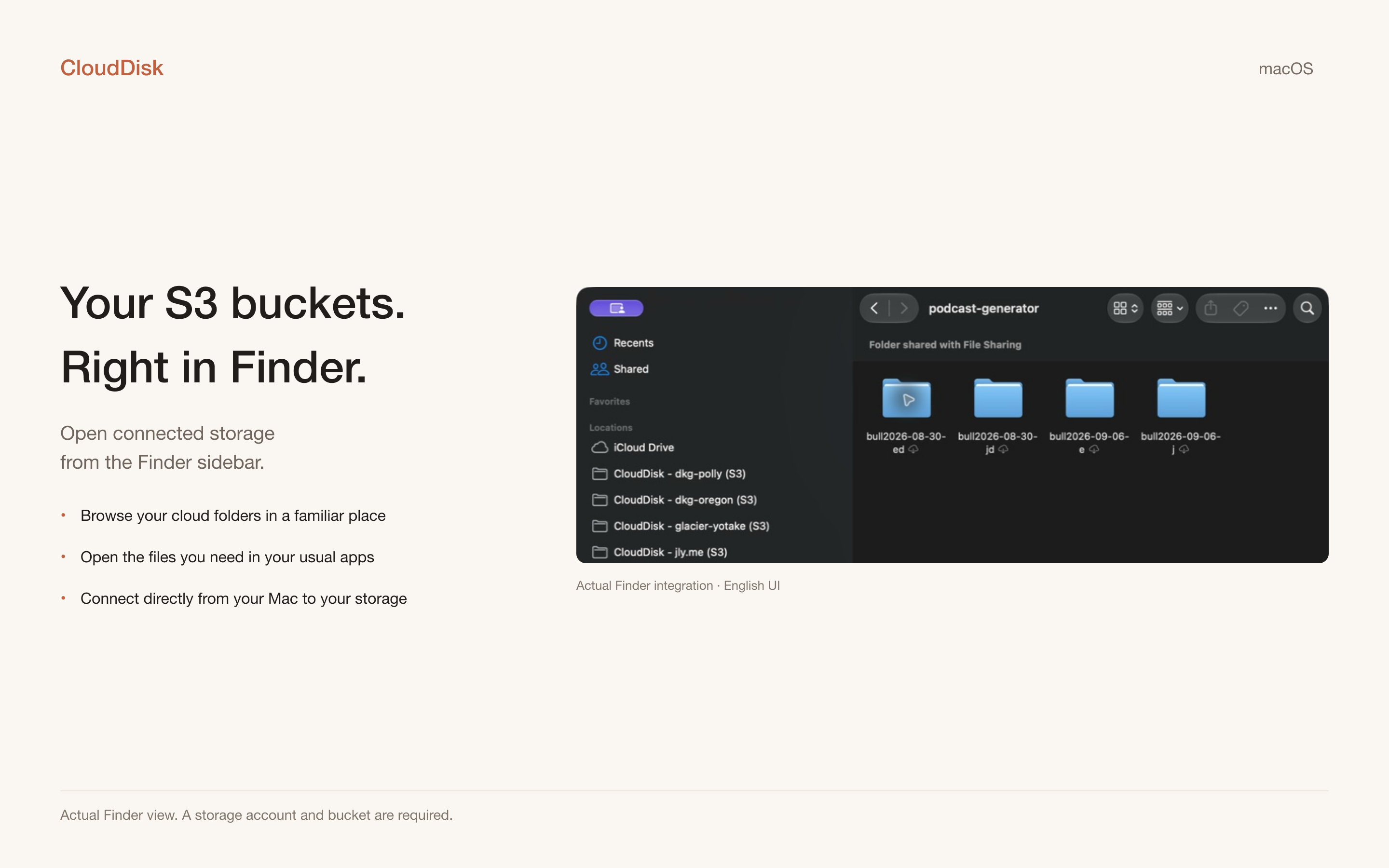
Open Finder and look under Locations in the sidebar.
Select CloudDisk – bucket name (provider).
Browse folders normally. Opening an online-only file downloads it automatically.
Drag a file into the bucket to upload it. Transfer progress continues in the background and appears in CloudDisk.
A cloud badge means the item is stored remotely and is not currently downloaded to this Mac. Finder shows progress while an item is downloading or uploading.
Deleting in Finder deletes from the bucketCloudDisk does not add a separate recycle bin in front of your S3 storage. If bucket versioning is enabled, a previous version may be recoverable; otherwise deletion can be permanent.
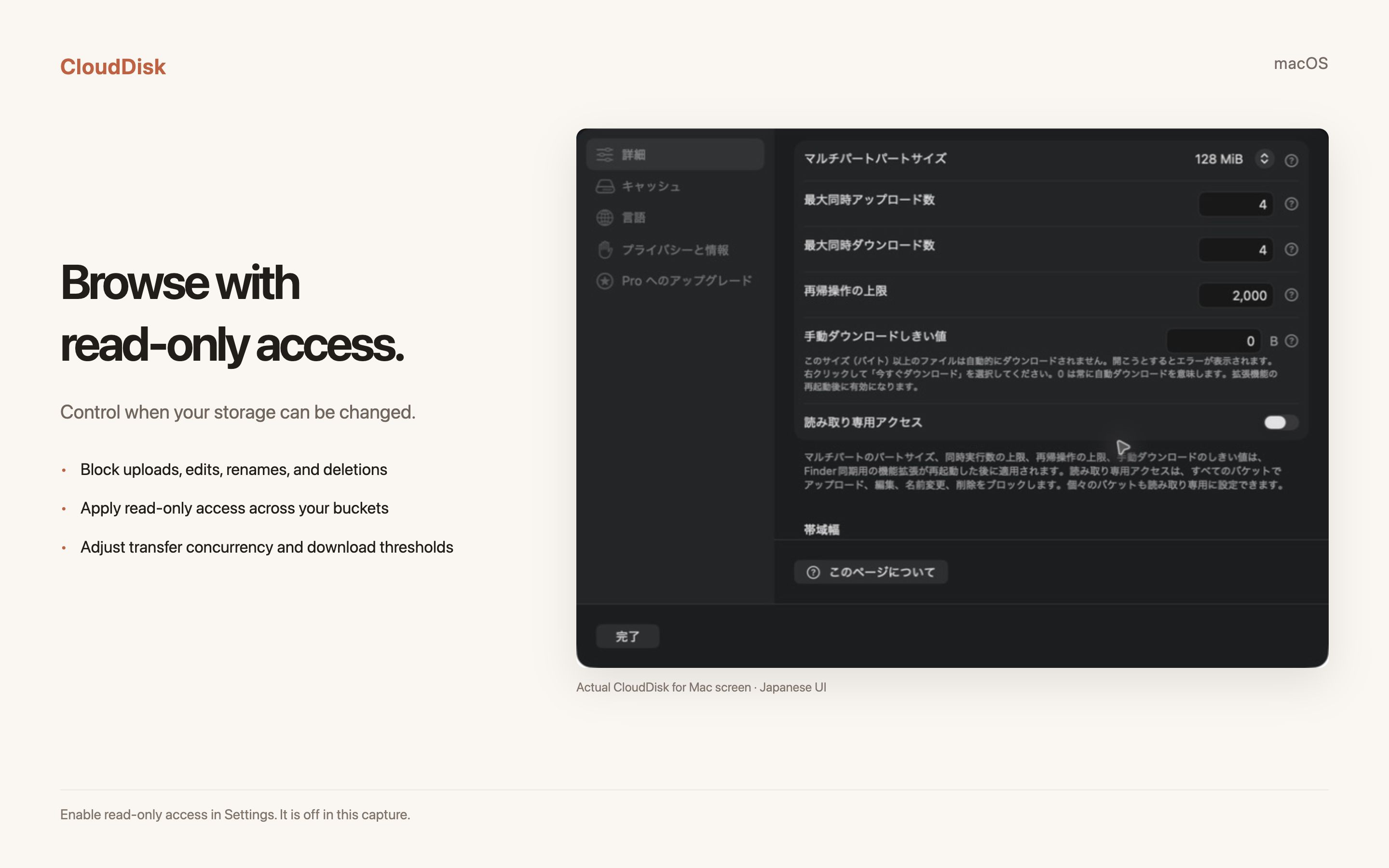
If you only need to inspect data, enable Read-only access in CloudDisk settings. It blocks uploads, edits, renames, and deletions until you turn it off.
Connected buckets appear in Finder under Locations.Check uploads and downloads from CloudDisk.Read-only access is useful when you must prevent accidental writes.
04 · IPHONE & IPAD
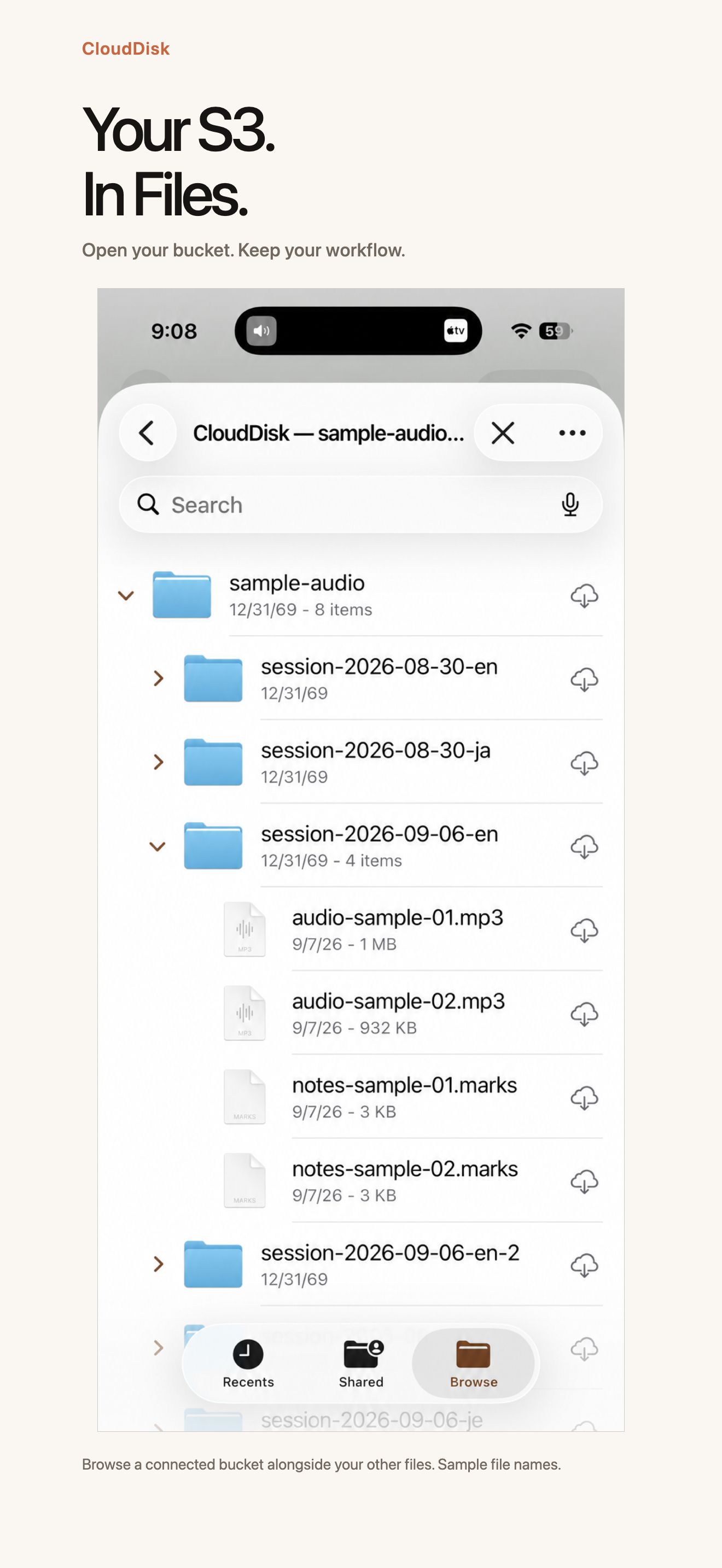
Use a bucket in Apple's Files app
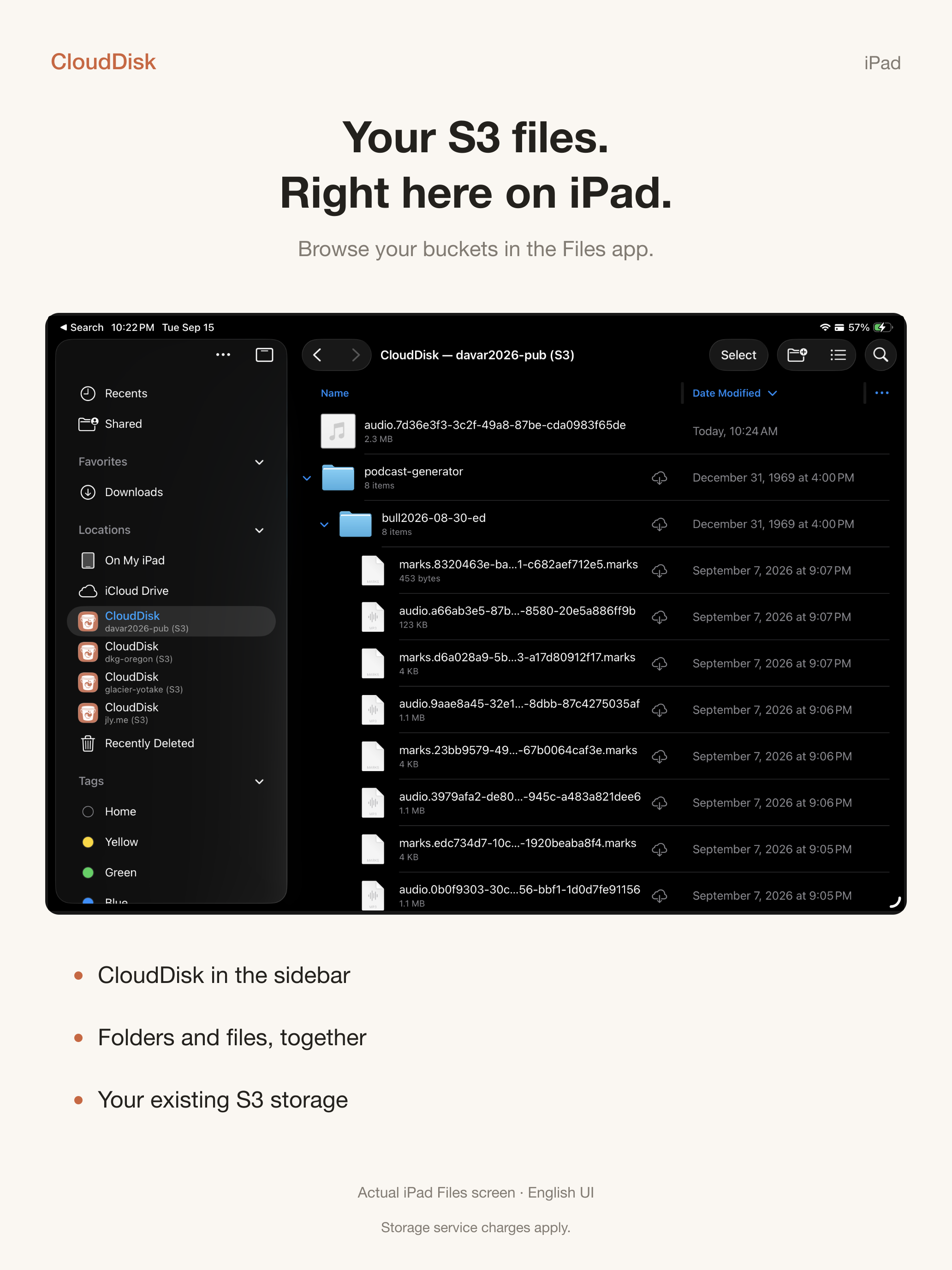
In CloudDisk, open Storage, choose a bucket, and tap Connect to Files if it is not connected yet.
Tap the folder button or Browse Files to open that bucket directly.
Or open Apple's Files app, choose Browse, then select CloudDisk under Locations.
Tap a file to download and open it. Use the share sheet or Files controls to copy or move content.
The upload button in a bucket's CloudDisk page lets you choose one file and send it to the bucket root. You can also work with the connected location from Files.
Refresh a folderIn Files, touch and hold a CloudDisk folder and choose the CloudDisk refresh action. From CloudDisk's bucket page, refreshing also asks the root and working set to update.
Removal is local; deletion is remoteRemove Bucket from This Device removes only the local connection and leaves S3 objects in place. Deleting an item inside Files is different: it sends a delete operation to the bucket.
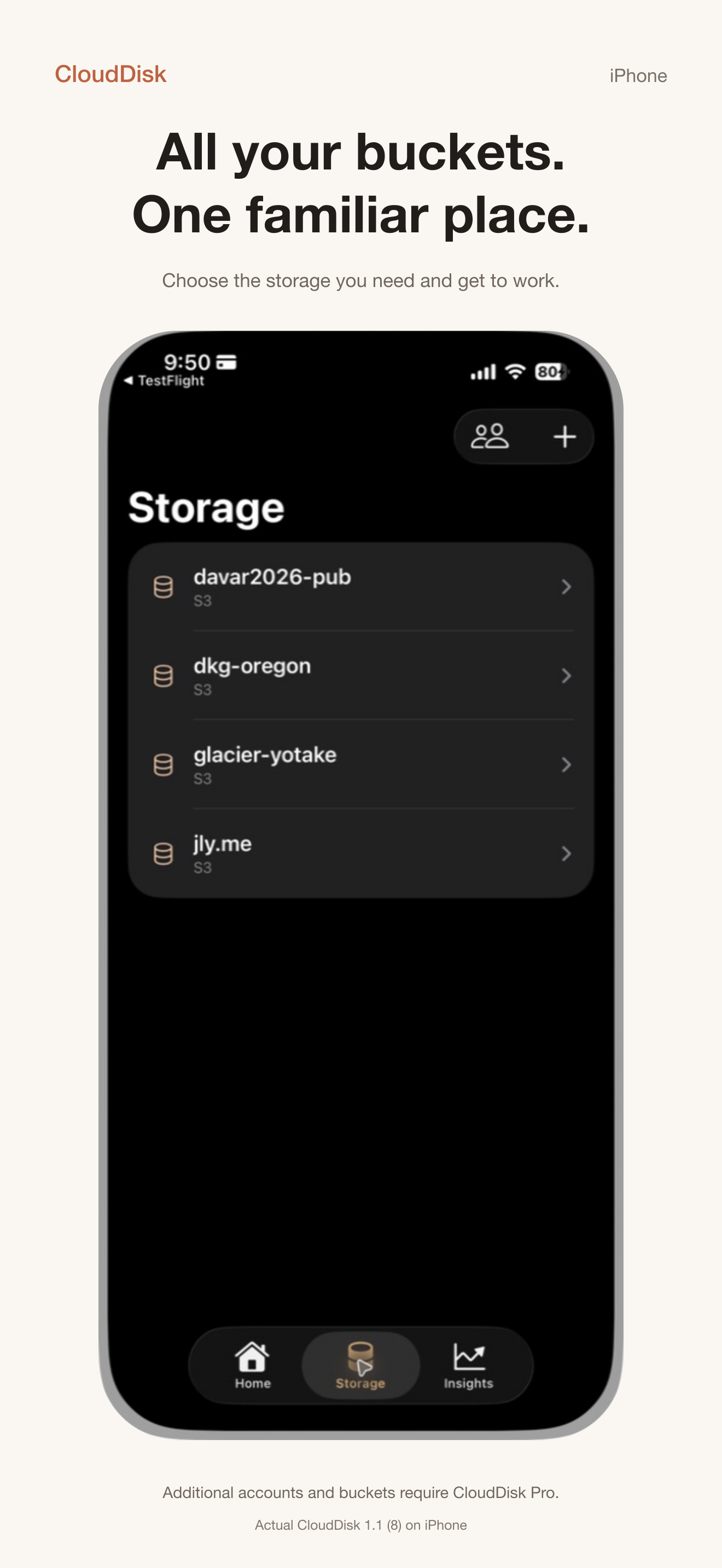
Browse remote folders and files on iPhone.Open a bucket from the Storage tab.CloudDisk locations in Files on iPad.
05 · UNDERSTAND
Home, Storage, and Insights
Home
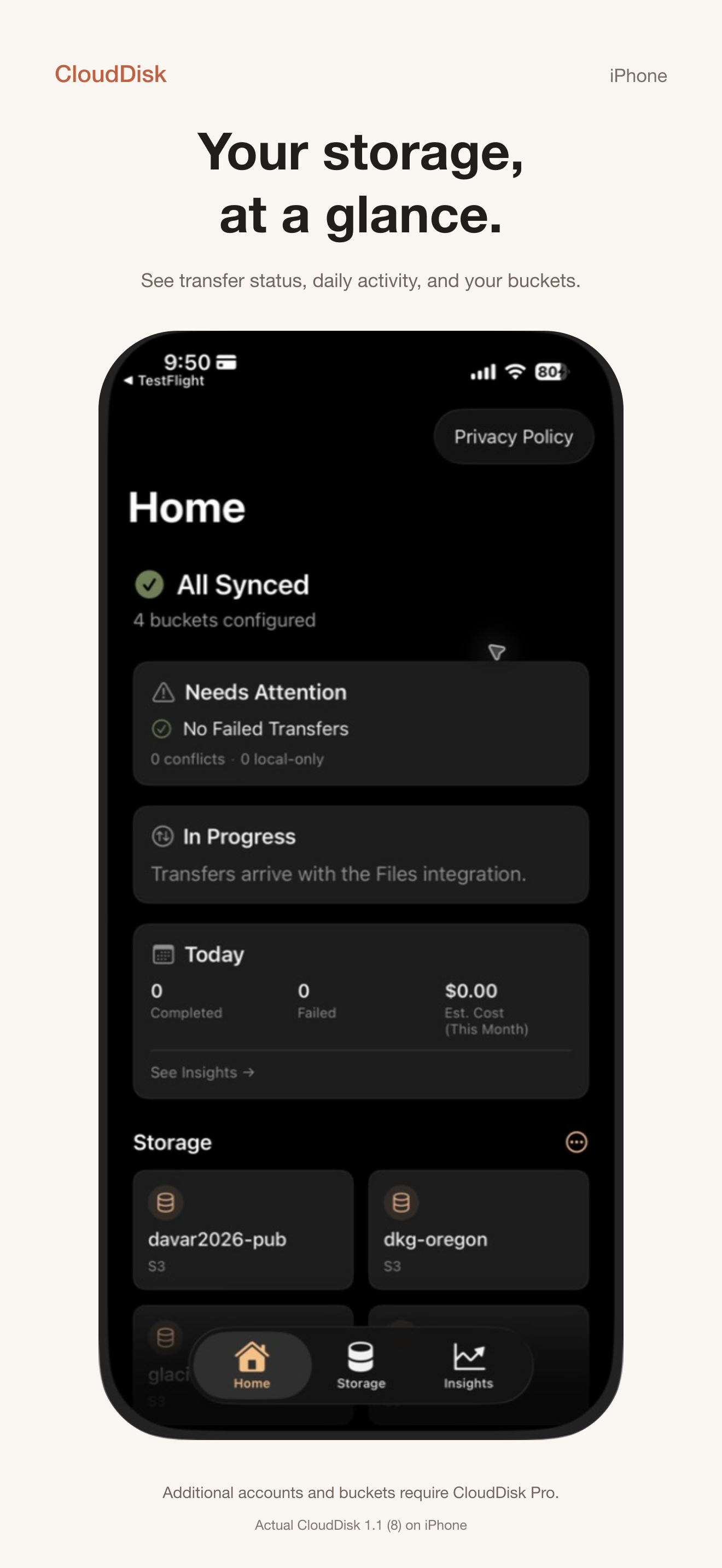
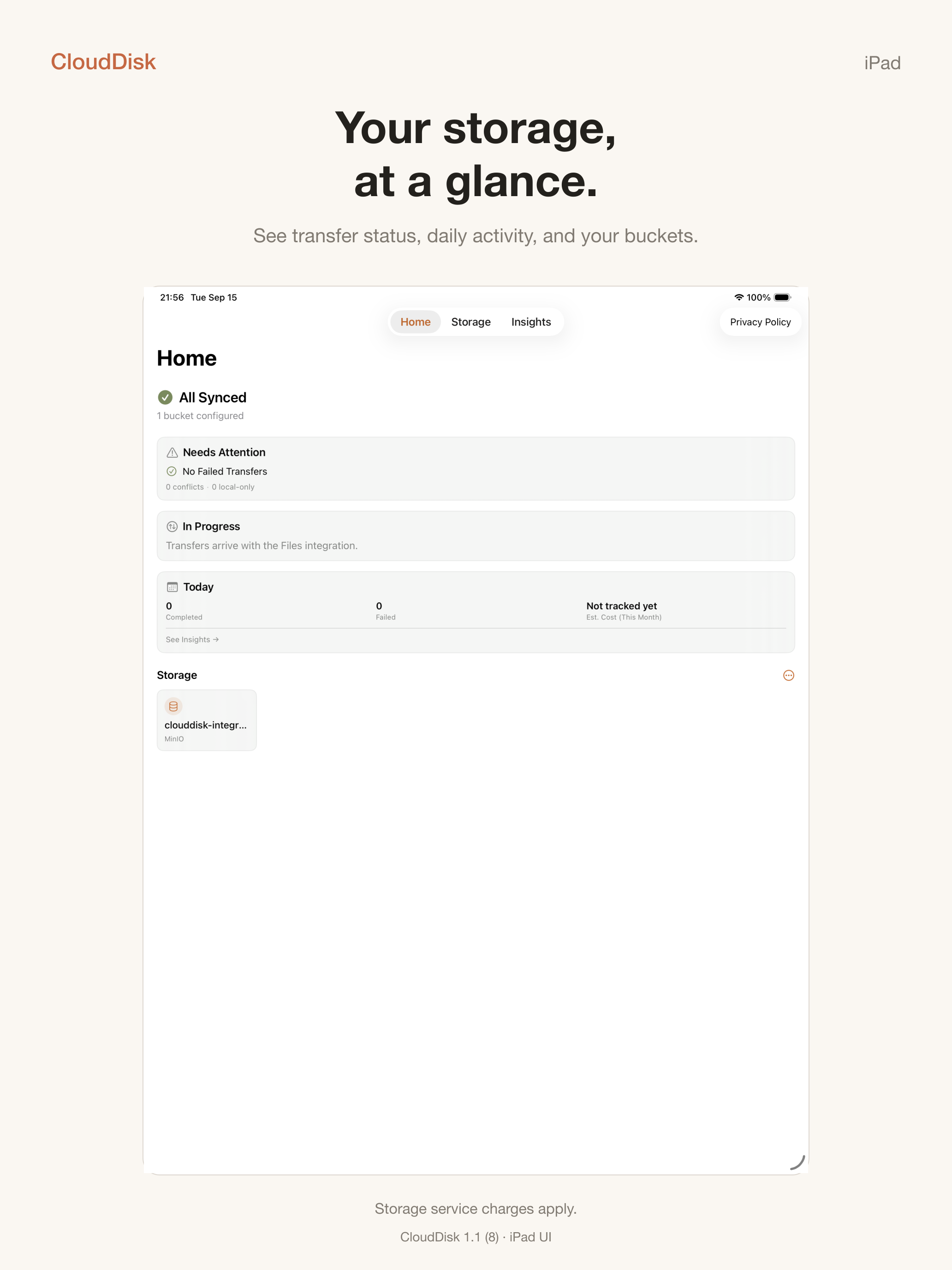
A quick answer to “is everything synced?” plus items needing attention, today's activity, and bucket shortcuts. On Mac, Home also shows active transfers.
Storage
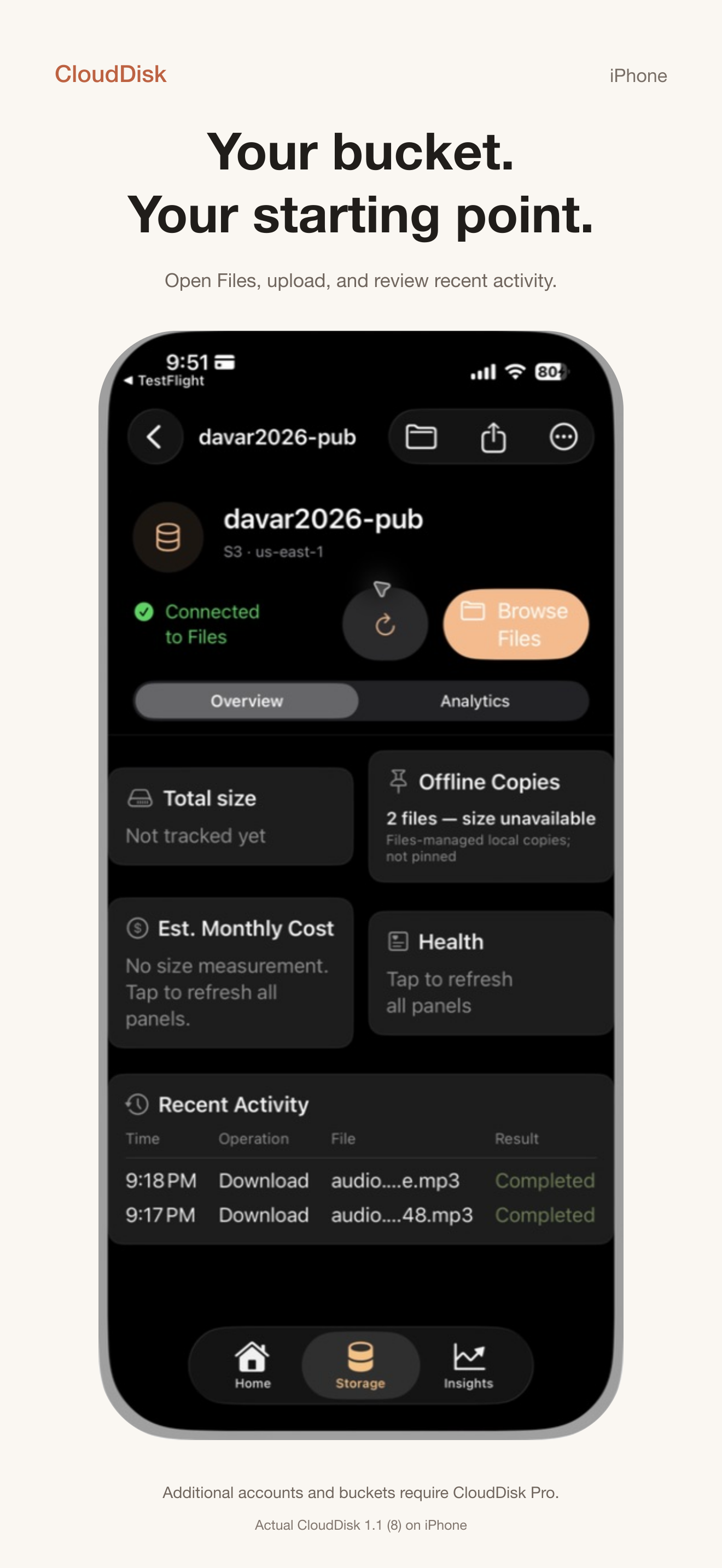
All connected buckets. Open one to see Overview and Analytics, or to reach its platform-specific actions.
Insights
Locally observed requests, transferred data, reliability, performance, and estimated cost. It does not replace your provider's billing console.
On iPhone and iPad, a bucket page includes Overview and Analytics. The four overview cards can refresh their related information. A total-size refresh can list many S3 objects, so CloudDisk explains the request impact before starting.
On Mac, press ⌘K to find a bucket or page. Searching inside a bucket is a separate network action; CloudDisk waits for you to start it and reports the estimated request cost.
Home highlights current status and recent work.A bucket Overview with on-demand refresh actions.The same status view adapts to iPad.
06 · CONTROL
Control transfers and protect storage
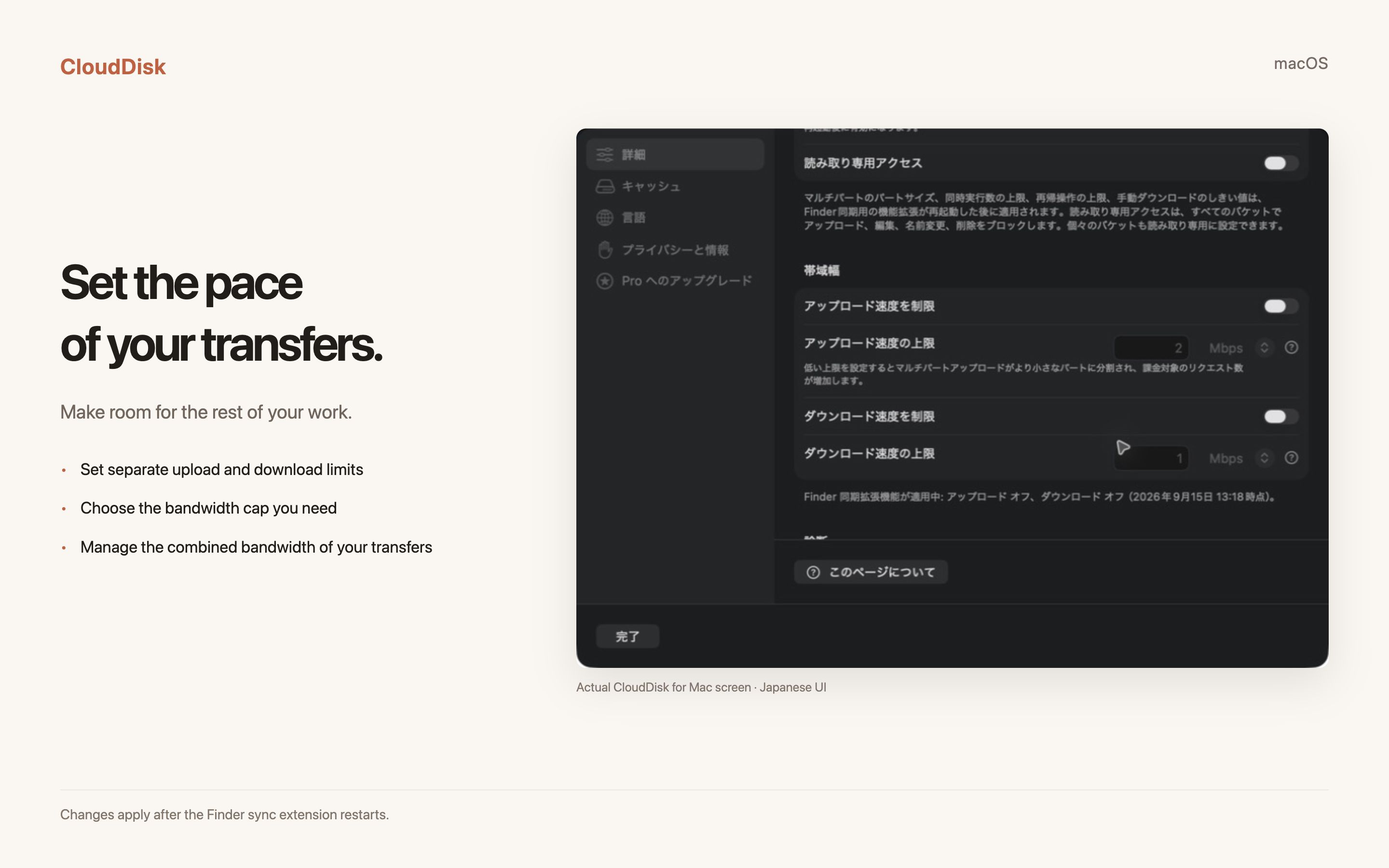
Mac settings include upload and download bandwidth limits, concurrency controls, a manual-download threshold, and read-only access. These controls apply to Finder sync after the File Provider extension reloads its settings.
Bandwidth limit: reduces upload or download speed for CloudDisk traffic.
Concurrent transfers: limits how many uploads and downloads can run at once.
Manual download threshold: asks before downloading files at or above the selected size.
Read-only access: blocks writes across connected buckets.
Disconnecting or removing a bucket from a device does not delete its S3 objects. CloudDisk checks for pending local work first; resolve or upload unsynced changes before removal.
Set upload and download limits for Finder sync.Use read-only access for safer browsing.
07 · MANAGE
Offline files, versions, archive, and rules
The Mac bucket hub gathers advanced tools in one place:
Offline: keep selected files or folders downloaded on this Mac.
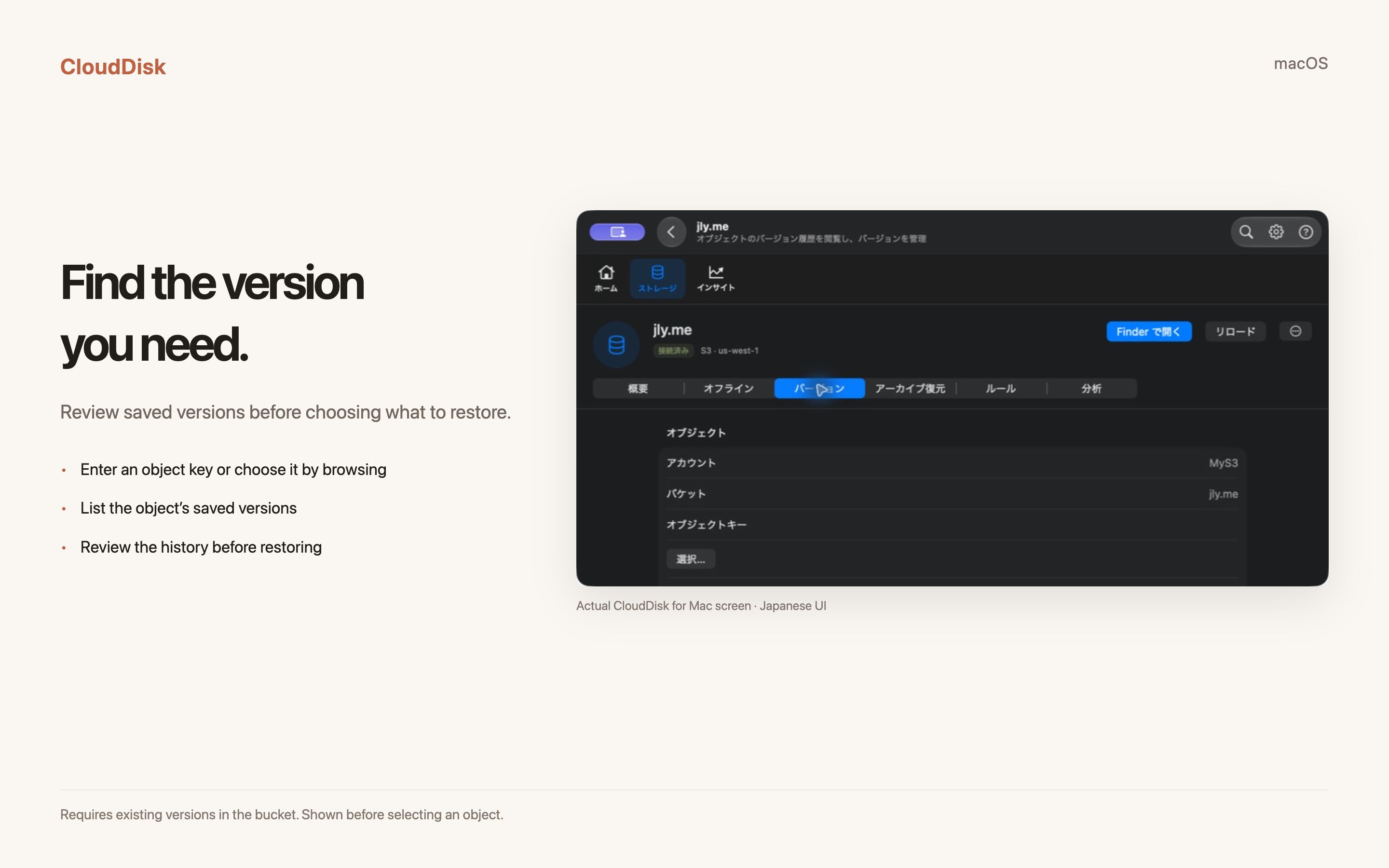
Versions: browse and restore earlier object versions when bucket versioning is enabled.
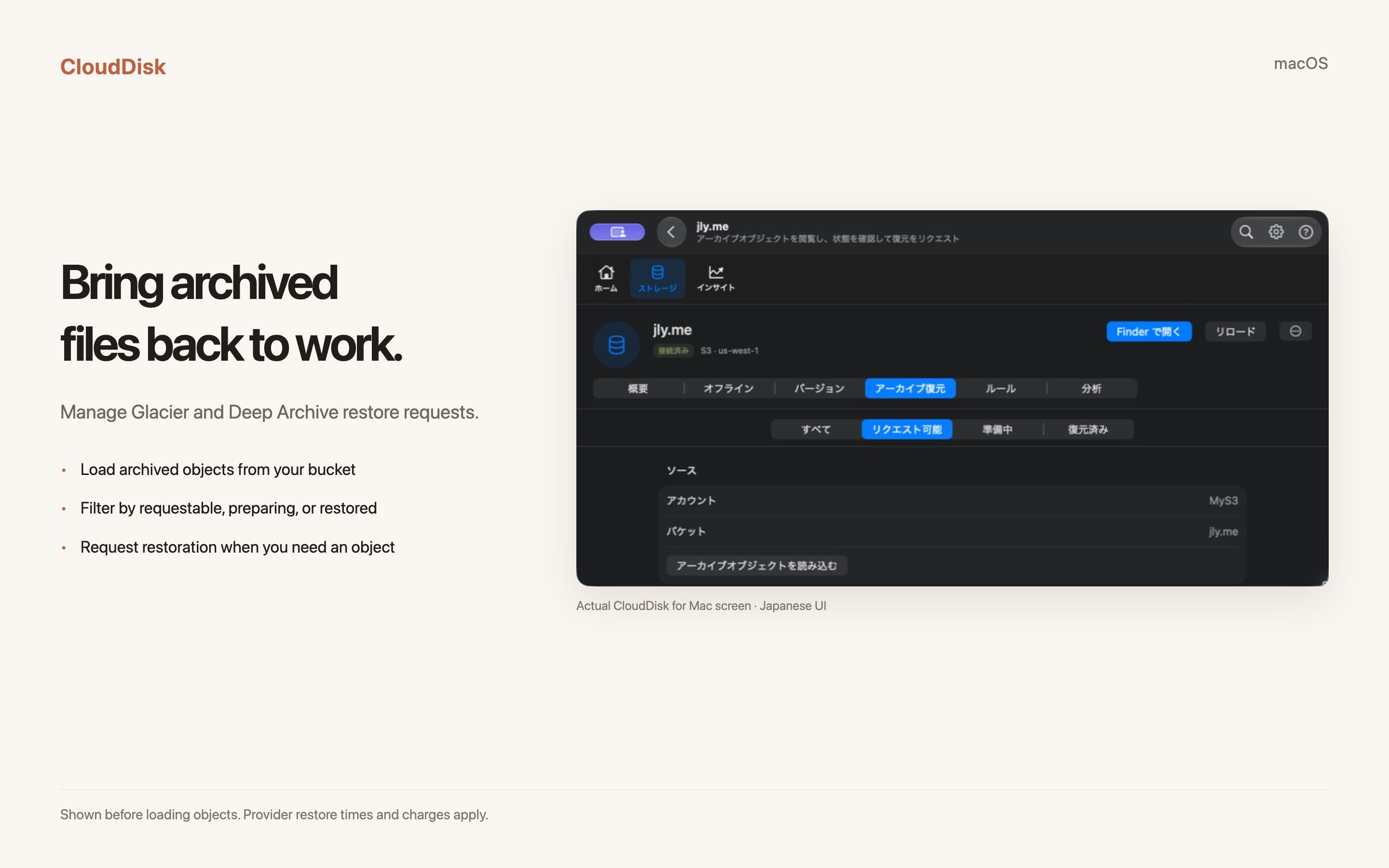
Archive Restore: inspect Glacier or Deep Archive objects and request a temporary restored copy.
Rules: review and manage S3 lifecycle rules for transition or expiration.
Analytics: inspect size, storage class, prefix, growth, and activity information.
Read confirmations carefullyArchive retrievals, storage-class changes, and lifecycle rules can incur charges or delete data later. CloudDisk shows the expected effect before sending an action, but your provider's rules and prices are authoritative.
Load archived objects and track restore status.Inspect and restore earlier versions.
08 · TROUBLESHOOT
Common questions
The bucket does not appear in Finder or Files
Open CloudDisk and check the bucket status. On Mac, reconnect the bucket from Home, Storage, or Connections. On iPhone or iPad, open the bucket and choose Connect to Files. If Files hides CloudDisk, open Files → Browse → More (…) → Edit and enable the location.
Files added elsewhere do not appear
On Mac, open the bucket in CloudDisk and choose Reload. In Files, use the CloudDisk folder refresh action or return to the bucket page and refresh. Then reopen the folder.
Authentication failed
Confirm the endpoint, region, access key, secret key, and system clock. For a custom service, also verify path-style addressing. Re-enter credentials with Add Account or reconnect the account; never send secret keys in a support email.
A file will not download or upload
Open Home and inspect Needs Attention, then retry the item. Check available local space, network access, read-only mode, bucket permissions, and any manual-download threshold. Your provider may also reject objects because of policy or storage class.
Can I remove CloudDisk without deleting S3 data?
Yes. Remove the account or bucket from the device only after pending local work is clear. The removal action unregisters the local connection; it does not delete remote objects.
Where can I get help?
Email [email protected]. Include your device model, OS version, CloudDisk version, provider type, and the exact error message. Do not include access keys, secret keys, or private object names.