Menu 2
Announcements & Orders
Read the complete church message, prepare an email when needed, place an order, or—when signed in as Administrator—create and operate an order setup.
Schedule notices, edit sent content, and paste images
Internal TestFlight distributed; submitted to App Review: iOS 1.28 (build 277). This build is available in internal TestFlight. It was submitted to App Review on October 19, 2026 (Los Angeles time), and is awaiting review, not public. The current public release is 1.27. The build 276 submission was withdrawn and replaced by build 277. Check Version History for availability.
Choose publication and notification times
- Sign in with an account allowed to send announcements and open Send an Announcement. Enter the always-visible Subject and Message, an optional HTTPS URL, and the Push audience.
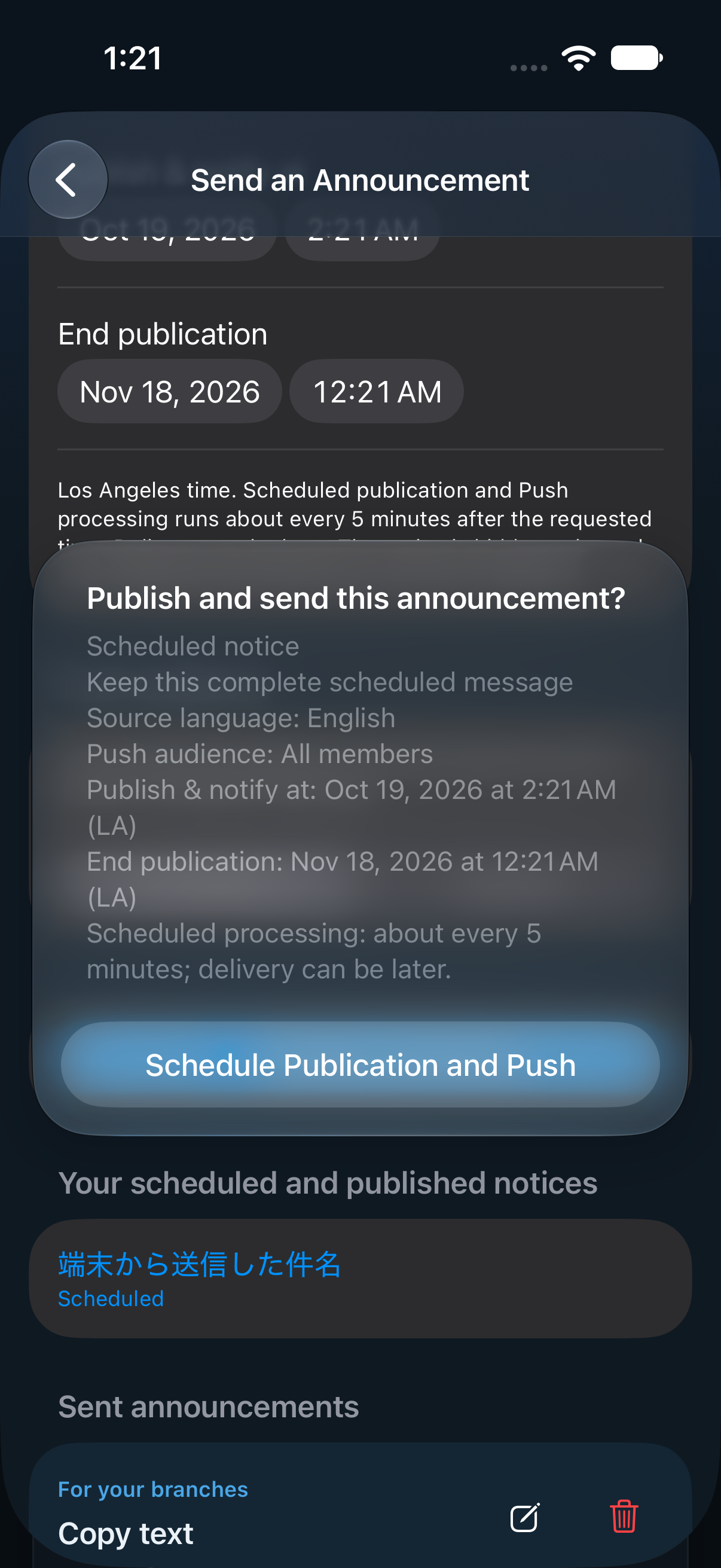
- Under Publication and notification (LA time), leave Schedule publication and Push off to publish now. Turn it on for a future Publish & notify at time, then choose a later End publication. These are Los Angeles times, including daylight saving, rather than the phone’s local time. The initial end is about 30 days after opening the screen; check that it is later than your scheduled start.
- Check the message, audience, start and end in confirmation. Choose Publish and Send now or Schedule Publication and Push for later. A future notice stays out of the public lists until publication.
Scheduled publication and Push processing starts after the requested time through the existing runner, about every five minutes. Delivery and device display can be later; arrival at the exact time is not guaranteed. If the entire window passes before processing, no late publication or Push occurs. At the end, the notice and its images stop appearing publicly in lists and details; no end notification is sent. Notifications already displayed by the operating system cannot be recalled.
Change settings from the sending device
- Open the item under Your scheduled and published notices. This applies only to new notices sent from this device using a supporting version. Older posts and posts from another device do not gain editing access. Losing the device’s editing proof cannot be repaired by signing in with the same role.
- Use Edit Subject and Message to change text, images or URL, review and save. The original language and audience stay unchanged; saving does not resend Push.
- While still pending, use Save Schedule or Cancel Scheduled Notice. Once publication/sending has started, the start cannot change. While published, use Save End Time or End Publication Now. These controls cannot revive an expired notice.
- Only for your currently published notice, Test Push to This Device Only sends to this registered device, without notifying other readers. A provider-accepted count does not confirm device display.
Use Check Latest Status after a conflicting operation. An uncertain result keeps the exact saved operation for retry; do not send a different version on top of it. Offline readers enforce their known end, but need a successful refresh to learn about a later changed end or immediate finish.
Paste an image into the message
Copy an image and paste it at the desired message position. Its preview stays between the surrounding text. Image drafts remain on the device; review image preparation before sending. Keep and correct the draft after validation or preparation failure. An announcement supports up to 20 images.
Readers load a generated thumbnail with a longest edge of at most 512 pixels. Only tapping it fetches the saved original, in a full-screen viewer with pinch, double-tap and drag; choose Done to return. Older images without a thumbnail offer an open action. “Original” means saved image pixels with orientation preserved and location/other source metadata removed, rather than an unchanged copy of the selected file. Previously saved lower-resolution images cannot gain lost detail.
Images in order guidance and products
This feature is in internal TestFlight 1.28 (277), awaiting App Review and not yet public. Administrators can paste images between text in each language’s Administrator comment and product fields when creating or editing an order setup. Check paragraph/image order and scroll to the bottom before saving, including email, Cc, dates and audience. The guidance plus all products may display up to 20 images per language; repeated placements count separately.
Order forms show thumbnails in guidance and products. Tap the image to view the saved original; use the separate item checkbox to select the product. Images also appear in review, edit and setup-history views. If an older app cannot safely edit an image-bearing setup, update and reopen the latest setup before making changes.
Read an announcement
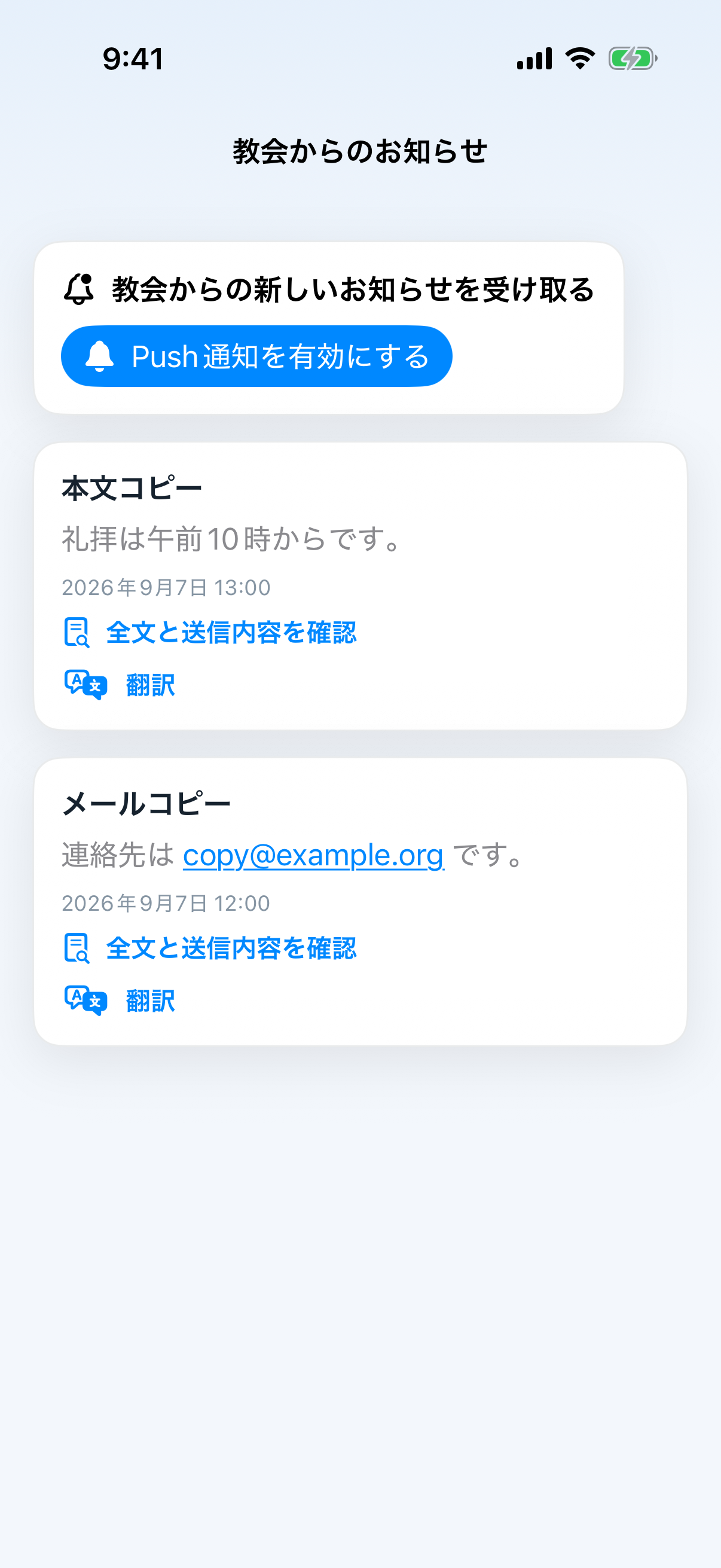
- Open the three-line menu → Announcements → Church Announcements.
- Tap the title, body, or View full details to see text shortened in the notification.
- Tap Translate to translate the title and body.
In public version 1.27, this is separate from Announcements on Home: a Home announcement containing an email address starts a draft; one without email opens the same page-by-page bulletin reader as View Bulletin. The submitted 1.28 behavior is described above.
When the message contains an email address
Receive push notifications
- Tap Enable Push Notifications on Announcements, or turn on Settings → Notifications → Administrator announcements.
- Tap Allow when iPhone asks.
- Tapping an alert opens and outlines its announcement. If it does not arrive, check “This device is registered” under Settings → Notifications and retry registration if offered.
Place an order
- Open the three-line menu → Announcements → Orders.
- Tap a current order card.
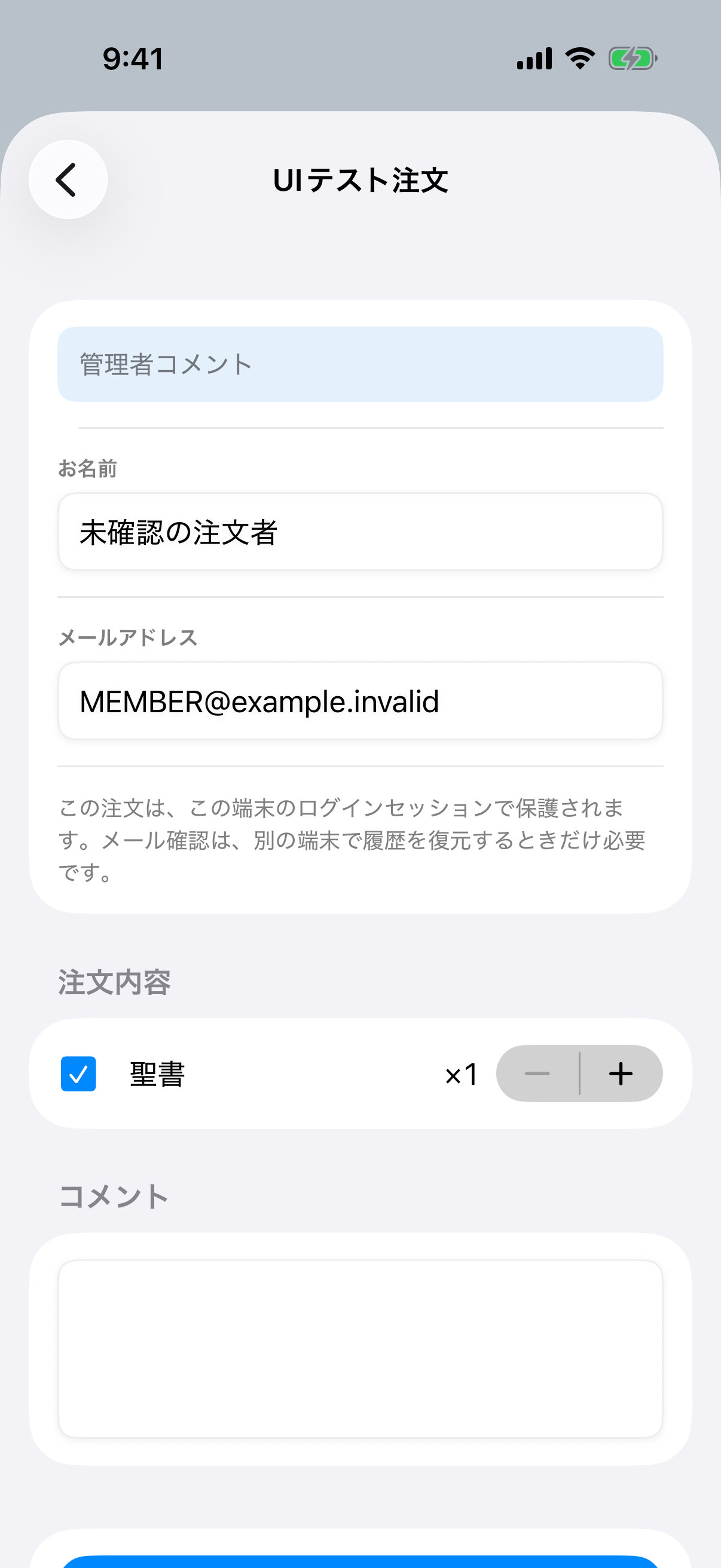
- Enter your name and the email address used for this order. A six-digit verification code is not required for normal ordering.
- Tap the square beside an item, then use − / + for its quantity. The quantity remains visible.
- Add an optional comment and tap Review order.
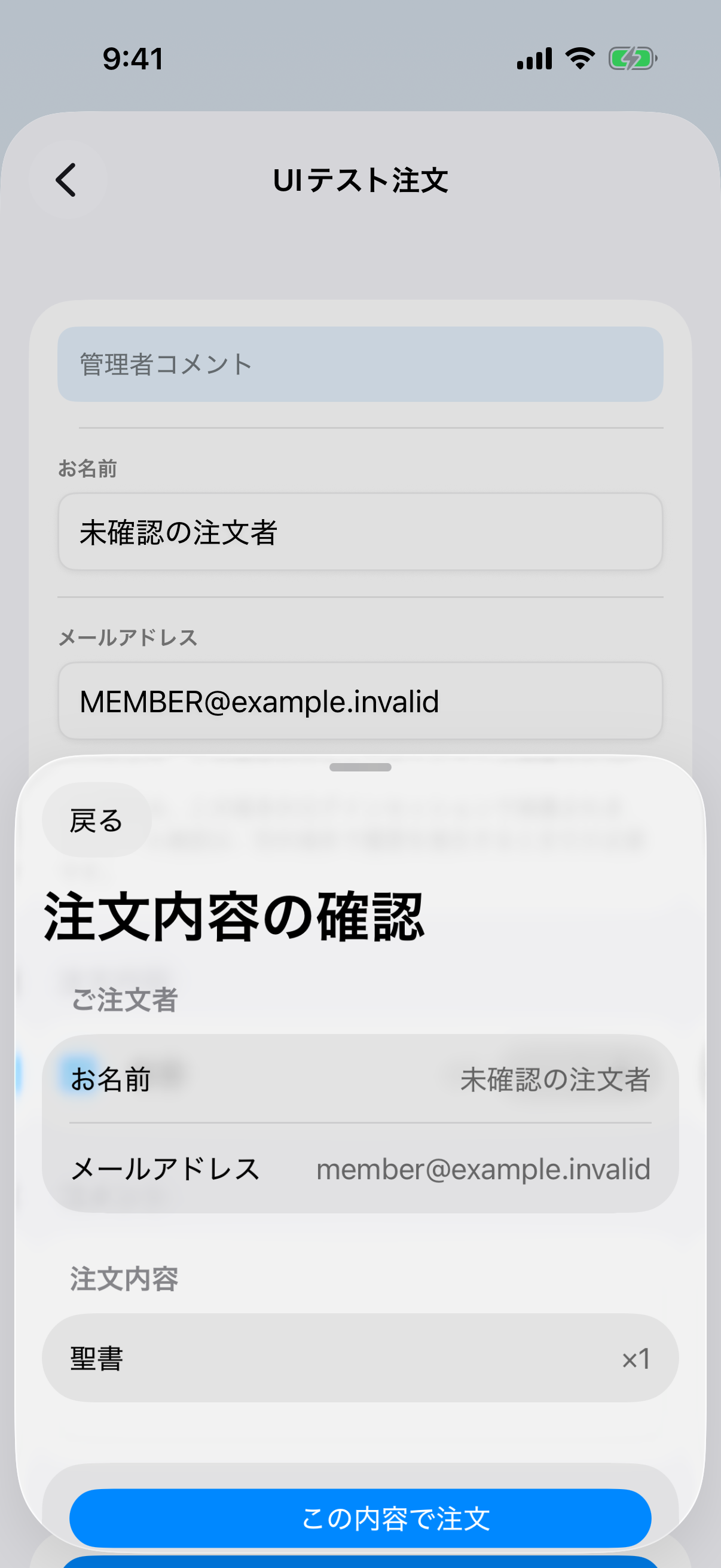
- Read the name, email, items, quantities, and comment on the review screen.
- Tap Back to correct anything, or tap Submit order once.
- The green check on the current-order card and Order History confirm that the order was saved. Confirmation-email delivery is separate.
Edit, cancel, and history
- EditWhile ordering is open, change items, quantities, or comments from Order History.
- CancelCancellation is available only before the order closes and requires confirmation.
- HistoryThe app links the ordering email to this app session to show and manage its orders.
- Restore previous ordersA secondary recovery option for a changed device or session; it appears below current orders.
Choose an announcement audience
For each announcement, choose All members or Branches. In branch mode, select at least one branch, including Pasadena (Headquarters) when appropriate. Orders, My branches, and announcements share the catalog synchronized with the Verse Card Gallery. Headquarters is a fixed branch absent from the Blogger gallery and is never removed by synchronization.
- Enter the title and message, then select the audience. Each new announcement starts with All members.
- Tap Review and Send, read the message and branch names, and confirm. Branch sending is unavailable when the selection is empty or unavailable, or server support cannot be verified.
- If the connection is interrupted, retry the same confirmed content. Check Sent announcements first as well.
- Branch-scoped announcements show the branch names in the list and sent details. Order lists also show the branches configured for each order.
Branch selection controls Push recipients. Inbox content remains common to everyone. To receive these notifications, save and synchronize the relevant affiliation in Settings → Notifications → My branches, and enable Administrator announcements. An order list shows its configured default audience; an announcement shows its recorded audience. They may differ after an individual order-delivery override.
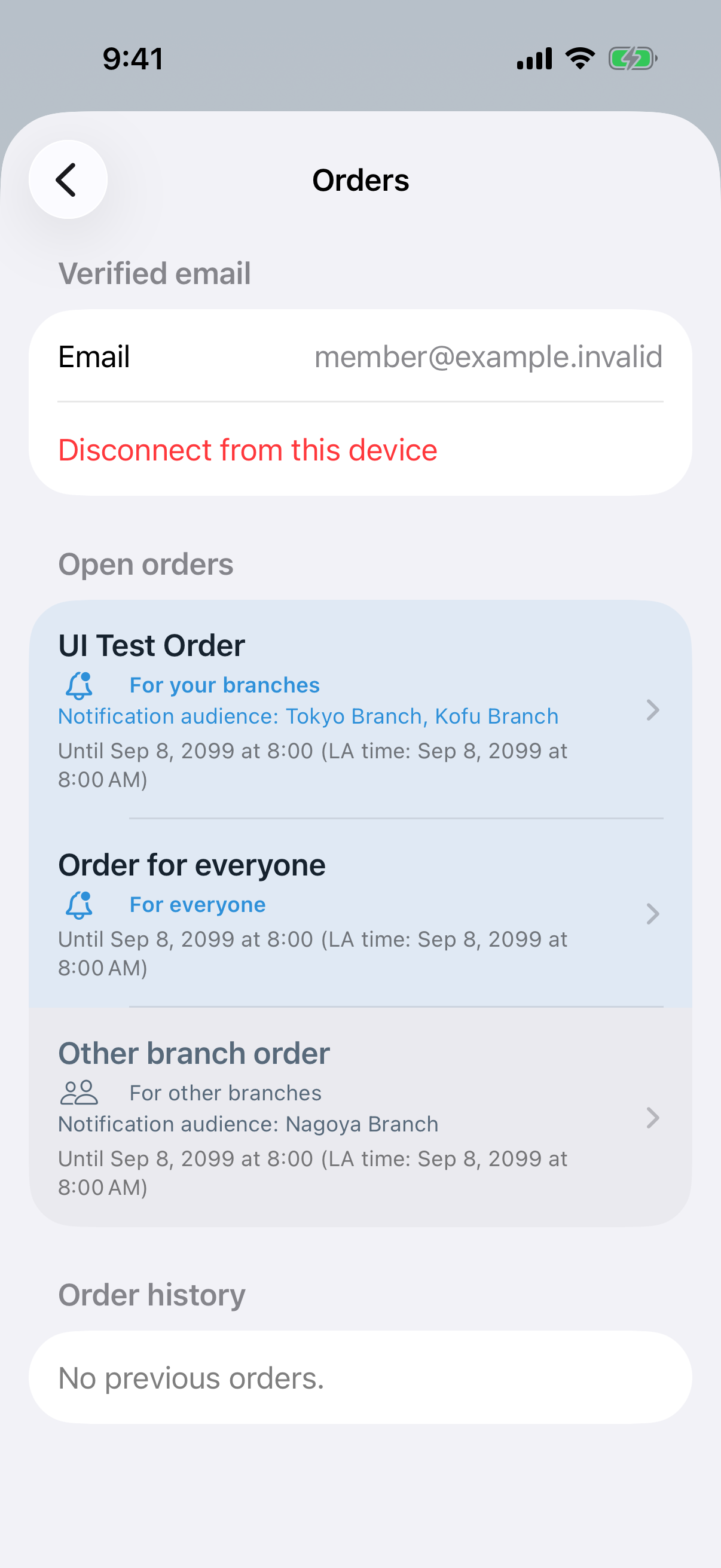
Lists highlight For everyone and entries matching any saved affiliation, placing them first. Entries for other branches appear in gray below and remain readable and openable. Original order is preserved within each group. Without saved affiliations, only all-member entries are highlighted. Display uses affiliations saved on this device; actual Push delivery uses the affiliations synchronized to the server.
These are internal TestFlight build 241 examples with sample content. No real notification was sent while capturing them.
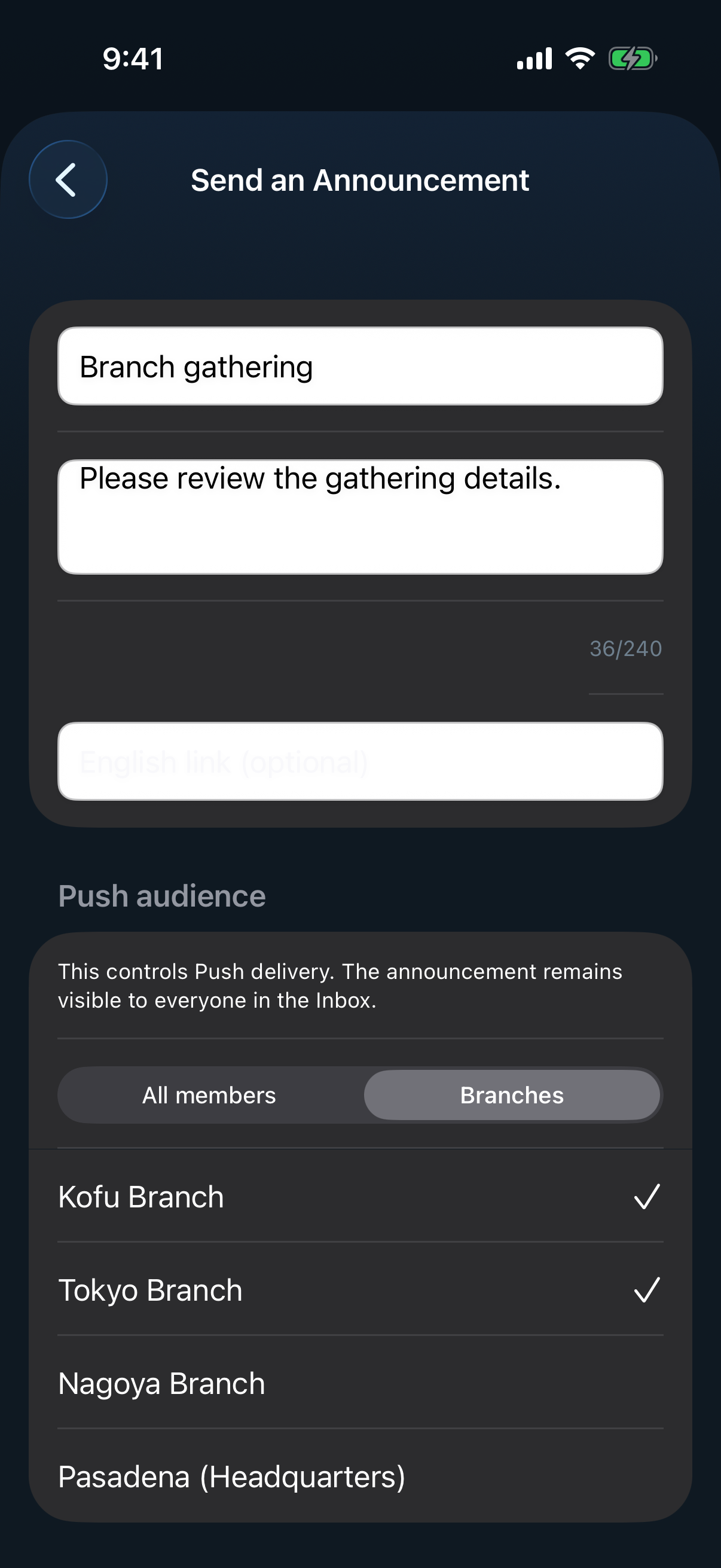
Choose branches
Switch the audience to Branches and select at least one destination. This example selects Kofu and Tokyo. Pasadena (Headquarters) is fixed and remains available regardless of Blogger synchronization.
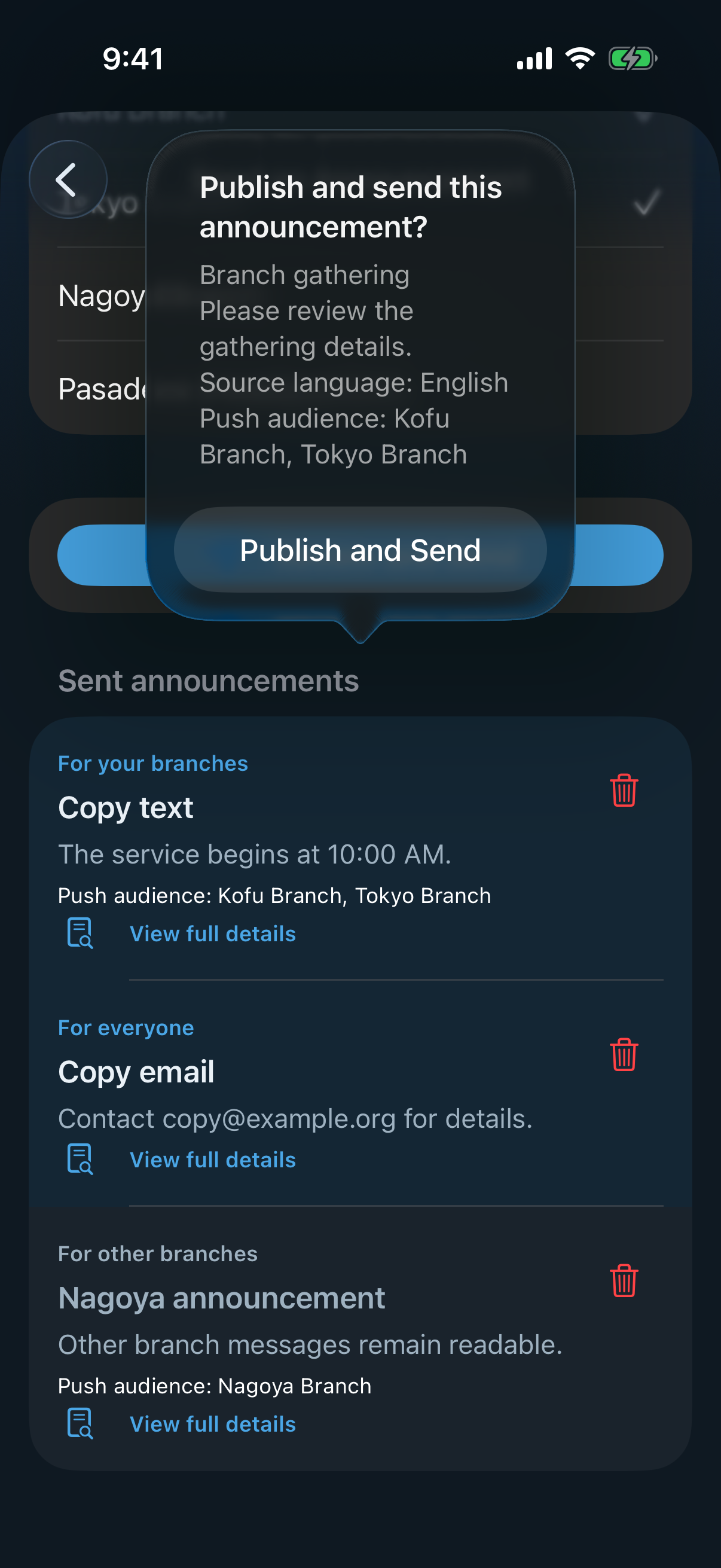
Review the message and branch names
The final confirmation shows the message and exact audience. Read every branch name before tapping Publish and Send.
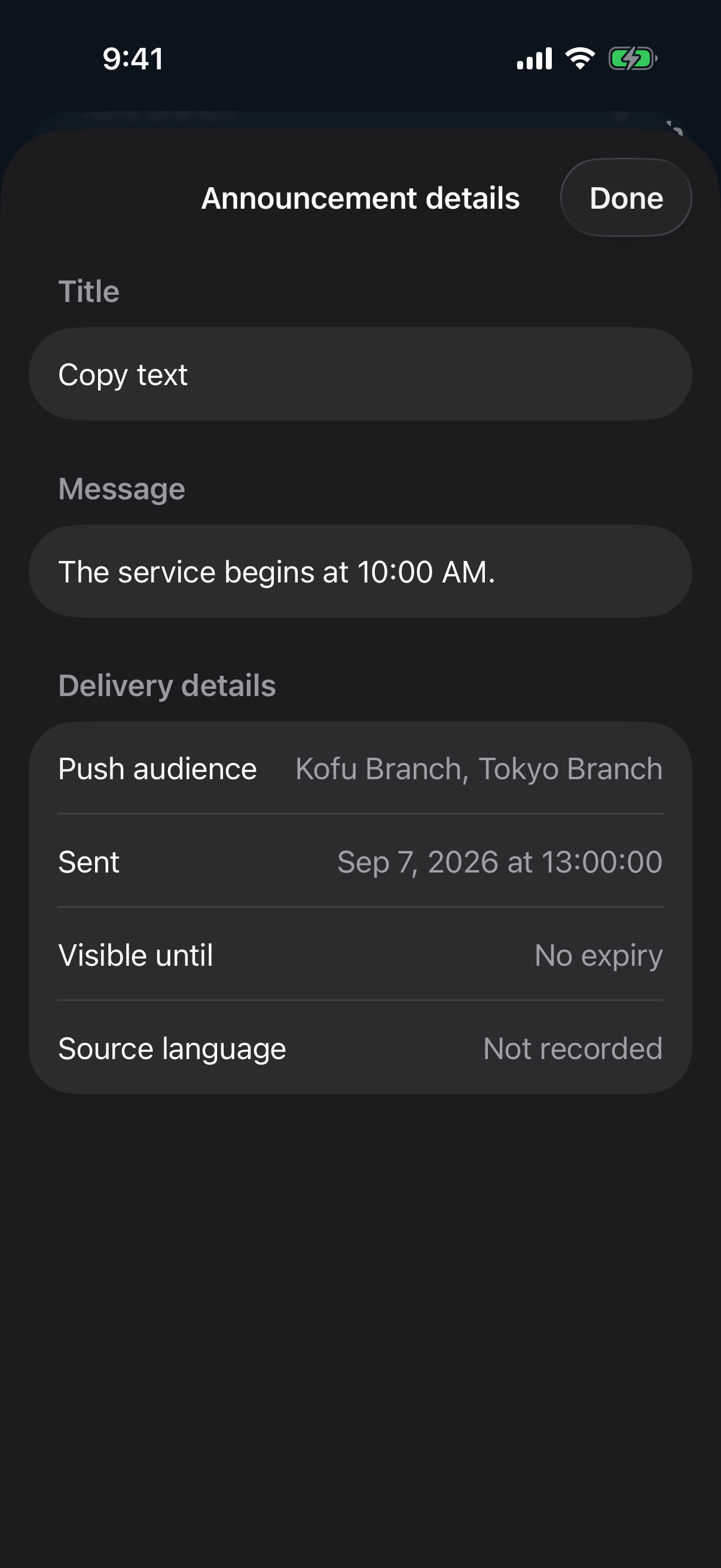
Check the recorded audience
Open a sent announcement to inspect its saved branch audience.
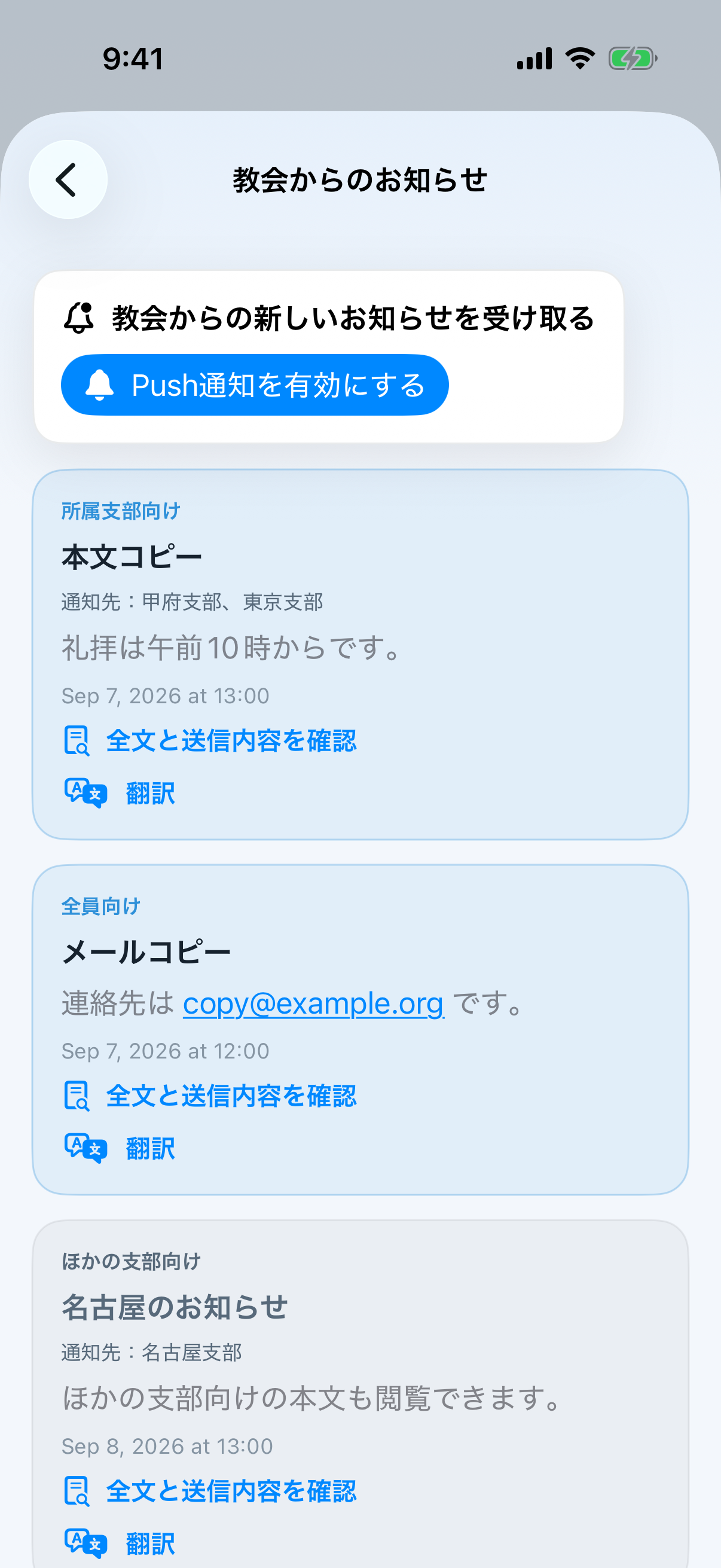
Your branches and everyone appear first
Matching and all-member announcements are highlighted above other branches. This Japanese-screen example uses the affiliations saved in Settings.
Administrator: Open Order settings
- Sign in as Administrator.
- Open the three-line menu → Settings, then scroll down to Notifications.
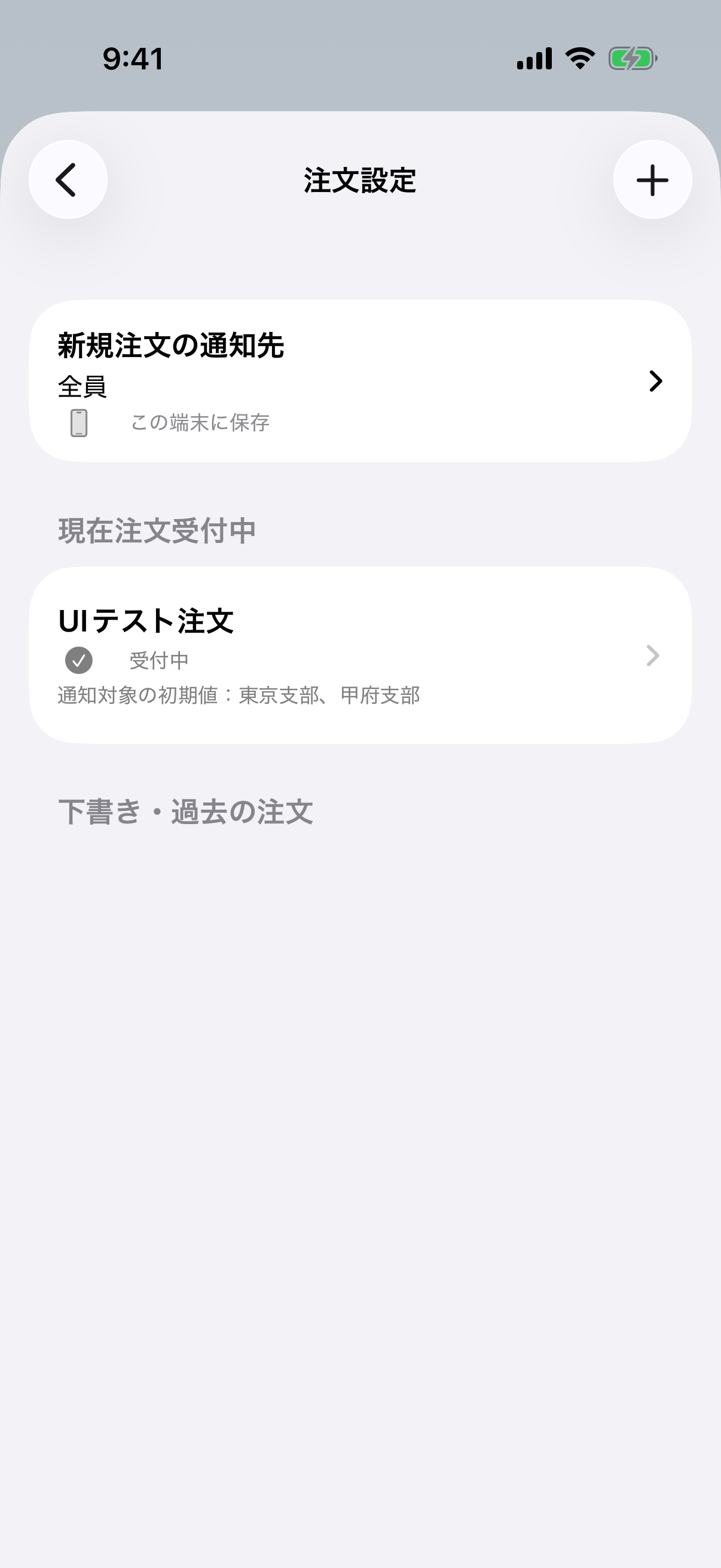
- Tap Order settings. Open setups appear above drafts and closed setups.
- Tap + at the upper right to create one. For an existing setup, tap its name-and-status row to open the grouped management screen.
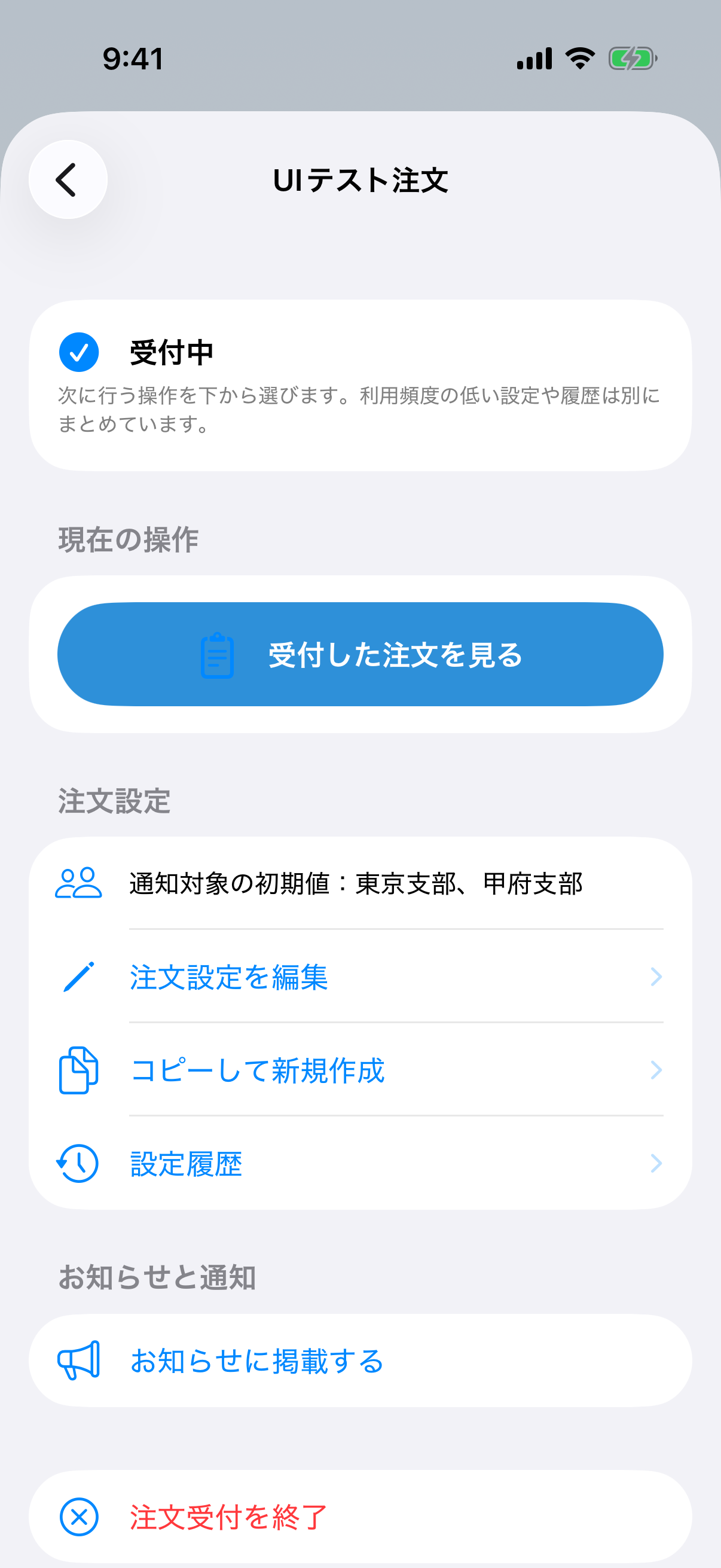
- Current task shows the one priority action for this state. For an open setup, it is View received orders.
- Order setting contains Edit, Copy as New, and Revision History.
- Announcement and Push contains publication, Push scheduling, and device testing.
- The action that closes an open setup is separated in red at the bottom to reduce accidental use.
See order audiences in the list
Orders for your branches or everyone appear first; other branches appear gray below.
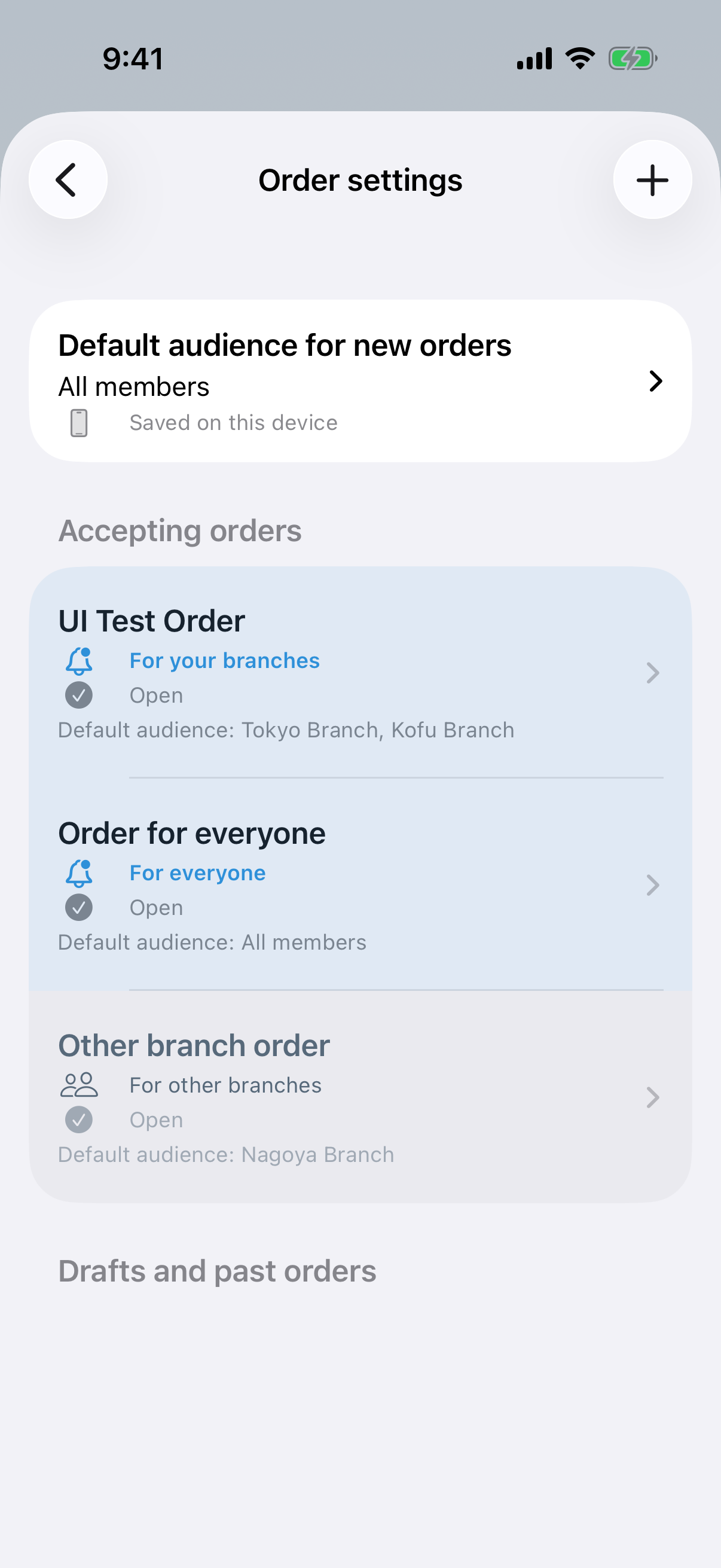
See branches in order settings
The same priority applies within each status section. If an individual delivery overrides the order audience, its announcement shows that recorded delivery audience.
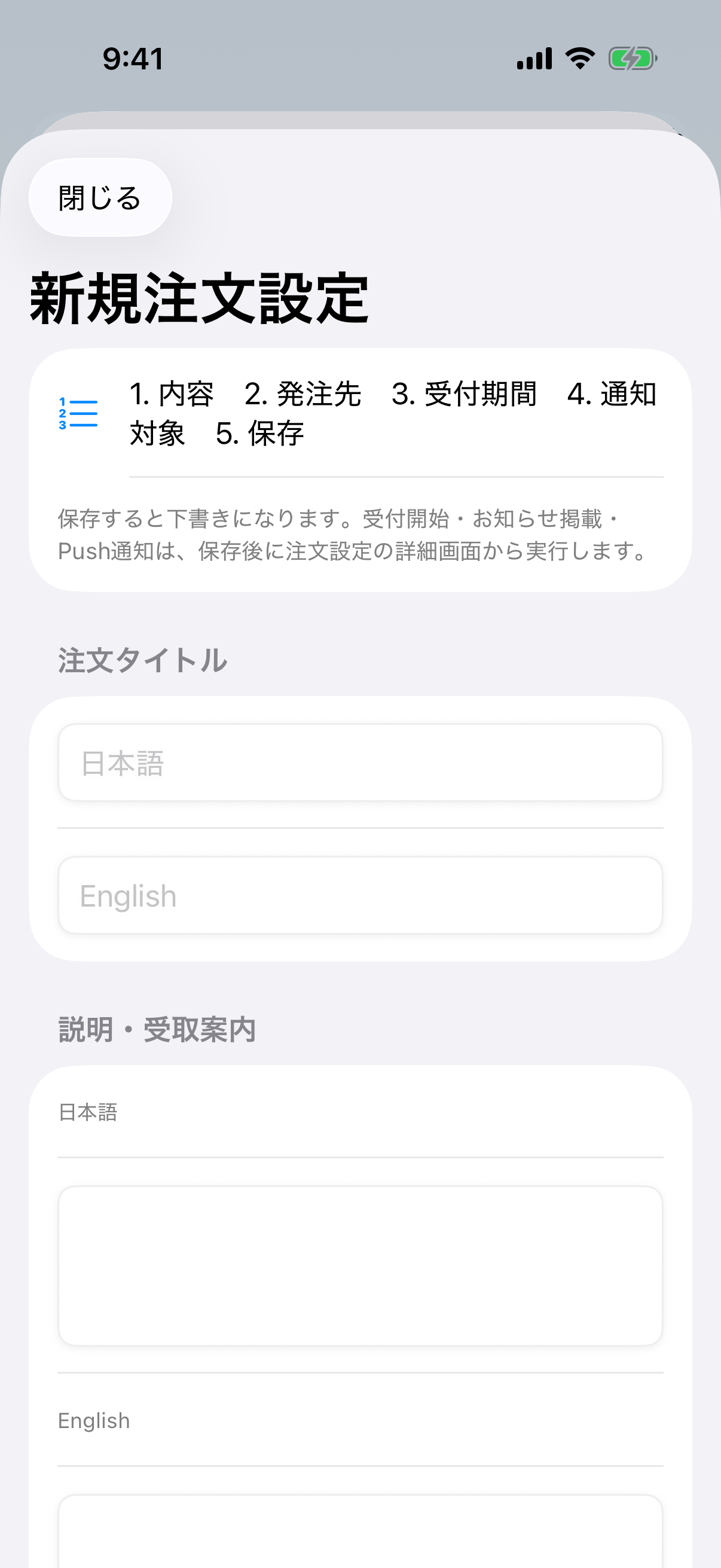
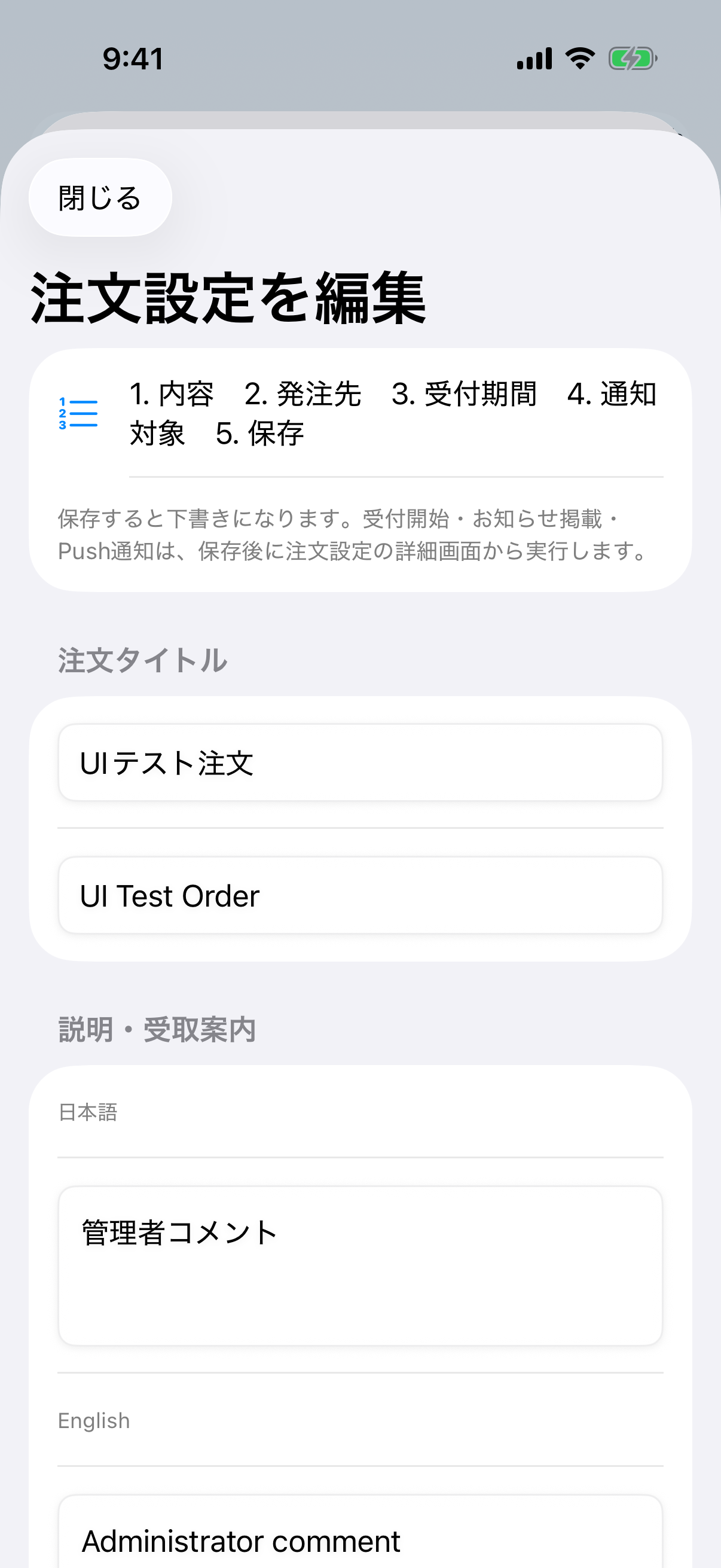
Create an order setup: Complete the upper fields
- Enter the customer-facing Order title in Japanese and English; at least one language is required.
- Use Description and instructions for product details, pickup instructions, and cautions.
- Under Items, enter each product name in Japanese and English.
- Tap Add item for another product. When more than one exists, swipe an unnecessary item left to delete it.
- At least one item is required, and each item needs at least one language.
Create an order setup: Scroll to the bottom
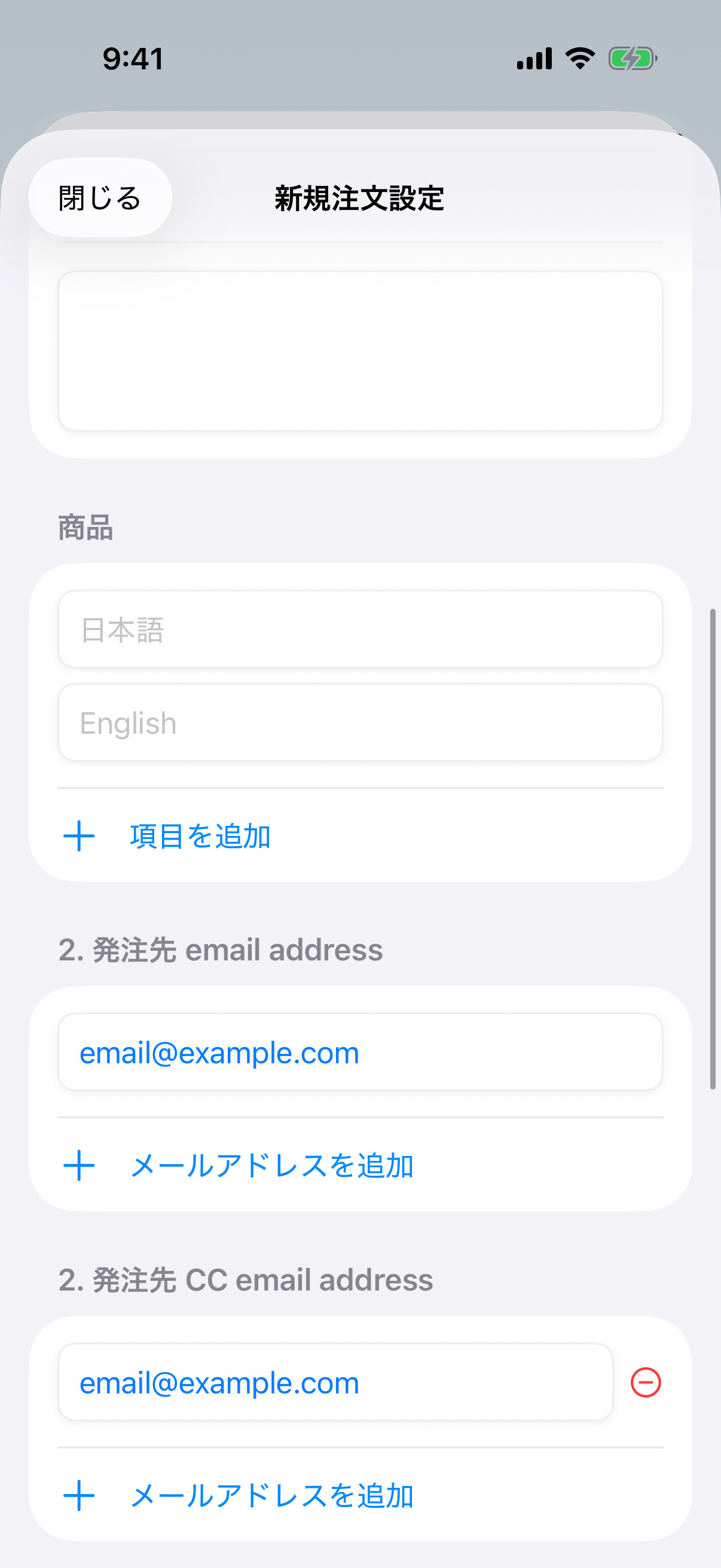
Destination email and CC
Enter the email address that receives submitted orders. These email recipients are separate from the branch audience for Push notifications.
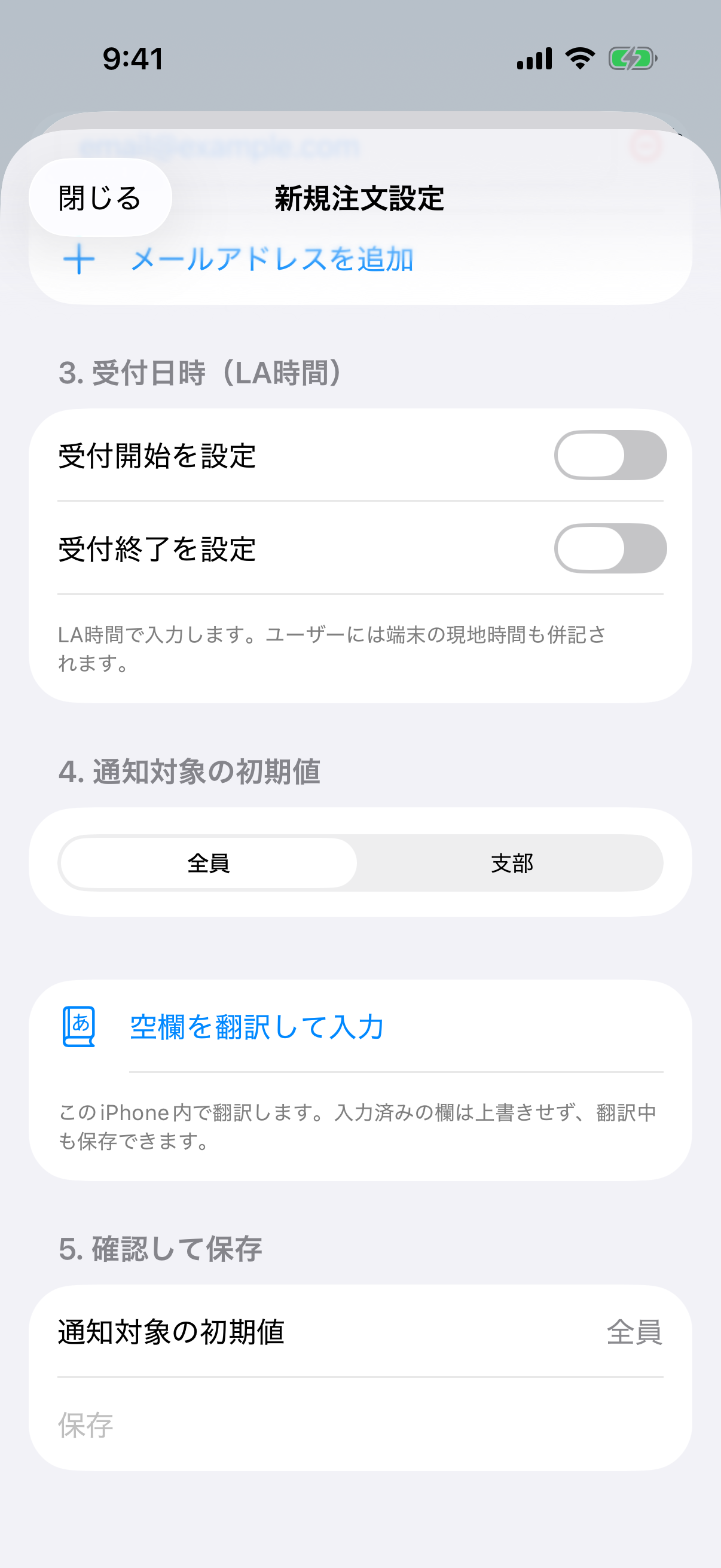
- Supplier To email address is required. Add every recipient who should receive the compiled order.
- Supplier CC email address is optional. Add it only for required copies.
- Enable the optional opening and closing times and enter them in Los Angeles time. If both are used, opening must precede closing. Customers also see local device time.
- Fill blank translations completes only empty Japanese/English title, comment, and item fields; it does not overwrite existing text. A centered progress message appears while translation runs and closes on completion, failure, or cancellation. Save remains available while translation runs.
- Tap Save. A newly saved setup is a draft and is not yet visible on the customer order screen.
Remember defaults for new orders, then choose per order
The branch choices in My branches and order notification audiences synchronize with the branch information in the Verse Card Gallery (branch labels ending in「支部」). Pasadena (Headquarters) is a fixed exception that is not listed in the Blogger gallery. Gallery synchronization never removes it; it is available in both My branches and order notification audiences. Updating those gallery labels can update the list without redistributing the compatible app. Synchronization runs when you open the gallery or its upload screen. The initial or last accepted list stays in use if a change affects 80% or more of the list, the source is empty, or the request fails.
- On the main Order settings page, save the default notification audience for new orders: All members or one or more Branches. This preference is saved on this device.
- Each new blank order opened with + starts with that audience selected. Change it in the creation screen when this order needs different recipients.
- Editing an existing order does not change the device default. Copy as New keeps the source order’s audience.
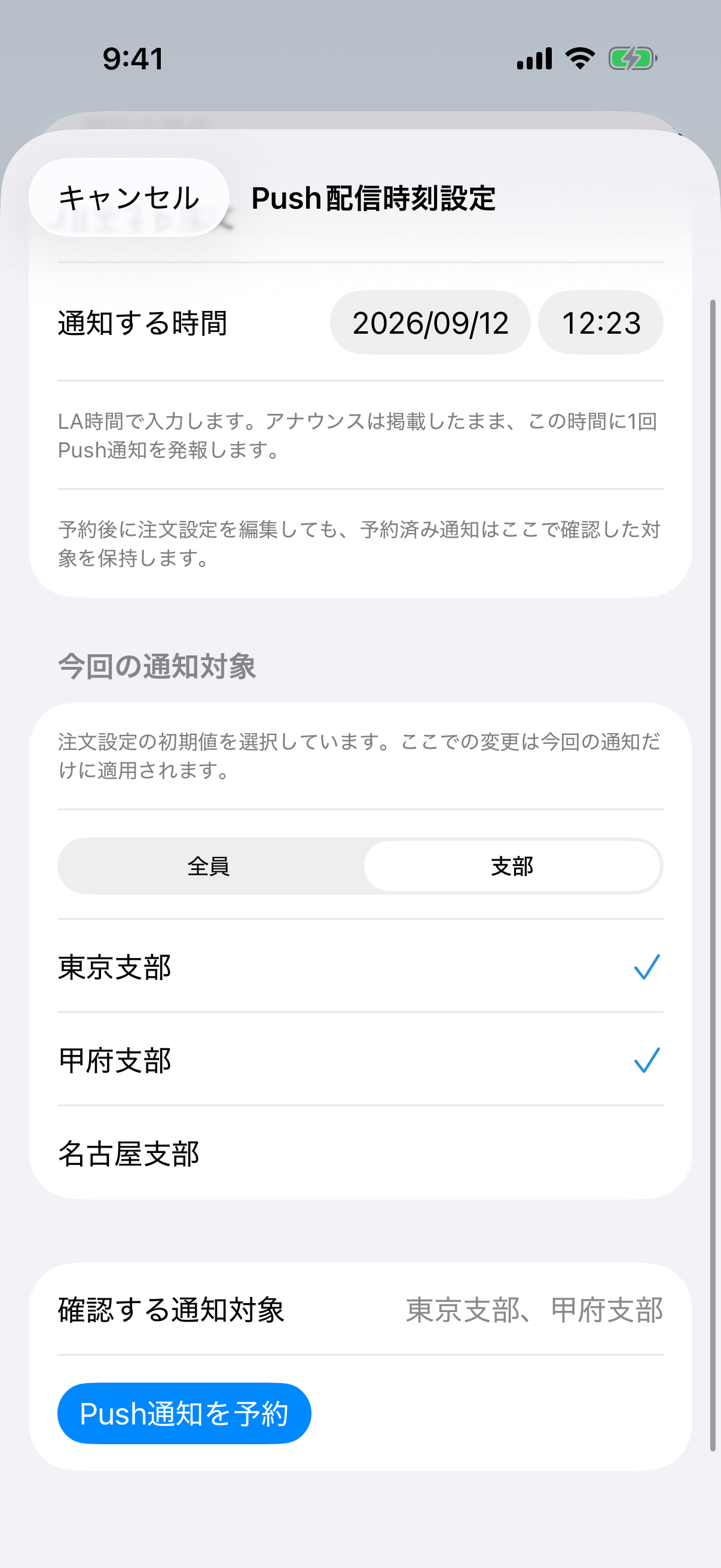
- In each Push delivery time screen, you can choose the audience again for this delivery. Review every branch and the time at the bottom before scheduling. This choice applies only to that reservation.
- Later order edits do not change an existing reservation. To change its audience or time, reopen delivery settings and schedule again. To cancel an unsent reservation, choose Remove from Announcements; this also withdraws the Inbox item.
The test notification goes only to the current Administrator device. Publishing does not send Push by itself. The audience affects the order announcement Push, not access to orders, supplier emails, member confirmations, or the daily site digest.
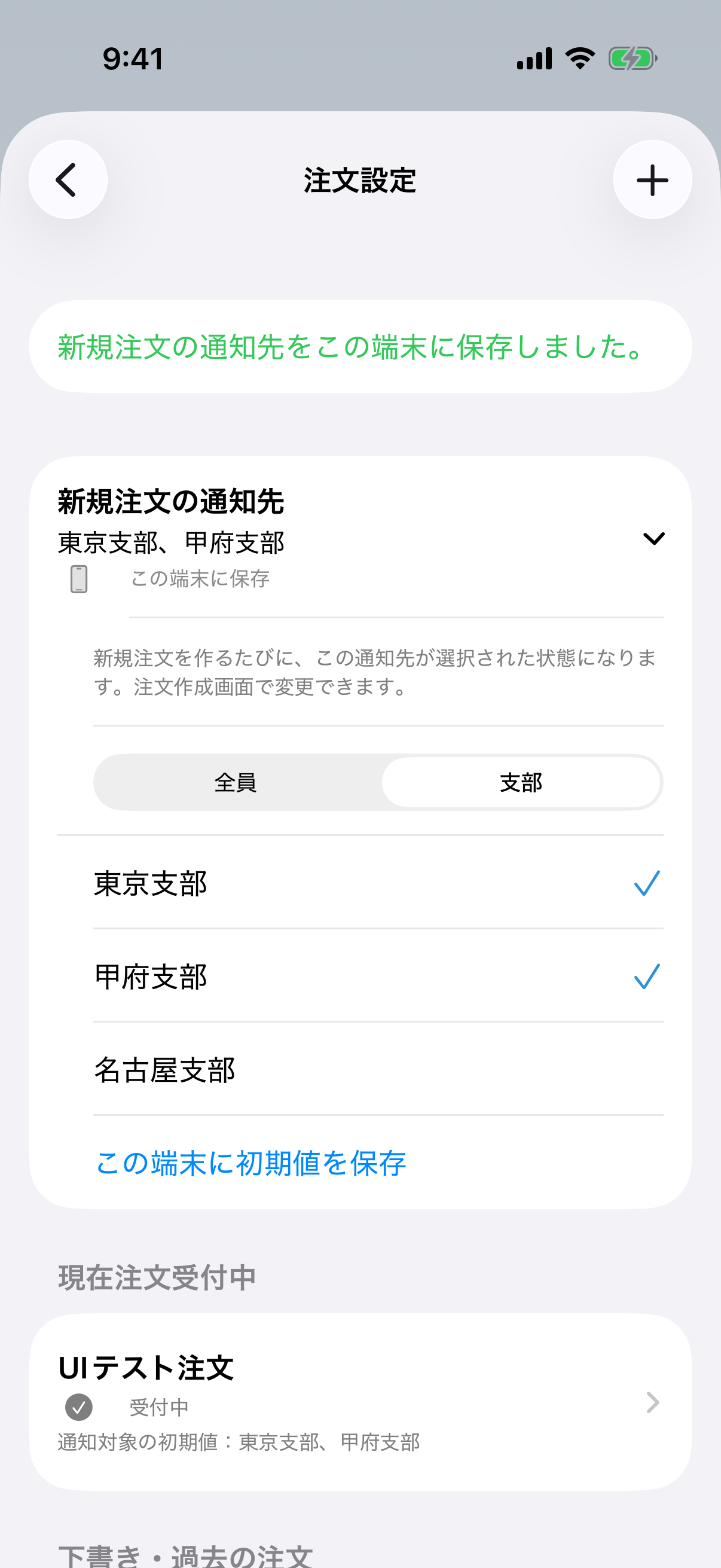
Remember the audience for new orders on this device
Open Default audience for new orders in Order settings, choose recipients, and save on this device. Future new orders inherit that selection. Japanese screen example.
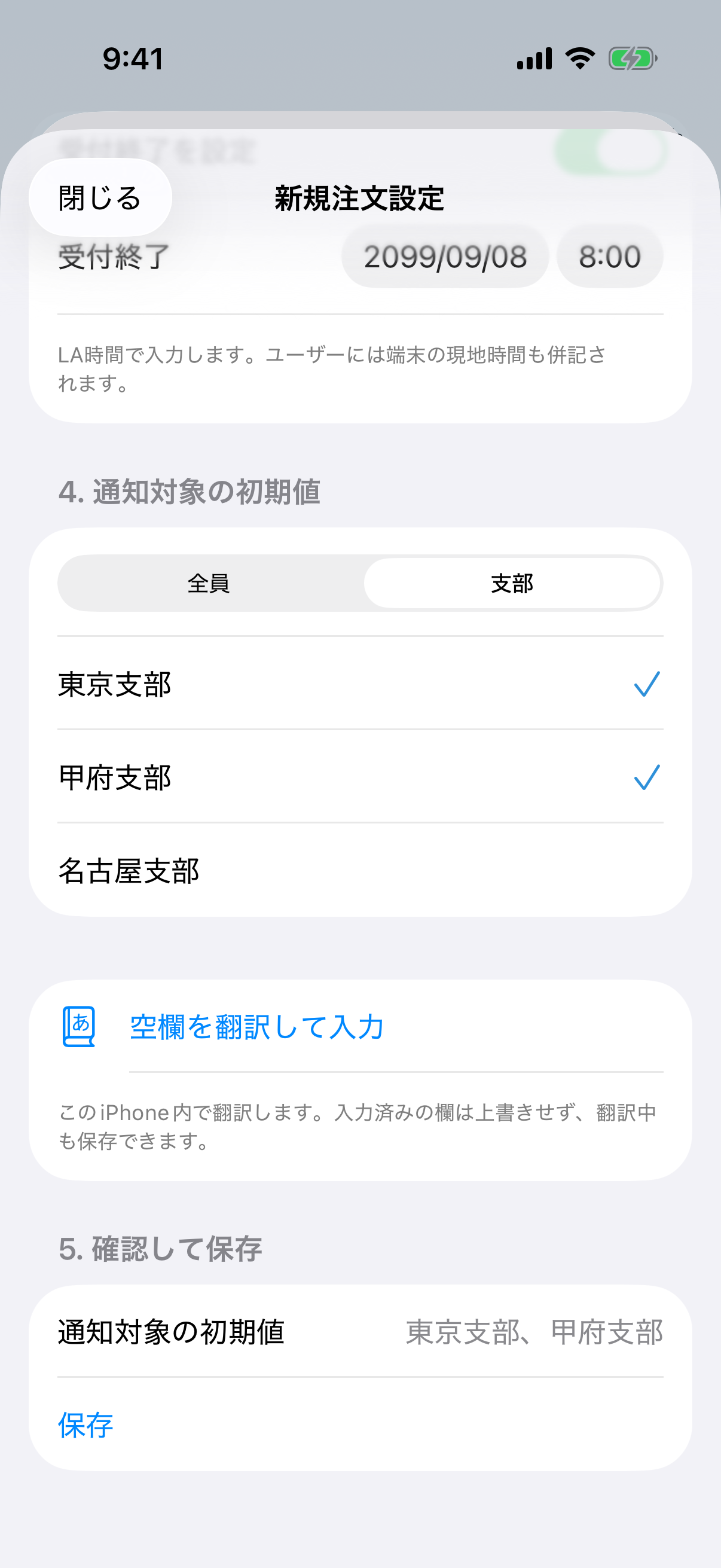
Review the notification audience before saving
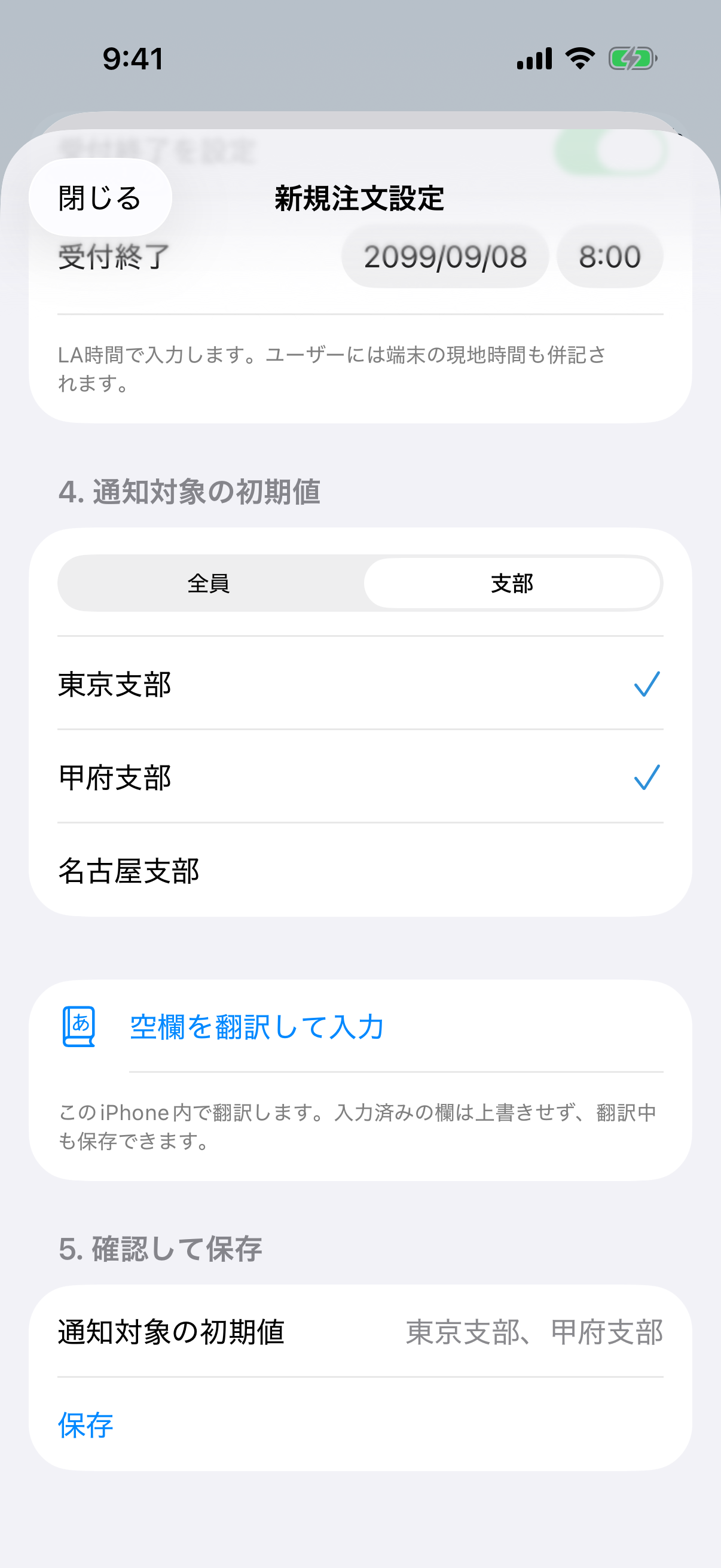
Choose Branches, select one or more names, then review them in the final save section. The Japanese example selects Tokyo and Kofu branches.
Choose Branches, select one or more names, then review them in the final save section. The Japanese example selects Tokyo and Kofu branches.
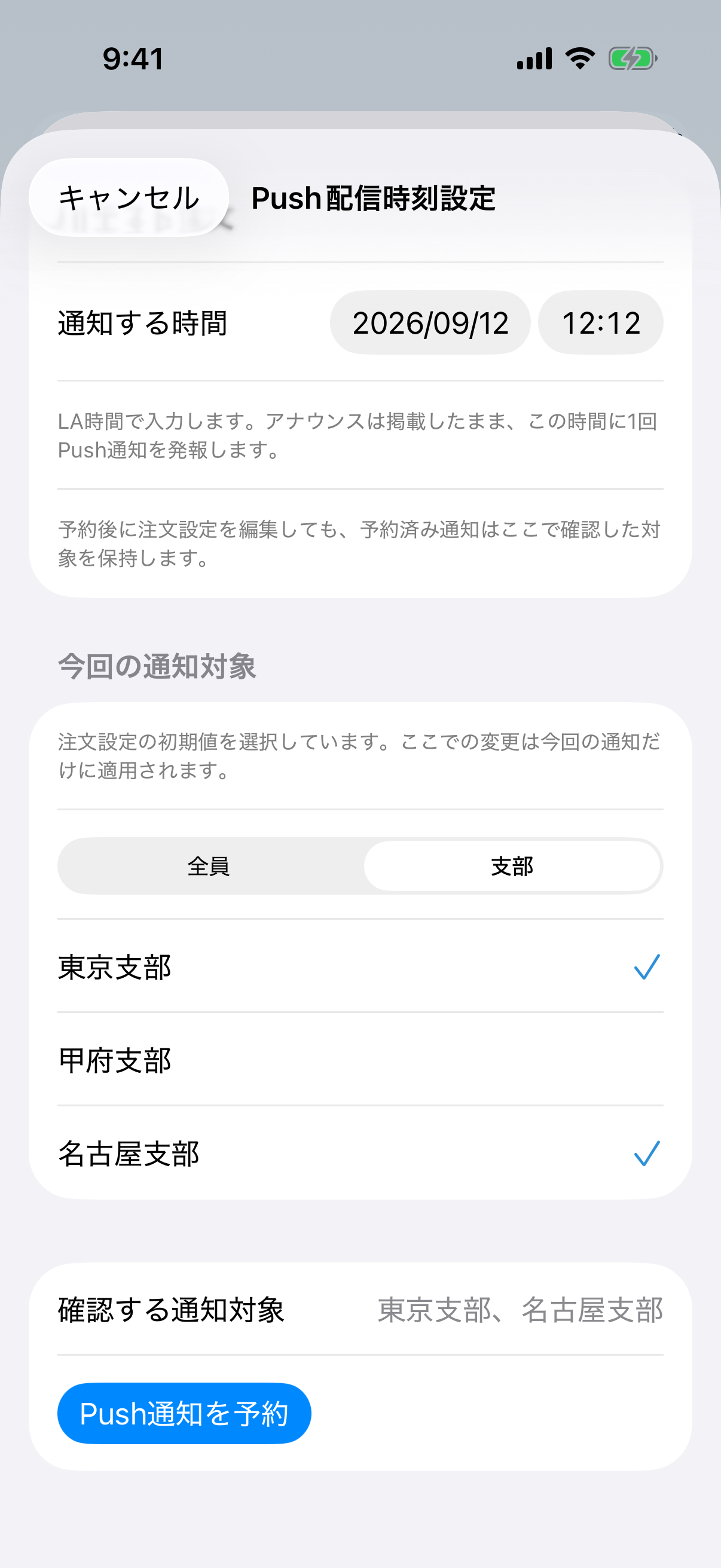
Choose an audience for this delivery
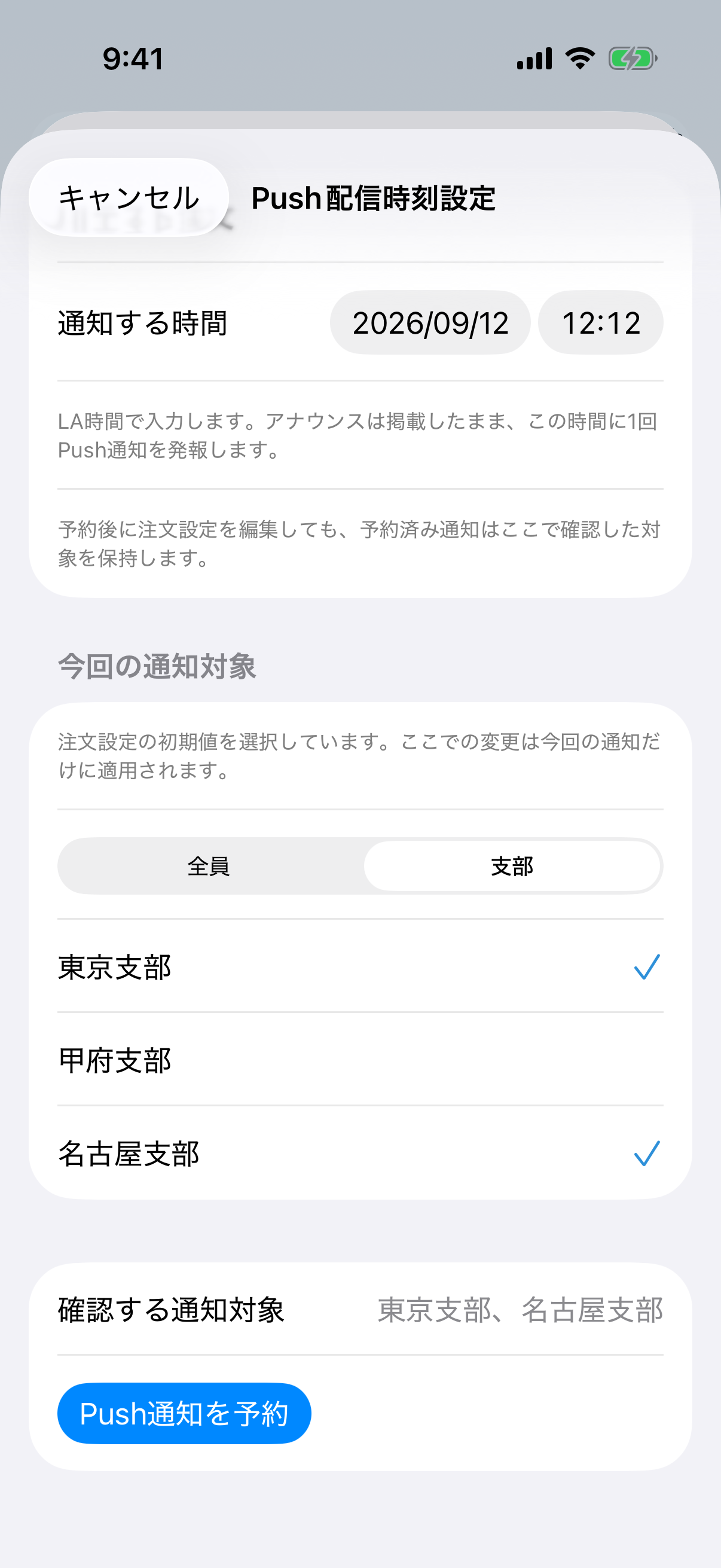
This example changes the order’s Tokyo/Kofu default to Tokyo/Nagoya for this delivery only. Review the selected names at the bottom before scheduling. Japanese screen example.
Choose an audience for this delivery
This example changes the order’s Tokyo/Kofu default to Tokyo/Nagoya for this delivery only. Review the selected names at the bottom before scheduling. Japanese screen example.
Edit an existing order setup
- On the Order Settings list, tap the setup's name-and-status row to open its management screen.
- Under Order setting, tap Edit order setting.
- Change the title, comment, items, recipients, CC, or dates, then scroll to the bottom and tap Save.
- Edits to an open setup affect current ordering. Review Orders before renaming or deleting an item.
- If another Administrator saves concurrently, untouched fields reload from the latest version while your edits remain. Review the result and save again.
- Use Copy as New when the old setup must remain; then recheck title, dates, and recipients.
Open ordering, publish, and test
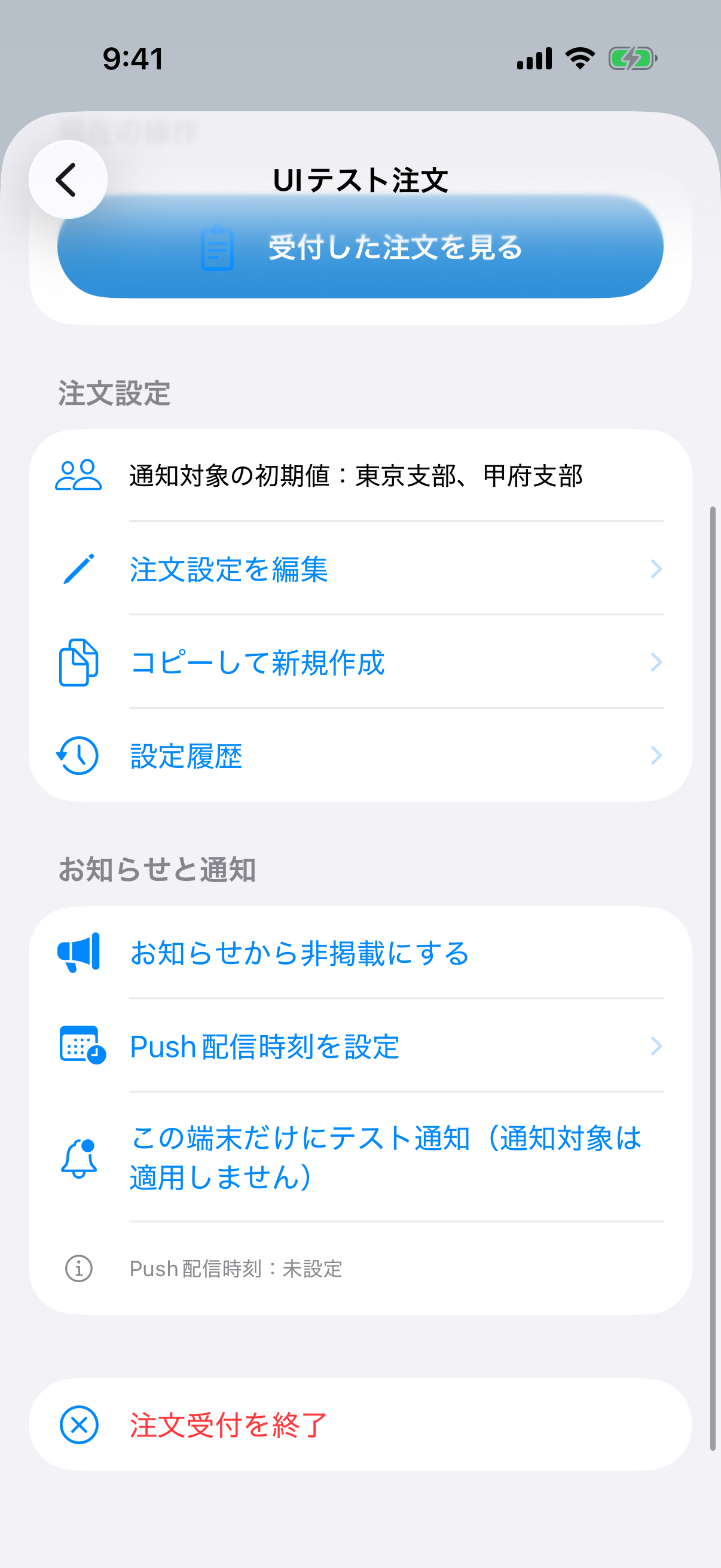
- Start accepting orders makes a draft visible on the customer order screen.
- Publish in announcements adds it to announcements; publication and order availability are separate states.
- Send test to this device sends only to this iPhone. First enable Push under Settings → Notifications and confirm the device is registered.
- A success message means Apple accepted the Push. Focus, iPhone notification permission, or banner settings may still suppress its banner.
- Use Close order acceptance at the bottom to stop acceptance and Reopen orders to resume.
Set the Push delivery time
- After publication, tap Set Push delivery time.
- Choose date and time in Los Angeles time.
- Tap Schedule Push notification. The announcement remains in the Inbox, and one Push is sent at the chosen time.
- Back on the list, confirm the scheduled LA time. After delivery, review accepted and failed counts and any failure state.
Review and share orders
- OrdersReview customer name, email, items and quantities, and comments.
- Create / Share CSVCreate the CSV inside Orders, then share it with an iPhone destination. Confirm the recipient and handling of personal information.
- Settings HistoryReview version, action, date, title, and the Administrator comment recorded for that version.
- Status groupsDistinguish open, awaiting start, draft, and closed setups in the list.
Your copy of the order email
The order email sent to the supplier automatically includes the customer’s email address in CC. A separate customer email is no longer sent. An address already in the recipients is not duplicated. To and CC recipients can see the recipient addresses.
Open what was published or updated
Available in internal TestFlight iOS 1.20 (build 242). These changes are not yet included in the public App Store version. Updated links appear in new announcements created after server support is enabled.
- The site-update Push contains a short summary of update categories and counts.
- Tap the notification to open that announcement's details. Read the titles under Updated pages and videos to see what was published or changed.
- Tap a title once to open the exact page or video. Page titles and destination URLs are not included in the Push text.
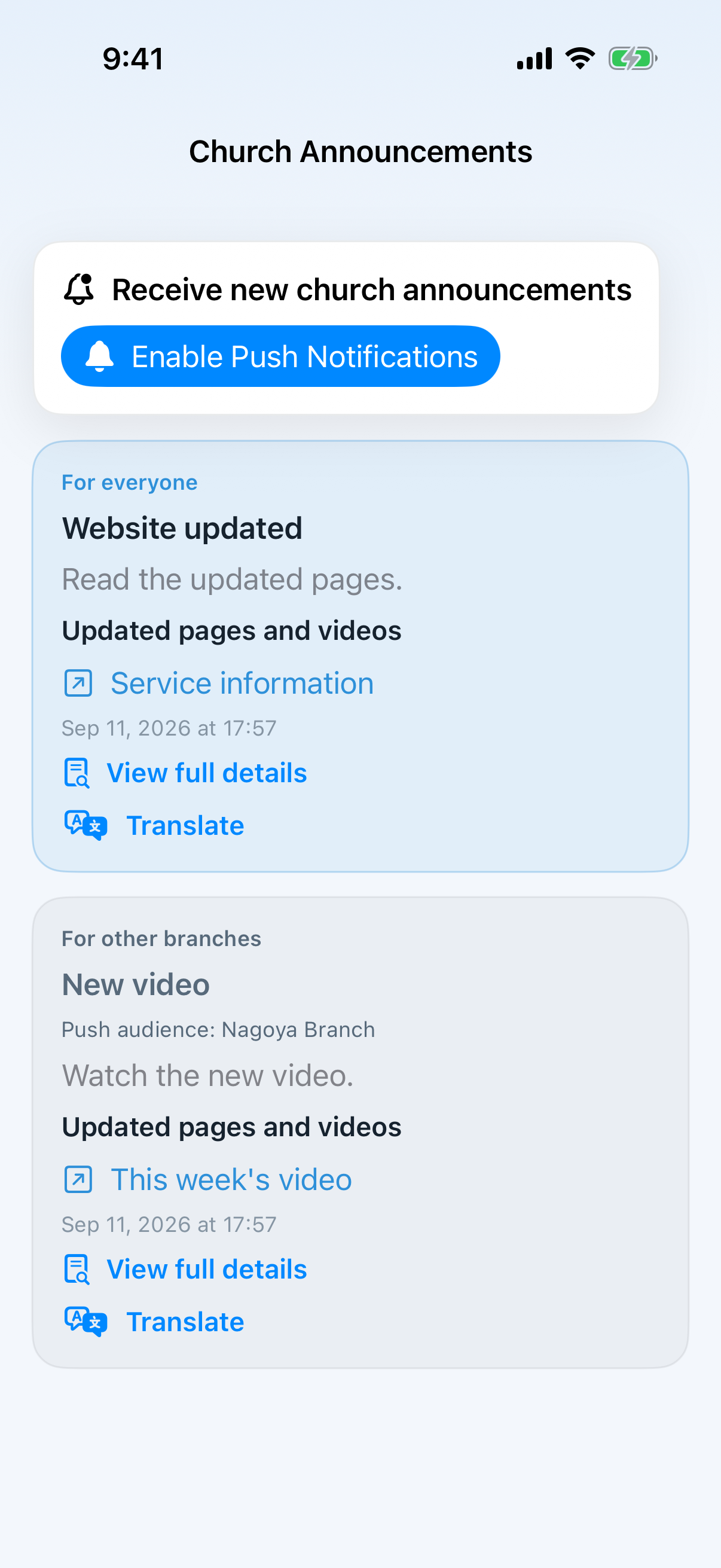
See which pages and videos were published from the Inbox.
Actual iOS 1.20/242 screens with sample content for this guide.
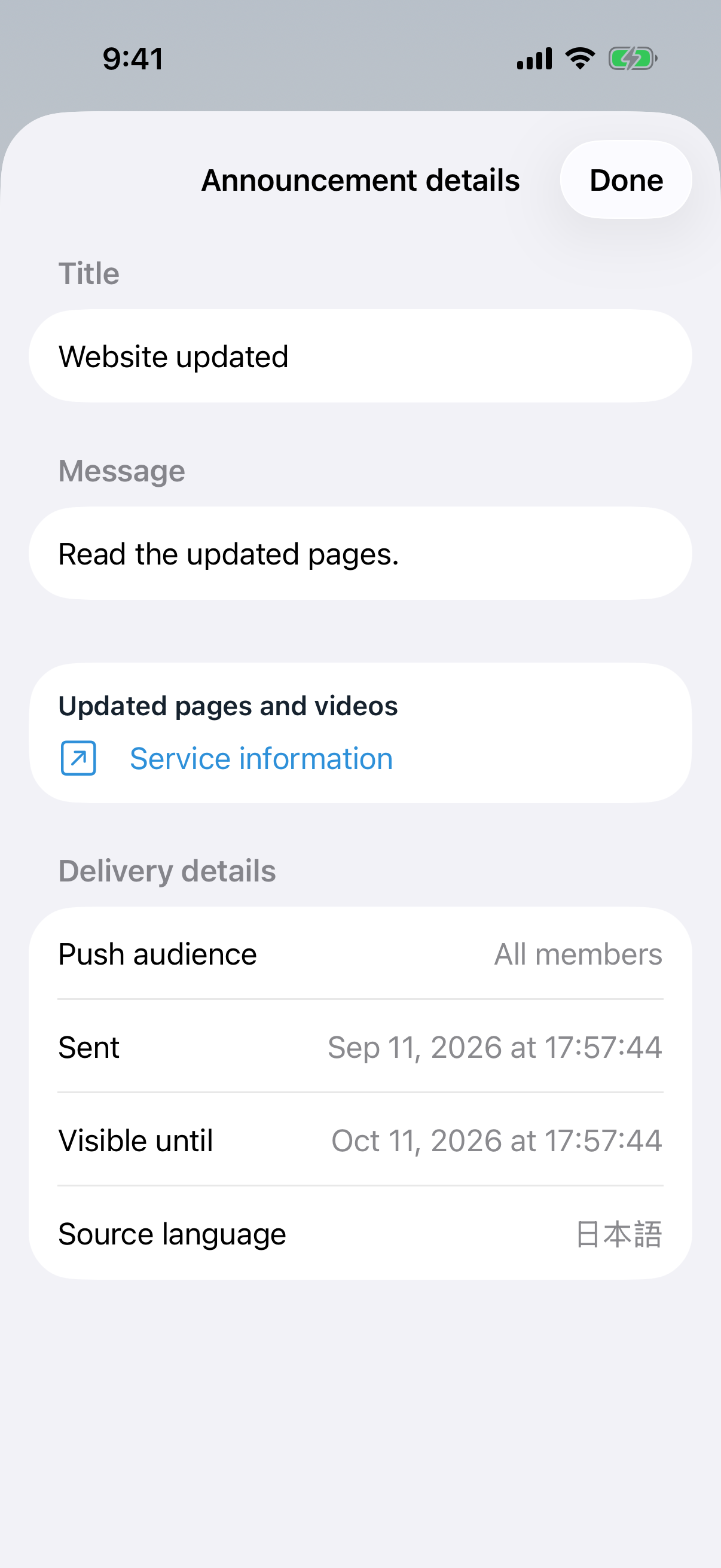
Tap a title in details to open the published page.
Actual iOS 1.20/242 screens with sample content for this guide.
New uploads from Davar Kingdom of God and Jun Asai on YouTube join the daily site-update digest at 8:00 AM Los Angeles time. The first successful fetch establishes a baseline without notifying old uploads. A failed fetch does not turn older videos into new updates on recovery. Instagram, Facebook, and X entries in Links are not currently included in update notifications.
Announcement retention: an announcement with no explicit expiry disappears from the list 30 days after publication. An explicit expiry takes precedence. Expiring an order-related announcement does not delete the order itself. Expired announcements are not shown. A deleted announcement disappears after a successful sync; offline cached announcements may remain visible until their expiry.
Confirm that order acceptance has closed
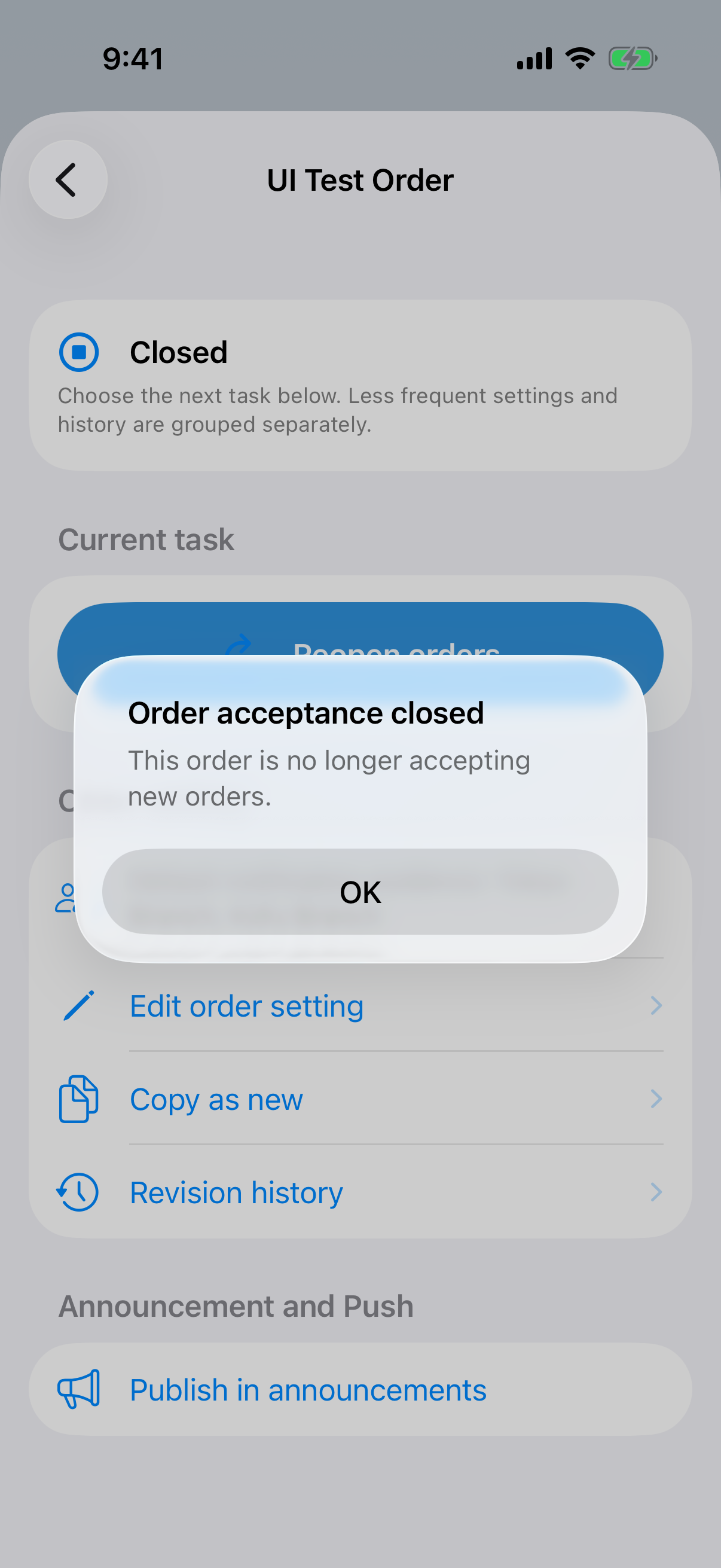
“Order acceptance closed” confirms completion. A failed request shows an error rather than success.
Actual iOS 1.20/242 screens with sample content for this guide.