Menu 3
Memory Verse & Verse Cards
Read this week's verse, find older card artwork, zoom or share it, and post your own finished card to the gallery and Blogger.
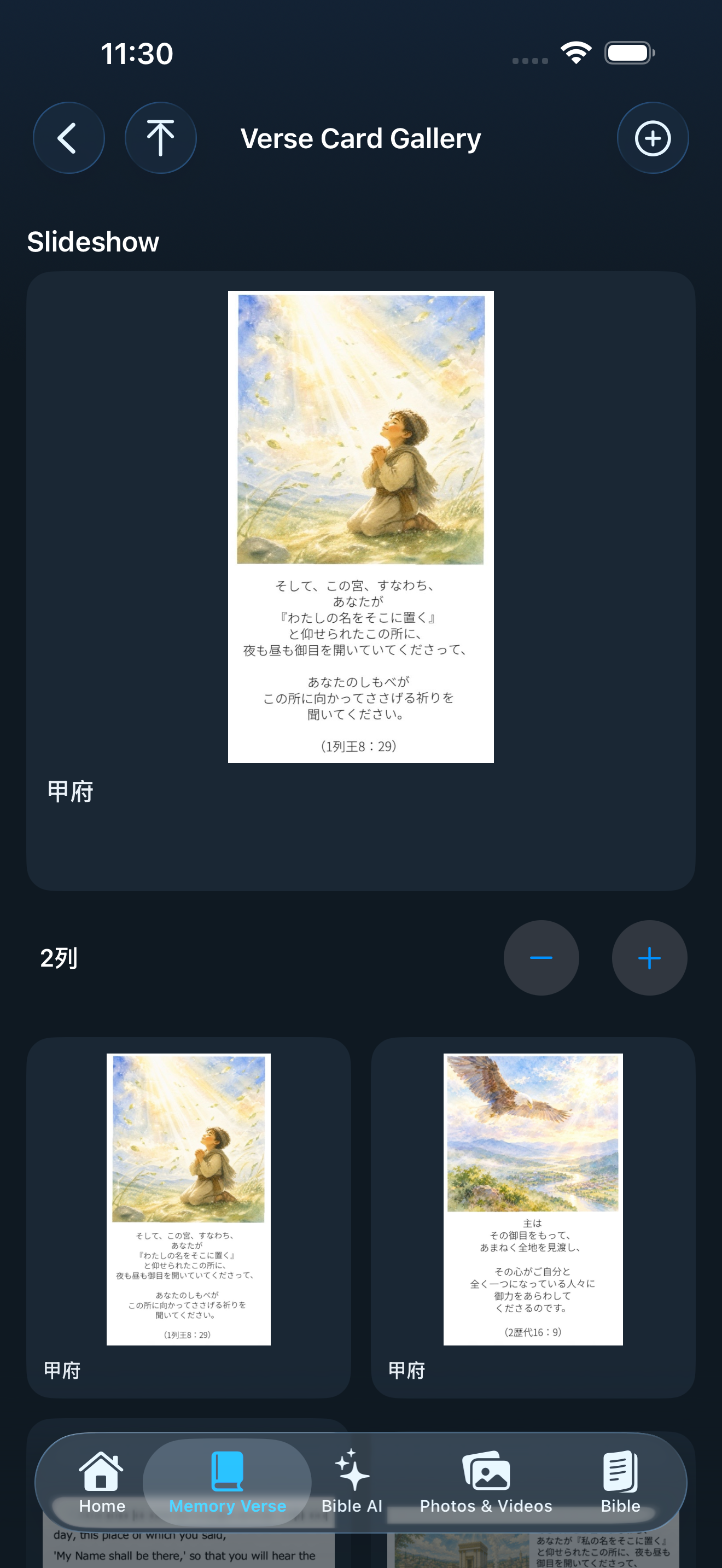
View Cards and browse the gallery
- Tap Memory Verse in the bottom bar or three-line menu.
- Read the Japanese and English verse. Use translation or speech when those actions are shown.
- Tap Verse Card Gallery to see current and older cards.
- Search by title to narrow the continuous card list; there are no page controls.
- Use − / + to change the number of columns. The upward arrow at the upper left returns to the top.
- Tap a card for detail. Pinch to zoom, then pan the enlarged image with one finger and move to adjacent cards.
- Use Share to send the card image to an iPhone share destination.
From a recent Home card to the gallery
Tap a recent Verse Card on Home to open its detail, then tap Show Gallery at the top. Pull down on the gallery list to refresh manually.
In the next app update, the button will say “Opening Gallery…” during the transition and immediately pass cards already loaded on Home into the gallery. An initial load will show a loading indicator and report an empty gallery only after loading finishes. Saved cards will remain available if the connection fails.
Gallery slideshow (iOS 1.22 and later)
- Open Memory Verse → Verse Card Gallery. The slideshow appears above the card grid and combines recent cards with cards from the branches.
- Cards advance about every three seconds. Swipe left or right on the slide to move between them.
- Tap the slide to pause and tap again to resume. In card detail, Gallery appears to the left of Share.
Images are cached before display. If the connection is unreliable, reopen the gallery to check for updates.
Post a Verse Card
- Sign in as User, Operator, or Administrator under Settings → Account.
- Open Memory Verse → Verse Card Gallery → + at the upper right. If signed out, the app first asks you to sign in.
- Choose one finished card image and rotate it when needed.
- Enter the public title and an optional comment.
- Choose Blogger labels. To include the post in the app gallery, select the exact みことばカード label.
- Tap Upload once and keep the screen open through the completion message. Replacement with Blogger-hosted media may continue afterward.
- Card detailReview the title, date, and image, then zoom, move between cards, or share.
- Display controlsCombine title search and column count to browse a large archive efficiently.
- ManagementAdministrator can edit title, comment, and labels, rotate the image, or delete the post. See the role comparison.
- Public contentThe image, title, and comment are public. Remove personal information and confirm permission.
Uploaded but missing from the gallery? A Blogger post will not appear in the app without the exact “みことばカード” label. Check the labels in Edit. Use one finished image no larger than 10 MB.