Menu 5
Photos & Videos
Browse the public church gallery, post approved media from Photos, Files, or a public cloud-share URL, or add a YouTube video card from its URL.
Three upload choices (iOS 1.32; available since October 24, 2026)
- Choose from Photos: select media from the photo library.
- Choose Files: select original files on Mac or in Files.
- Upload from URL: paste a supported link into the field labeled URL. For cloud shares and public Instagram videos, use Review Contents, select candidates, and start the import. For YouTube, use Add video to create a playback card.
Instagram /reel/, /reels/, /p/, and account-prefixed video links are supported for public single-video posts. Private, sign-in-required, image-only, and multi-item posts cannot be imported. Select only material you have the rights or permission to use.
Existing supported cloud URLs use this same field. Awaiting selection means the candidates need your review and selection; a transfer has not started. YouTube adds a playback card without downloading the original video. The figures and four-choice instructions below show the interface in1.31 and earlier.
Browse the gallery
- Tap Photos & Videos in the bottom bar, or open three-line menu → Media → Church Photos & Videos.
- Choose the general gallery or an event gallery such as 2026 JBS or 2026 SBS, then filter by event, photo/video type, or tag.
- Change the column count, then tap an item for full-screen viewing.
- Pinch a photo to zoom and pan with one finger. Move between adjacent items and use Share.
- For video, use play/pause and sound controls; picture-in-picture is available on supported devices. YouTube video cards play in the YouTube player.
- On iPhone and iPad, rotating the viewer to landscape hides the album actions along the bottom so the video controls remain accessible. Rotate back to portrait to use Download, Share, or management actions. The Close button remains available in landscape.
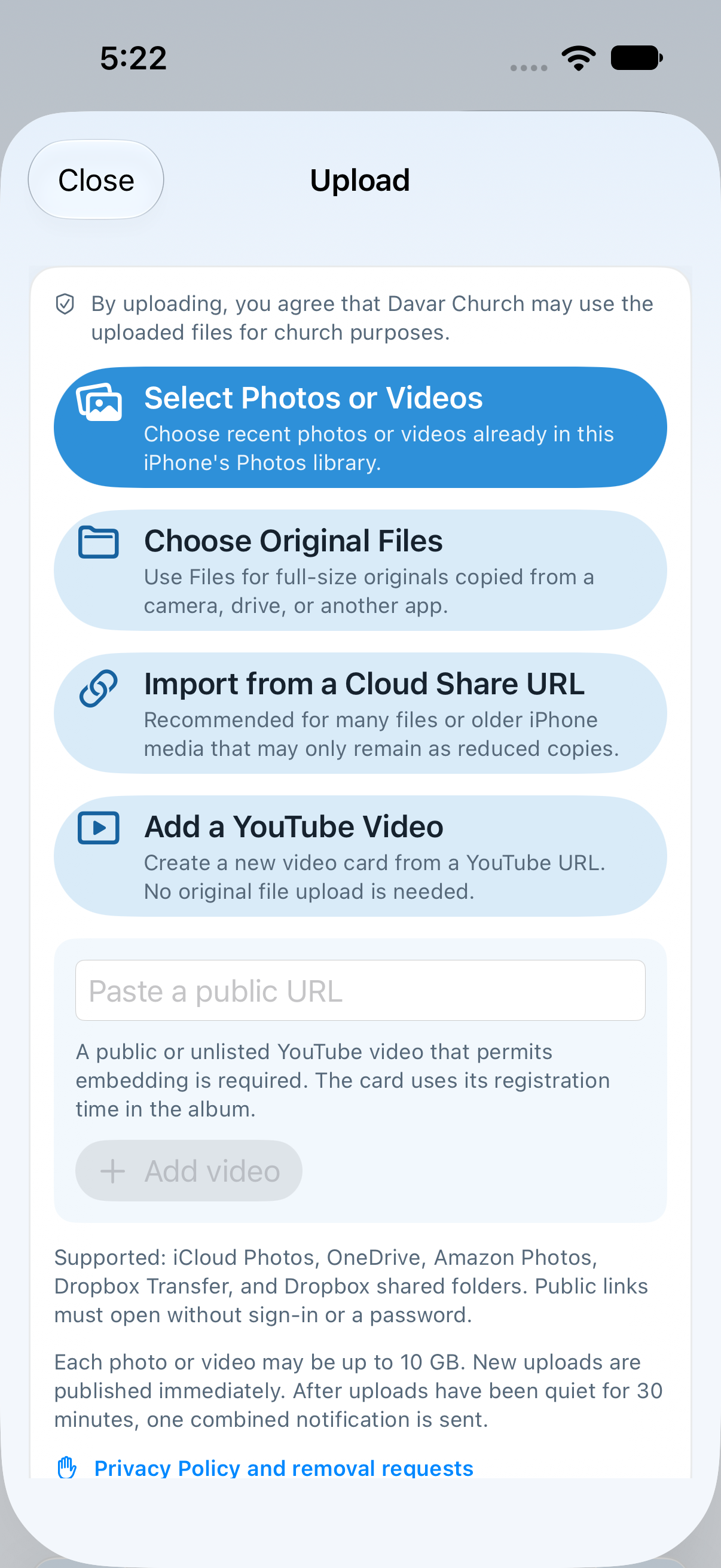
Start an upload
- Sign in as User or above under Settings → Account.
- Open the correct general or event gallery and tap Upload.
- Read the publication and church-use consent notice. Continue only when every selected item is approved.
- Select Photos or Videos is for recent items in the iPhone Photos library; Choose Original Files is for full-size material saved to Files from a camera, drive, or another app; Cloud Share URL is recommended for large collections or older media.
- Posting from an event gallery automatically applies the 2026JBS or 2026SBS event tag.
- Review and start. Each new item is published when it finishes; one summary notification is sent 30 minutes after the last new upload.
Add a video card from a public YouTube URL
- Sign in with an account that can contribute, then open Upload Photos & Videos from the Public tab.
- Choose Add a YouTube Video, paste the video URL in the field labeled “Paste a public URL,” and tap Add video.
- Use a public or unlisted video that permits embedding. A separate public card appears in the album, ordered by its registration time. An already uploaded original video remains a separate public card.
- Sharing a YouTube card shares its watch URL. It has no original-file download button. An original video uploaded from the device still supports its own download and sharing actions.
When downloading or sharing an uploaded original video, the app shows a percentage and lets you cancel preparation. Use a stable connection for large files.
Cloud Import from a URL
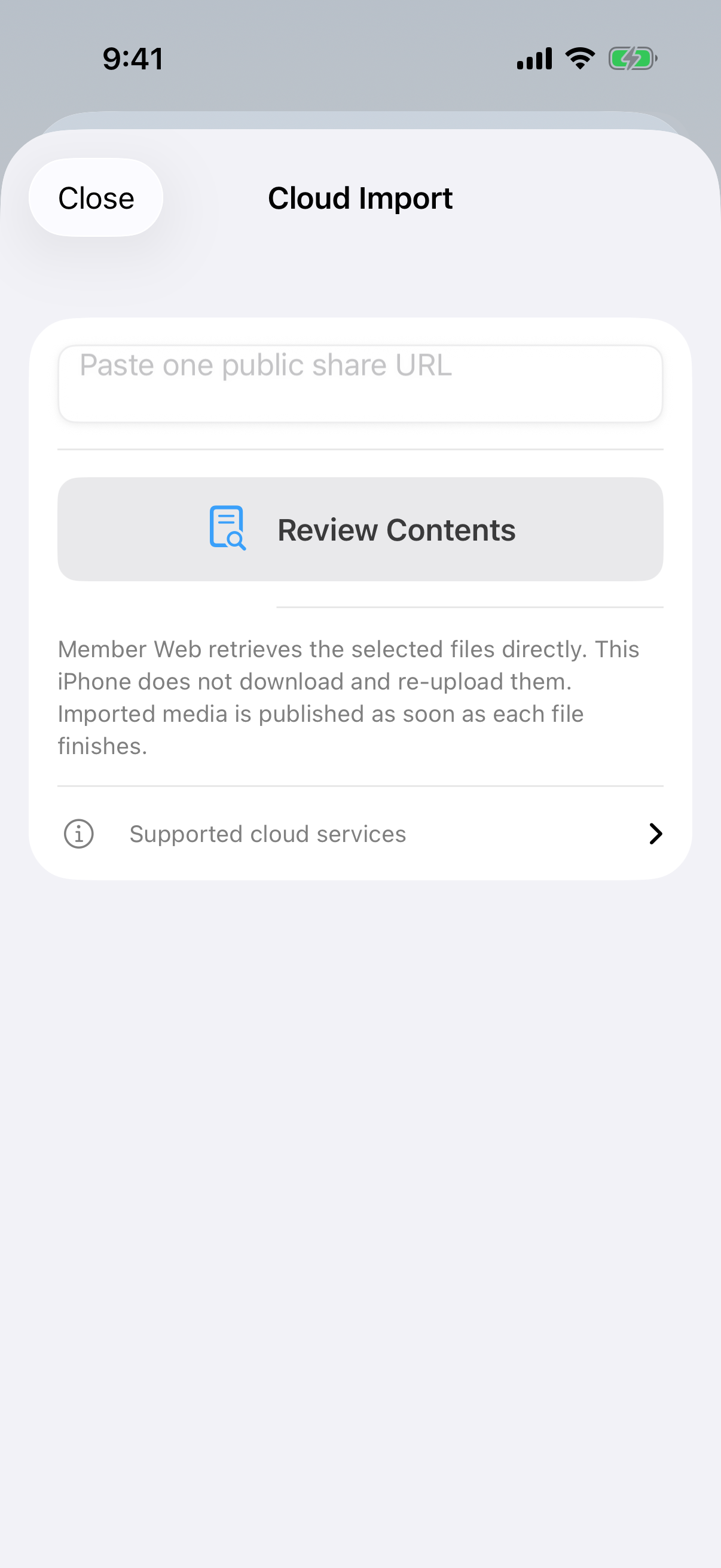
- Tap Import from Cloud Share URL.
- Paste one public share URL that opens without sign-in or a password. Then tap the blue Review Contents button when it becomes enabled.
- The Church server fetches the list and original candidates directly from the cloud. The iPhone does not download and re-upload the whole collection.
- Review the candidates and start only the needed photos or videos. Cloud import supports up to 2,000 items and 10 GiB per file.
Identify and retry failures
The app and server retry temporary failures first. A device item that still cannot finish remains in Upload Queue with a thumbnail when available, photo/video type, original file name or a type-qualified selection order, capture time when available, and failure reason. Retry only that item after an upload failure; if reading or preparation failed, choose it again from the source screen. Do not repost the successful part of the batch.
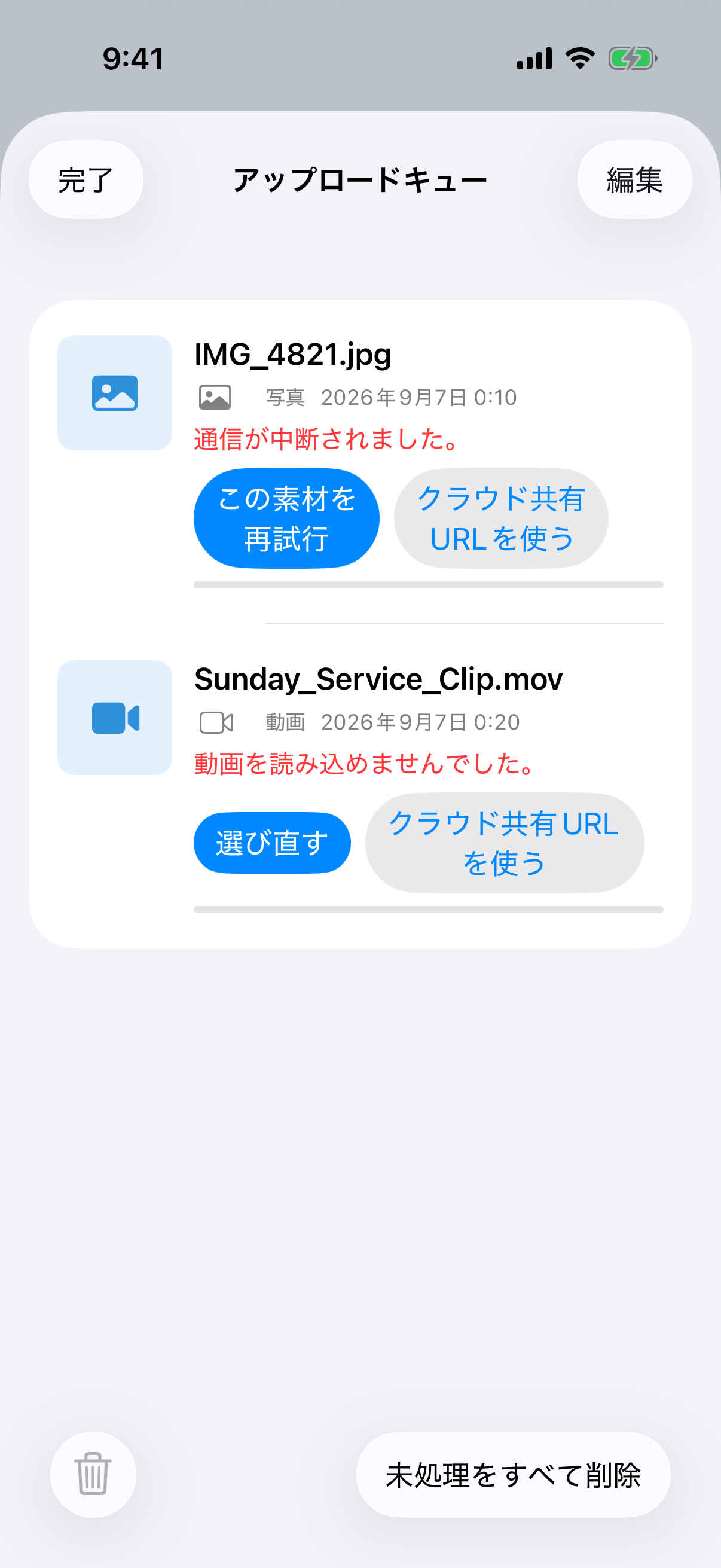
- Connection failureCheck Wi-Fi or cellular data, then tap Retry this item for the named failure. Use stable Wi-Fi for large video. Choose again is only for an item the iPhone could not prepare.
- Cloud retrieval failureCheck link expiration, public access, sign-in, and password requirements. Create a new public link and run Review Contents again.
- From iPhoneSelect up to 500 items at a time. Keep the app open until they enter the queue and check the remaining count.
- Administrator toolsAdministrator can use bulk tag editing, rotation, deletion, and photo download-size selection. See the role comparison.